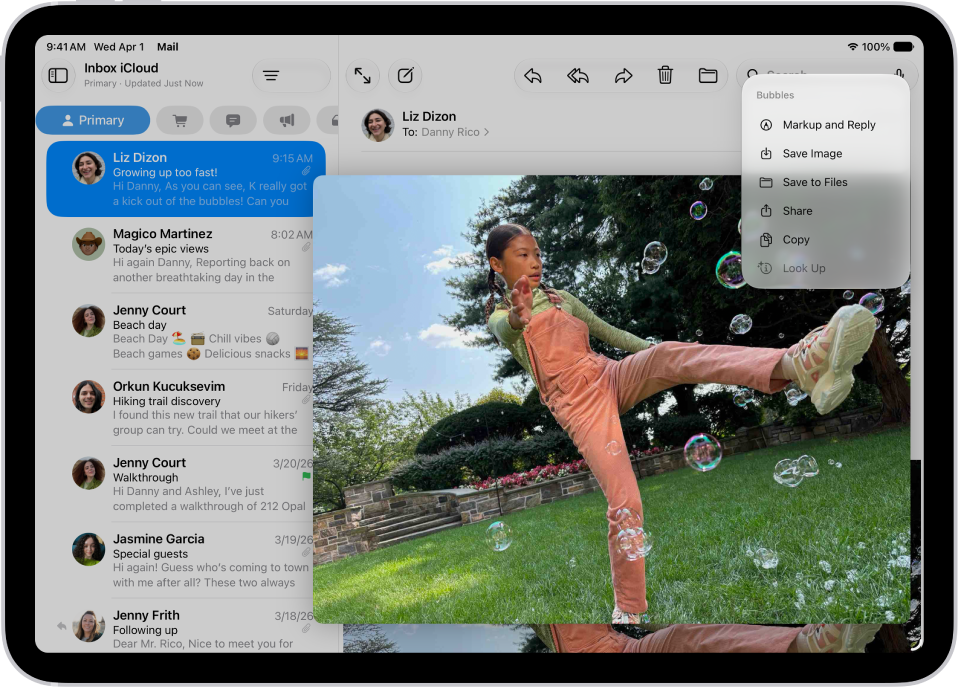
On iPad, in the Mail app, you can print a message or an attachment. You can print an email, or print an attachment or picture, right from the Mail app on your iPad. And you can add email attachments in Mail on iPad, or print from iPad in other apps, too.
Print an email
- Open the Mail app on your iPad.
- In the message, tap the More Actions button in the bottom-right corner and tap Print.
Print an attachment or picture
- Open the Mail app on your iPad.
- Tap an attachment to view it, tap the Share button, and choose Print.
See also