How to see the time worldwide in Clock on iPad

You can see the time worldwide in Clock on iPad, add and reorder cities, and ask Siri for the time in another city.

By Stacey Butler - Senior Staff Writer
1 Min Read

On iPad, you can see the local time in time zones around the world. In the Clock app, World Clock lets you manage your list of cities, so you can add a city, delete a city, or reorder the cities. You can also set an alarm in Clock on iPad.

Siri: Ask Siri something like: “What time is it?” or “What time is it in London?” Learn how to use Siri.
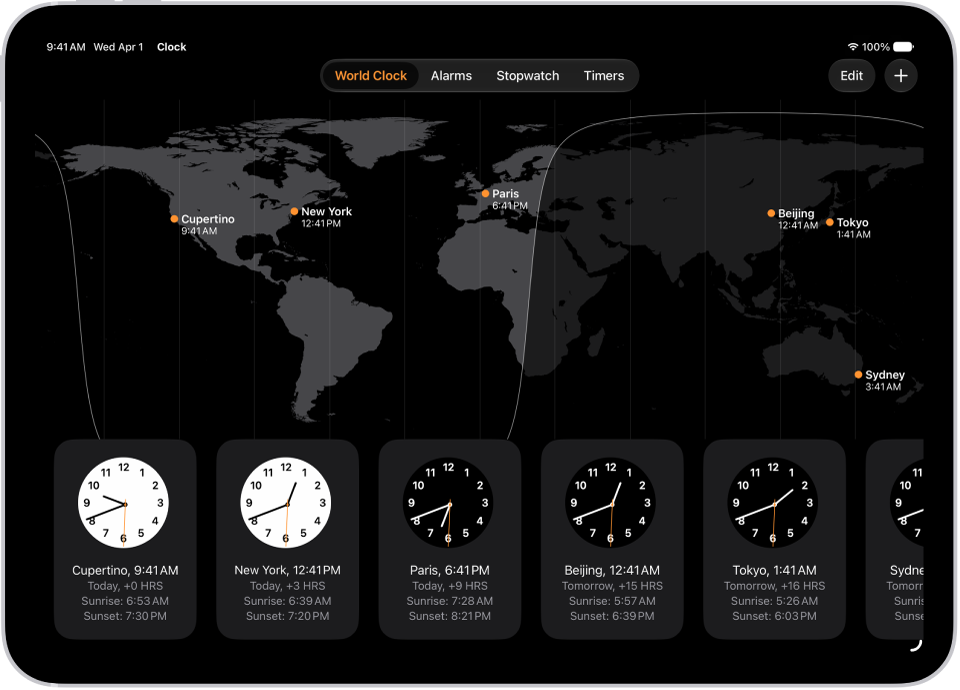
The World Clock tab, showing the time in various cities. The Edit button near the upper-left corner lets you reorder or delete clocks. The Add button near the upper-right corner lets you add more clocks. World Clock, Alarm, Stopwatch, and Timers buttons are along the bottom.

  1. Start the Clock app on your iPad.
  2. Tap World Clock.
  3. To manage your list of cities, do any of the following:
    • Add a city: Tap the Add button and choose a city.
    • Delete a city: Tap Edit, then tap the Delete button. When you’re finished, tap the Done button.
    • Reorder the cities: Touch and hold a clock and drag it to a new position.

See also

TAGGED:
Senior Staff Writer
Follow:
Stacey is a senior staff writer at GeeksChalk and has been writing about Apple for nearly a decade. She covers all things Apple for GeeksChalk, including iPhones, iPads and Mac. Based in Honolulu, Hawaii, Stacey is often found hiking precarious landscapes or tinkering with a camera.
Leave a Comment