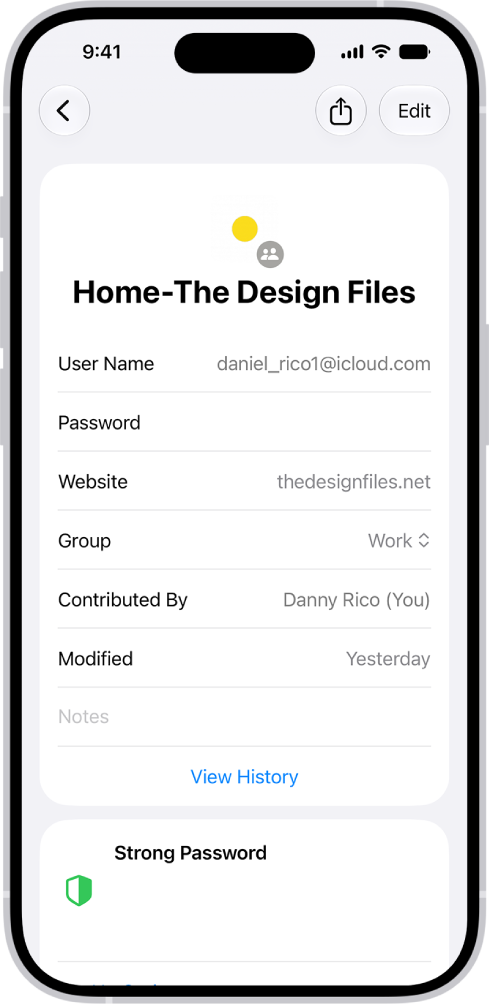
On iPad, when you enter a password for a website, you’re asked if you want the password saved and entered automatically in the future. You can see all the websites for which you’ve chosen to never save the password.
You can also remove a website from the list, or remove them all. The next time you enter your password for that website, you’ll be asked again whether to save it. And you can automatically fill in strong passwords on iPad, too.
- Open the Settings app on your iPad.
- Tap Apps and tap Passwords.
- Below Save Passwords, tap Show excluded websites.
The list includes all websites for which you’ve opted not to save your password.
Tip: You can remove a website from the list. Swipe left on the website, or tap Remove All. The next time you enter your password for the website, you’ll be asked if you want the password saved and automatically entered in the future.
See also