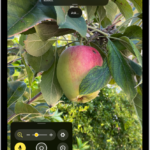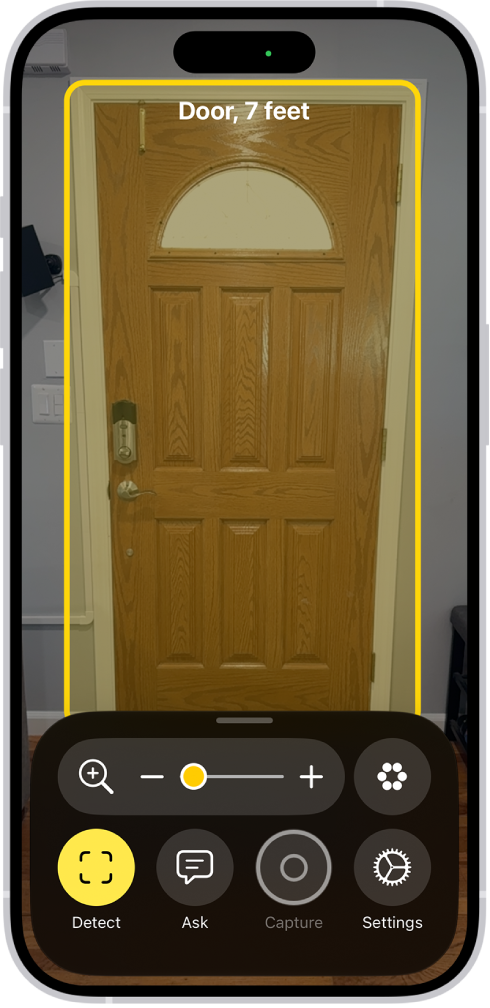
On iPhone, you can set up a shortcut to quickly start Live Recognition when VoiceOver is on. If VoiceOver is off, the shortcut opens the Magnifier app in Detection Mode instead. There’s more than one way to do it: you can use a VoiceOver gesture, assign a different gesture, or use the Accessibility Shortcut.
- Use a VoiceOver gesture: When VoiceOver is on, triple-tap the screen with four fingers to turn Live Recognition on or off.
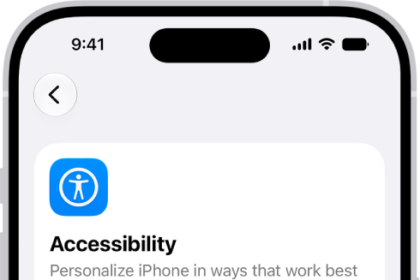
- To assign a different gesture, go to Settings > Accessibility > VoiceOver > Commands > Touch Gestures.
- Triple-click the side button or Home button: Go to Settings > Accessibility > Accessibility Shortcut, then select Live Recognition.
- Tap the back of iPhone: Go to Settings > Accessibility > Touch > Back Tap, choose Double Tap or Triple Tap, then choose Live Recognition.
- Press the Action button: Customize the Action button to start Live Recognition.
Note: The Action button is available on supported iPhone models.