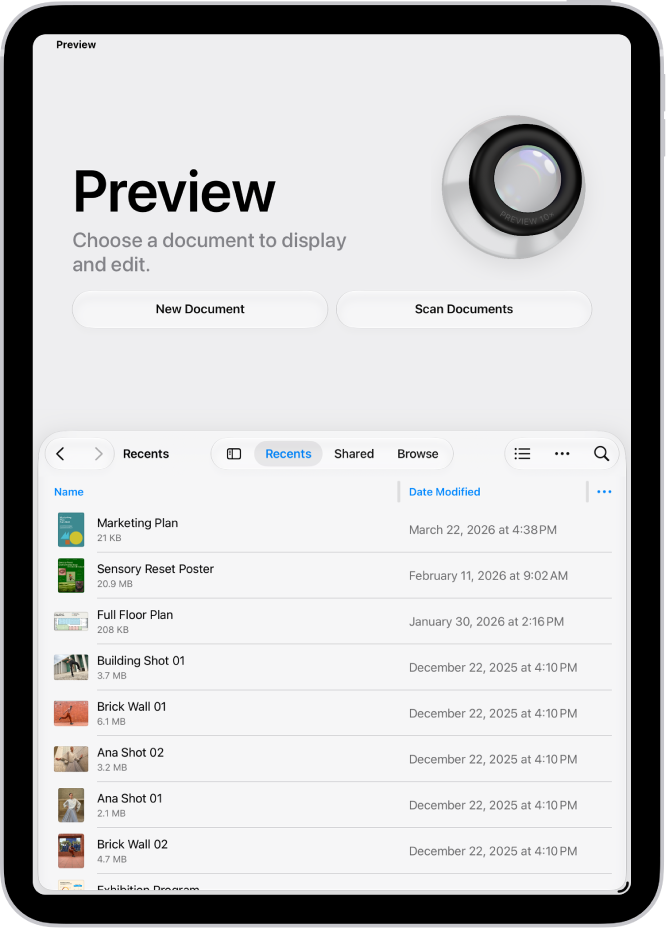
You can manage PDFs and images in the Preview app on your iPad. You can save the file and return to the main menu, copy the PDF or image to the Clipboard, or export a PDF or image in a different format. You can also create a duplicate, move the file, or rename it.
- Go to the Preview app on your iPad.
- Open a PDF or image.
- Do any of the following:
- Save the file and return to the main menu: Tap the Back button.
- Rename the file: Tap the Actions Menu button next to the filename and tap Rename. Enter a new filename and tap the Done button on the onscreen keyboard.
- Copy the PDF or image to the Clipboard: Tap the Share button, then tap Copy.
- Create a duplicate: Tap the Actions Menu button next to the filename. Tap Duplicate.
- Export PDF or image in a different format: See Export or compress PDFs and images.
- Move the file: Tap the Actions Menu button next to the filename and tap Move. Tap the Actions Menu button next to Preview and select a new location.
See also