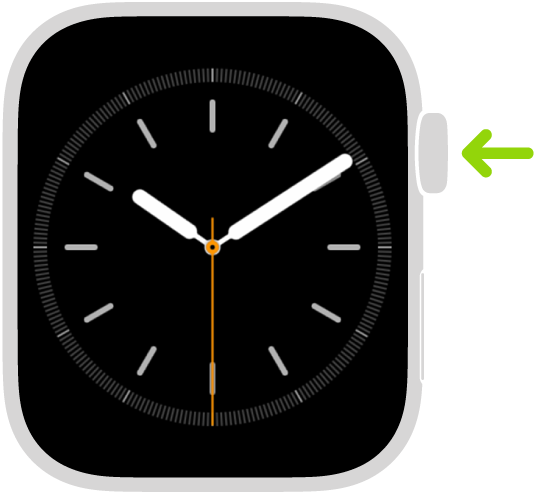
On Apple Watch, you can set the Digital Crown to turn these accessibility features on or off with a triple click: AssistiveTouch, Control Nearby Devices, Left/Right Balance, Reduce Motion, Reduce Transparency, Touch Accommodations, VoiceOver, or Zoom. If you set up more than one, you choose a feature each time.
Set the Accessibility Shortcut
- Open the Settings app on your Apple Watch.
- Go to Accessibility, tap Accessibility Shortcut, and tap to put a checkmark next to each feature you want to turn on or off using the shortcut.
You can also go to the Apple Watch app on your iPhone, tap My Watch, go to Accessibility > Accessibility Shortcut, then choose an option.
Use the shortcut
- Press the Digital Crown quickly three times.
If you’ve set up the shortcut to turn more than one feature on or off, choose a feature, then tap Done.
- Triple-click the Digital Crown again to turn off the accessibility feature.
See also