You can customize the sounds that Apple Watch plays for different types of alerts and notifications. Choose from several built-in sounds to help you distinguish between different types of alerts.
Each sound has a synchronized haptic pattern that you can feel as taps on your wrist, and you can preview it before you choose. You can make these changes on your iPhone, too, in the Apple Watch app.
Here’s how to choose alert sounds and haptics on Apple Watch.
Preview and choose alert sounds and haptics
- Open the Settings app on your Apple Watch.
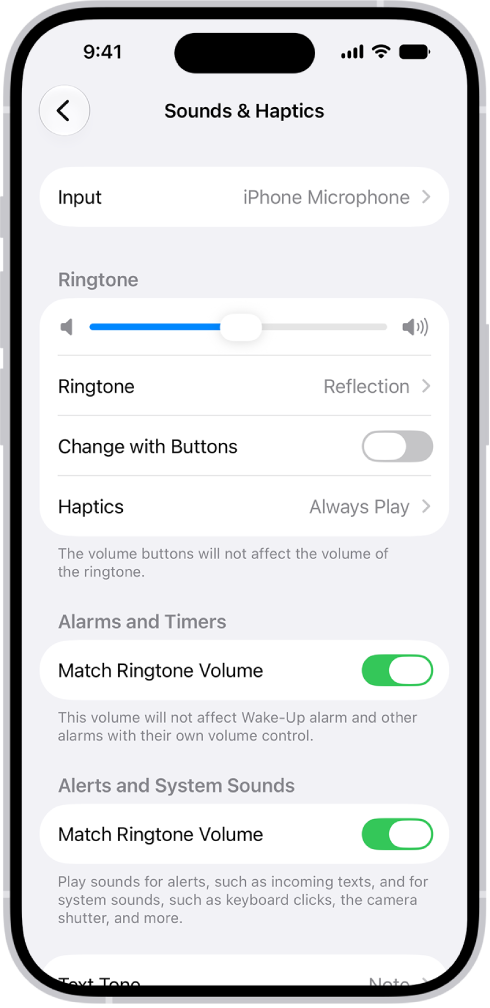
- Tap Sounds & Haptics.
- Tap Ringtone, Text Tone, or another category.
- Choose a tone to preview the sound and haptic pattern.
You can also make these adjustments on your iPhone—go to the Apple Watch app, tap My Watch, then tap Sounds & Haptics.
See also