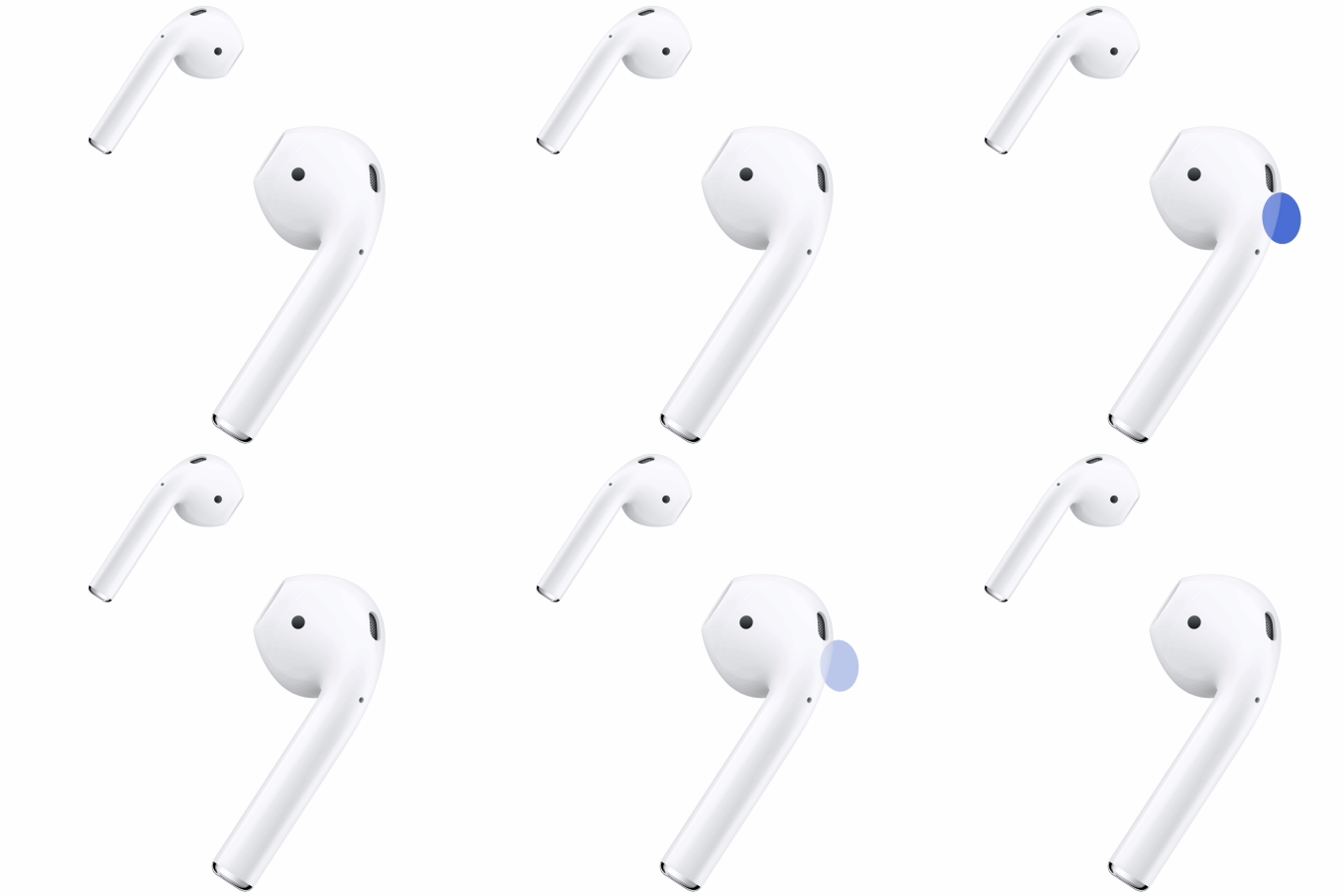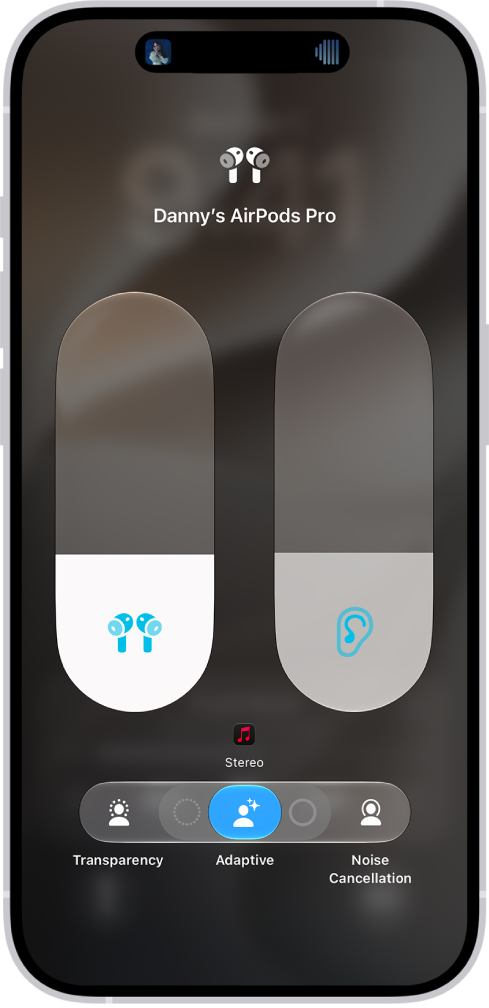
With AirPods Pro in Transparency mode, you can listen to audio and still hear the world around you. You can customize Transparency mode by adjusting amplification, balance, and tone, or reduce the amount of ambient noise you hear.
There are other headphone accommodation features, too. Own Voice Amplification adjusts the amplification of your own speech, and Conversation Boost helps you focus on the person talking in front of you. You can also turn off Loud Sound Reduction for Transparency mode and Adaptive Audio.
Customize Transparency mode
While you listen to audio on AirPods Pro, Transparency mode keeps the world around you audible, and you can customize Transparency mode by adjusting amplification, balance, and tone.
- Wear your AirPods, and make sure they’re connected to your device.
- Do one of the following:
- iPhone or iPad: Go to the Settings app, then tap Accessibility. Tap Audio & Visual, tap Headphone Accommodations, and make sure Headphone Accommodations is turned on. Turn on Transparency and tap Customize Transparency. Then drag the Amplification, Transparency Balance, and Tone sliders.
- Mac: Go to the System Settings app. Click Accessibility in the sidebar. Click Audio, and make sure Headphone Accommodations is turned on. (You may need to scroll down.) Turn on Transparency Mode. Drag the Amplification, Balance, and Tone sliders.
Reduce the amount of ambient noise you hear in Transparency mode
You can cut down the ambient noise you hear in Transparency mode, as long as your AirPods Pro are connected to your device.
- Wear your AirPods, and make sure they’re connected to your device.
- Do one of the following:
- iPhone or iPad: Go to the Settings app and then tap Accessibility. Tap Audio & Visual, tap Headphone Accommodations, and make sure Headphone Accommodations is turned on. Turn on Transparency, tap Customize Transparency, and drag the Ambient Noise Reduction slider.
- Mac: Go to the System Settings app and click Accessibility in the sidebar. Click Audio and make sure Headphone Accommodations is turned on. Turn on Transparency Mode and drag the Ambient Noise Reduction slider.
Adjust Own Voice Amplification
Once your AirPods Pro are connected to your device, Own Voice Amplification can adjust the amplification of your own speech.
- Wear your AirPods, and make sure they’re connected to your device.
- Do one of the following:
- iPhone or iPad: Go to the Settings app and tap Accessibility. Tap Audio & Visual, tap Headphone Accommodations, and make sure Headphone Accommodations is turned on. Turn on Transparency, tap Customize Transparency, and then drag the Own Voice Amplification slider.
- Mac: Go to the System Settings app. Click Accessibility in the sidebar. Click Audio and make sure Headphone Accommodations is turned on. Turn on Transparency Mode. Drag the Own Voice Amplification slider.
Use Conversation Boost
In a face-to-face conversation, Conversation Boost makes it easier to hear by focusing on the person talking in front of you. It’s available when your AirPods Pro are connected to your device.
- Wear your AirPods, and make sure they’re connected to your device.
- Do one of the following:
- iPhone or iPad: Go to the Settings app and tap Accessibility. Tap Audio & Visual, tap Headphone Accommodations, and make sure Headphone Accommodations is turned on. Turn on Transparency, tap Customize Transparency, and then turn on Conversation Boost.
- Mac: Go to the System Settings app and click Accessibility in the sidebar. Click Audio and make sure Headphone Accommodations is turned on. Turn on Transparency Mode and turn on Conversation Boost.
Turn off Loud Sound Reduction for Transparency mode and Adaptive Audio
You can choose to turn off Loud Sound Reduction on your AirPods Pro 2, AirPods Pro 3, or AirPods Max 2. Loud Sound Reduction reduces exposure to loud environmental noise when you use Transparency mode and Adaptive Audio. The Hearing Protection feature for AirPods Pro 2 or AirPods Pro 3 is off when Loud Sound Reduction is turned off for Transparency mode and Adaptive Audio. For more information on Hearing Protection, see Use hearing health features with AirPods Pro 2 or AirPods Pro 3.
- Wear your AirPods, and make sure they’re connected to your device.
- Do one of the following:
- iPhone or iPad: Go to the Settings app, then tap Accessibility. Tap AirPods, then tap Turn Off Loud Sound Reduction.
- Mac: Go to the System Settings app and then click Accessibility in the sidebar. Click Audio and then click Turn Off next to Loud Sound Reduction.
During a conversation, Conversation Awareness can automatically lower the volume of your media and enhance voices in front of you on AirPods Max 2, AirPods Pro 2, AirPods Pro 3, AirPods 4 with Active Noise Cancellation (ANC), or AirPods 5. To turn it on, check out our article, Use Personalized Volume or Conversation Awareness.
This guide is for iOS 27, iPadOS 27, macOS 27, tvOS 27, watchOS 27, or later.
See also