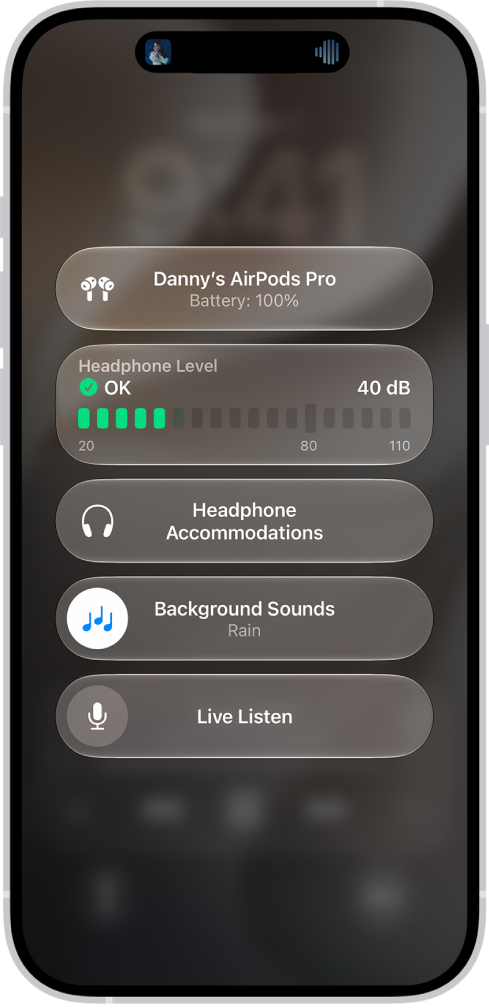
When you use supported AirPods with iPhone, iPad, or Mac, you can change the accessibility settings for your AirPods to suit your hearing needs. Headphone accommodations amplify soft sounds and adjust certain frequencies, so music, movies, phone calls, and podcasts sound more crisp and clear.
You can choose Balanced Tone, Vocal Range, or Brightness, pick Slight, Moderate, or Strong amplification of soft sounds, and apply these audio settings to phone calls, media, or both.
Here’s how to set up headphone accommodations for your AirPods.
Set headphone accommodations on iPhone or iPad
- Start the Settings app on your iPhone or iPad.
- Tap Accessibility and tap Audio & Visual. Tap Headphone Accommodations.
- Turn on Headphone Accommodations.
- Tap Customize Audio. Then follow the onscreen instructions, or manually set any of the following:
- Audio Tuning: Choose Balanced Tone, Vocal Range, or Brightness.
- Level: Choose Slight, Moderate, or Strong amplification of soft sounds.
- Phone: Apply these audio settings to phone calls.
- Media: Apply these audio settings to media playback.
- Transparency mode on AirPods Pro: Turn on Custom Transparency Mode and adjust the amplification, balance, and tone to help you hear what’s happening around you. See Use and customize Transparency mode.
- To preview your audio settings, tap Play Sample.
Set headphone accommodations on Mac
- Start the System Settings app on your Mac.
- Click Accessibility in the sidebar.
- Click Audio and turn on Headphone Accommodations. (You may need to scroll down.)
Note: To use Headphone Accommodations, you need to turn off Hearing Aid and Media Assist in AirPods settings. See Use hearing health features with AirPods Pro 2 or AirPods Pro 3.
- Click Customize Audio and then follow the onscreen instructions. Or manually set any of the following:
- Audio tuning: Choose Balanced Tone, Vocal Range, or Brightness.
- Optimization: Adjust the slider to choose Slight, Moderate, or Strong amplification of soft sounds.
- Phone: Apply these audio settings to phone calls.
- Media: Apply these audio settings to media playback.
- Transparency mode on AirPods Pro: Turn on Transparency Mode and adjust the amplification, balance, tone, and more to help you hear what’s happening around you. See Use and customize Transparency mode.
- To preview your audio settings, click Play Sample.
See also