In the Fitness app on Apple TV 4K, you can create Stacks, which are a series of workouts or meditations that play in sequence, like a music playlist. Stacks let you combine your favorite workouts into one session, like a few intense workouts followed by a cool-down meditation. You can edit the current stack, but not stacks you’ve saved to your library, and those saved stacks show up in the Stacks section.
Here’s how to create and edit a stack on your Apple TV 4K, and how to play one from your library.
Note: Apple Fitness+ workouts require a subscription and an Apple Watch or iPhone connected to the Fitness app on Apple TV 4K.
Create a stack
- Go to the Fitness app on Apple TV 4K.
- To add an item to your stack, go to a workout or meditation and then do either of the following:
- Press and hold the clickpad or touch surface on your remote, then select Add to Stack.
- Select the workout or meditation, select Add to, then select Add to Stack.
- Continue to browse and add additional workouts to your stack, as desired.
- To view your stack, do either of the following:
- Open the sidebar and then select Stack.
- Navigate to a workout or meditation, press and hold the clickpad or touch surface, then select View Current Stack.
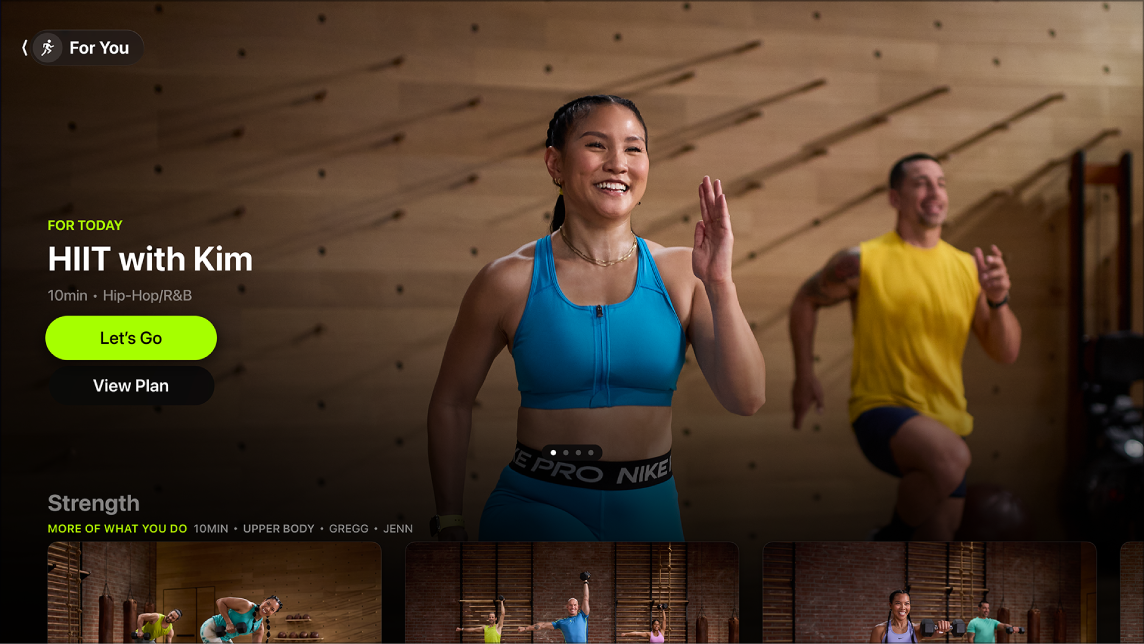
- Select Let’s Go to start the workouts in your stack.
Edit the current stack
- Go to the Fitness app on Apple TV 4K.
- Open the sidebar and then select Stack.
Note: You can only edit the current stack—you can’t edit stacks that you’ve saved to your library.
- Select the More button, then select Edit Stack.
- Do any of the following:
- Reorder items in the stack: Select the Move button next to an item in the list and use the clickpad or touch surface on your remote to move the item up or down. Then press the clickpad center or touch surface to confirm the new order.
- Delete an item in the stack: Select the Remove button next to an item in the list.
- Clear all items in the current stack: Select Clear Stack.
Play a stack from your library
Any stacks you’ve added to your library show up in its Stacks section.
- Go to the Fitness app on Apple TV 4K.
- Open the sidebar and then select Library.
- Select Stacks and select the stack you want to play.
- Select Let’s Go.
Not all features and content are available in all countries or regions or on all Apple TV hardware models.
See also