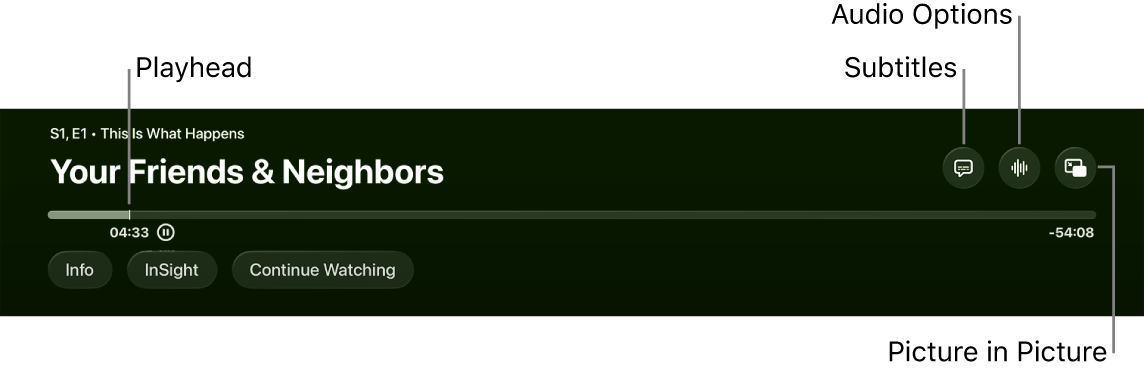
You can set Apple TV 4K to show special accessible captions so those who are deaf or hard of hearing can fully enjoy new TV episodes and thousands of movies. Just look for the CC or SDH icon when you’re browsing in the Apple TV app.
You can also customize your subtitles and captions with your choice of font, size, and color, plus background color and opacity. Not all videos include closed captions, though.
Here’s how to turn on closed captions and SDH on your Apple TV 4K, and customize how they look.
Note: Not all videos include closed captions.
Turn on closed captions and SDH
- Go to Settings on Apple TV 4K.
- Go to Accessibility > Subtitles and Captioning.
- Select Closed Captions and SDH to turn it on.
Tip: You can also add an accessibility shortcut that turns on closed captions and SDH.
Customize your subtitles and captions
- Go to Settings on Apple TV 4K.
- Go to Accessibility > Subtitles and Captioning > Style.
- Choose an existing caption style, or select Edit Styles to create a new style based on your choice of:
- Font, size, and color
- Background color and opacity
- Text opacity, edge style, and highlight
Note: With a Braille display connected to Apple TV 4K, captions and subtitles for a TV show or movie print continuously whenever they’re turned on.
Not all features and content are available in all countries or regions or on all Apple TV hardware models.