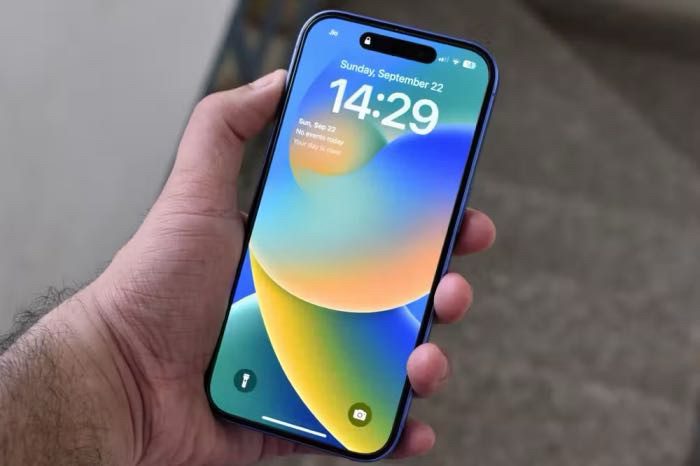
Showing is better than telling. This is why screenshots are so popular. It’s a convenient way to capture what you’re looking at and quickly share it with anyone. Today, we’ll show you how to take a screenshot on the iPhone 16.
QUICK ANSWER
To take a screenshot on an iPhone 16, all you have to do is press the side button and the volume up button at the same time.
There are other methods for taking a screenshot on an iPhone 16. Keep reading to learn how.
JUMP TO KEY SECTIONS
How to take a screenshot on the iPhone 16
This is the most straightforward way to take a screenshot on the Apple iPhone 16.
- Go to the app or page you want to take a screenshot of.
- Press the side button and the volume up button at the same time.
- Quickly release both buttons.
- The iPhone 16 will take a screenshot. After you take a screenshot, a thumbnail temporarily appears in the lower-left corner of your screen. You can tap on the thumbnail to edit, customize, share, etc.
Ask Siri to take a screenshot
Siri can help with many tasks, including taking screenshots!
- Navigate to the app or page you want to take a screenshot of.
- Bring up Siri by saying “Siri,” “Hey Siri,” or pressing and holding the side button.
- Say, "Take a screenshot."
- The iPhone 16 will take a screenshot. After you take a screenshot, a thumbnail temporarily appears in the lower-left corner of your screen. You can tap on the thumbnail to edit, customize, share, etc.
You can take a screenshot on an iPhone 16 using AssistiveTouch
Here’s another interesting way to take a screenshot on an iPhone 16. AssistiveTouch is meant to be an accessibility feature, but a lot of people use it for a bunch of things, including taking screenshots.
- Open the Settings app on your iPhone 16.
- Tap on Accessibility.
- Tap on Touch.
- Tap on AssistiveTouch.
- Toggle on the switch next to AssistiveTouch. The AssistiveTouch button will show up on your screen.
- Under Custom Actions, tap on the action you want to use to take a screenshot. You can pick between Single-Tap, Double-Tap, and Long Press.
- Navigate to the page you want to take a screenshot of.
- Do the action you selected on the AssistiveTouch button.
- The iPhone 16 will take a screenshot. After you take a screenshot, a thumbnail temporarily appears in the lower-left corner of your screen. You can tap on the thumbnail to edit, customize, share, etc.
How to take a screenshot of a whole webpage on the iPhone 16
On iPhone 16, you can take a full-page, scrolling screenshot of a webpage, document, or email that exceeds the length of your phone screen, then save it as a PDF. Here’s how:
- Navigate to the page or app you want to screenshot.
- Simultaneously press and then release the side button and volume up button.
- Tap the screenshot in the lower-left corner of the screen.
- Tap on the Full Page tab.
- Do any of the following:
- Save the screenshot: Tap Done, choose Save PDF to Files, choose a location, then tap Save.
- Share the screenshot: Tap the Share button, choose a sharing option (for example AirDrop, Messages, or Mail), enter any other requested information, then send the PDF.
FAQs
How big are iPhone 16 screenshots?
Screenshots are the same definition as your phone’s screen. On the iPhone 16, that is a 2556×1179-pixel resolution. On the iPhone 16 Plus, that is a 2796×1290-pixel resolution. The iPhone 16 Pro has a 2622‑by‑1206-pixel resolution. The iPhone 16 Pro Max has a 2868‑by‑1320-pixel resolution.
Where can I find my iPhone 16 screenshots?
Your Apple iPhone 16 screenshots will be stored as pictures. You can find them by opening the Photos app, then going to Albums > Media Types > Screenshots.
Do all iPhones take screenshots the same way?
All modern iPhones take screenshots the same ways. Things can change with older iPhones. To take a screenshot on iPhone models with Touch ID and side button, press the side button and the Home button at the same time. To take a screenshot on iPhone models with Touch ID and top button, press the top button and the Home button at the same time.
Can I edit iPhone 16 screenshots?
Screenshots are essentially just images. This means you can edit them, whether you want to use Apple’s stock editing tools or any other image editing software.