When iMessages are working properly on an iPhone or iPad, texts appear in a blue bubble. If you’ve been trying to send iMessages using your iPhone or iPad and all of your messages are suddenly appearing in green bubbles, then iMessage isn’t working correctly on your iPhone or iPad. In this article, I’ll explain what iMessage is and how to diagnose and fix problems with iMessage on your iPhone or iPad.
What Is iMessage And How Does It Work?
iMessage is a secure messaging service that you can use to send and receive text messages in the Messages app on your iPhone, iPad, Mac, Apple Watch, and Apple Vision Pro.
If someone sends a message to your email address or phone number using iMessage, you receive the message on all your Apple devices that are set up to receive messages sent to that email address or phone number. When you view an iMessage conversation, you see all messages sent from any device, so you can keep in touch with others wherever you are.
When you’re in a conversation with one other person, you can each see if someone’s writing a message. If the other person has read receipts turned on, you can also see if they’ve opened your message.
You can use a wider range of apps and features, like styles, drawings, Memoji, inline replies, editing, unsending, scheduling, collaboration, group conversation management, and more.
For security, messages sent using iMessage are end-to-end encrypted before they’re sent, and you can also use Contact Key Verification.
If iMessage isn’t working properly for you, you’re losing out on a couple of key advantages that iMessage has over ordinary SMS text messaging.
What Are The Green Bubbles and Blue Bubbles On iPhones?
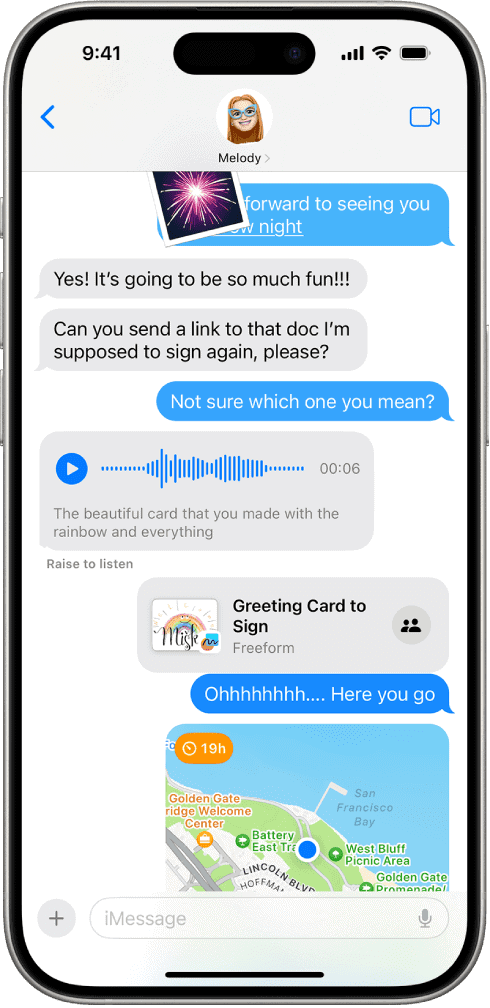
When you communicate with others who also use iMessage on an Apple device, the texts appear in blue bubbles. (SMS, MMS, and RCS messages appear in green bubbles.)
Your message will be sent with iMessage when you see a blue the Send button; a green send button indicates the message will be sent with SMS, MMS, or RCS or your cellular service.
If all of your texts are in green bubbles, that either means you are only texting with Android users — as Android doesn’t support iMessage — or your phone’s iMessage feature simply isn’t working.
Diagnose Your Problem With iMessage
When iMessage is not working on your iPhone or iPad, the first step is to determine whether the problem is with one contact or whether iMessage isn’t working with any of the contacts on your iPhone. If iMessage isn’t working with just one of your contacts, the problem is most likely on their end. If iMessage isn’t working with any of your contacts, the problem is most likely on your end.
Send A Test Message
Find someone you know who has an Apple device that can successfully send and receive iMessages. (You shouldn’t have to look too hard.) Open up Messages and send them a message. If the bubble is blue, then iMessage is working. If the bubble is green, then iMessage isn’t working and your iPhone is sending messages using your cellular plan.
How To Fix iMessage On Your iPhone or iPad
Here’s how to troubleshoot iMessage and get it working.
1. Make Sure iMessage Is Set Up Correctly
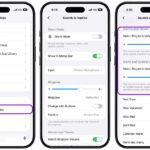
- Go to Settings -> Apps -> Messages and make sure that iMessage is on. You might need to wait a moment for it to activate.
- Tap Send & Receive.
- In the "You can receive iMessages to and Reply From" section, make sure that your phone number and Apple account email address are selected.
It might take up to 24 hours for your carrier to verify your phone number with Apple.
If iMessage is on and a spinning gear appears next to your phone number, your device automatically attempts to verify your phone number. There is no need to repeatedly turn iMessage off and on.
2. Make sure you have a working internet connection
You can only send and receive iMessage if your iPhone or iPad is connected to internet. It’s a good to double-check and make sure your iPhone or iPad is connected to a cellular data or Wi-Fi network! First, open Settings and tap Wi-Fi to see if your device is connected to Wi-Fi.
Make sure the switch next to Wi-Fi is turned on and a blue checkmark appears next to the name of your network. If Wi-Fi is on, try toggling it off and back on.
Next, go to Settings, tap Cellular, and make sure the switch next to Cellular Data is on. Again, you may want to try toggling the switch off and back on to potentially fix a minor software glitch.
3. Turn iMessage Off, Reboot, And Then Back On
Go to Settings -> Apps -> Messages and tap the switch next to iMessage at the top of the screen. You’ll know iMessage is off when the switch is white. and tap the button next to iMessage to turn iMessage off on your iPhone or iPad. Next, go to Settings -> General -> Shut Down. Slide your finger across the power of slider to turn off your iPhone or iPad. Turn your device back on, head back to Settings -> Apps -> Messages and tap the switch again to turn iMessage back on. You’ll know it’s on when the switch is green.
4. Check For An iOS Update
Apple recommends updating to the latest version of iOS or iPadOS when iMessage is not working on an iPhone or iPad, so head to Settings -> General -> Software Updateand see if an iOS or iPadOS update is available. Apple frequently releases new software updates to improve security, introduce new features, and fix existing glitches.
If a new software update is available, tap Download and Install.
5. Sign Out Of iMessage and Sign Back In
If nothing works, signing out of iMessage and signing back in again might solve the problem.
Go to Settings -> Apps -> Messages -> Send & Receive. Tap Apple Account, then tap Sign Out.
Sign back in.
6. Reset Network Settings
On rare occasions, your device’s network settings can get scrambled, which can interfere with iMessage and potentially other online services. Simply reset the network settings on your iPhone or iPad to fix the problem. Please note that this will reset all of the Cellular, Wi-Fi, APN, and VPN settings on your device to factory defaults (so make sure you write down Wi-Fi passwords first).
Go to Settings -> General -> Transfer or Reset iPhone (iPad) -> Reset -> Reset Network Settings. When the confirmation alert pops up on the screen, tap Reset Network Settings.
Your device will shut down, perform the reset, and turn back on. After your device turns back on, reconnect to your Wi-Fi network or turn on Cellular Data and check if iMessage is working again.
7. Check if iMessage is down
There’s a chance that iMessage is down on Apple’s end. To check this, visit Apple’s System Status page. Here, you can check to see if services like iMessage, FaceTime, and more are having known technical issues.
8. Contact Apple Support
If you’re still having iMessage problems on your iPhone or iPad, it’s time to contact Apple support. I recommend doing so since iMessage is a feature unique to Apple devices. Visit Apple’s support website to set up a phone call, live chat, or in-person appointment at a local Apple Store near you.
Wrapping It Up
You’ve successfully fixed iMessage problems on your iPhone or iPad! You’ll know exactly what to do next time iMessage is not working on your iPhone or iPad. If you have any other questions, leave them in the comments section below.