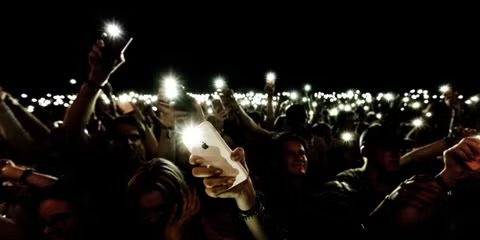
It’s a massive hindrance when your iPhone’s flashlight stops working after updating to iOS 26 and you see a grayed-out flashlight icon. So, let’s look at the various solutions you can try to get your iPhone torch working again.
How to fix an iPhone flashlight not working after iOS 26 update
If your iPhone flashlight isn’t working after updating to iOS 26, you don’t necessarily have to be left in the dark.
Here are ten ways to fix an iPhone flashlight that won’t turn on after iOS 26 update:
Toggle the flashlight off and on again
You’ve probably already tried this, but it’s worth pointing out in case you haven’t. Temporary glitches do occur. Simply turn your iPhone flashlight on and off to fix the problem. Here’s how:
- For iPhones with Face ID, swipe down from the upper right corner of the screen to open the Control Center. For iPhones without Face ID, swipe up from the bottom of the screen to open the Control Center.
- Tap the flashlight icon to turn on the flashlight. Tap the flashlight icon again to turn off the flashlight.
Disable Low Power Mode if it’s active
While Low Power Mode can be a lifesaver if your iPhone is low on battery, and normally doesn’t interfere with turning your flashlight on, some sources claim it can. To disable Low Power Mode, open Control Center, then tap on the yellow battery icon if it’s present. An all-white icon means the mode isn’t active. If you know the mode is on but you don’t see an icon in Control Center, navigate to Settings > Battery and flip the Low Power Mode toggle.
Charge your iPhone
If your iPhone’s battery is almost empty, the flashlight may not work. Charge your iPhone and try again.
Check for excess heat
When your iPhone is pushing its maximum operating temperature, your flashlight might be briefly disabled as a preventative measure. You should see an onscreen warning if this threshold is hit. When that happens, you won’t have much choice but to stop using your iPhone for a few minutes. You can accelerate the recovery process with fans, or even sticking your iPhone in the fridge for a minute or two (avoid the freezer).
See also: How to fix a iPhone overheating after iOS 26 update
Exit the Camera app if it’s open
Since you’re not meant to use an iPhone’s flash for photography and general lighting at the same time, you may need to exit the Camera app if it’s onscreen. To be sure there’s no conflict, you should probably force-quit the app as well.
- On an iPhone 11 or later , swipe up and hold on the center of the screen, then swipe up to close the Camera app.
- On an iPhone SE (2nd generation) or newer, tap the home button twice then swipe up to close the Camera app.
Force flash on via the Camera app
There’s no guarantee this will work, but if there is a software bug, your flashlight might come to life if you can trigger it via the Camera app. Within the app, switch to Video mode, then toggle the flash icon in the upper-left. You may have to start recording and/or be in dark conditions for your light to turn on. An alternative is switching to Photo mode, hitting the flash icon, and shooting a photo or two. Your flash won’t stay on this way, naturally, but it might “wake up” the component and allow normal flashlight functions.
Try asking Siri to turn on the flashlight
Should it make a difference if you’re turning on your flashlight via Siri instead of Control Center or your lockscreen? No. But at this stage we’re running out of options, and there’s a tiny chance a glitch is preventing normal touch commands from working. Just turn your iPhone flashlight on or off using Siri. Here’s how:
- To turn on your flashlight, say, "Hey Siri, turn on my flashlight," or a similar phrase.
- To turn off your flashlight, say, "Hey Siri, turn off my flashlight," or a similar phrase.
- If you have the "Listen for ‘Hey Siri’" feature disabled, press and hold the power button for iPhones with Face ID or press and hold the home button before speaking these commands.
Check for iOS updates
Apple’s loathe to admit it, but bugs with core iPhone features do crop up occasionally. To update your iPhone, go to Settings > General > Software Update. Assuming there’s a new iOS 26 version available, be sure your iPhone is backed up, well-charged, and connected to Wi-Fi before you begin. Set aside at least 15 to 30 minutes. It can take a while for iOS updates to download, and once the actual installation starts, your iPhone will be out of commission until it completes. You might want to toggle on Automatic Updates to save future grief. When the feature is enabled, your iPhone will update itself whenever it’s locked, charging, and connected to Wi-Fi — usually meaning overnight.
Restart your iPhone
If the above methods don’t solve the problem and your iPhone’s flashlight still isn’t working, the next step you should try is restarting your iPhone.
Turning your iPhone off and on again may refresh the software and restore the flashlight.
The method you need to follow varies depending on the iPhone model you have. But in general, you can go to Settings > General > Shut Down > Slide to power off. Then, hold the Side button to restart your iPhone once it powers off.
Reset your iPhone settings
If a basic restart doesn’t do it, reset your phone’s settings. Go to Settings > General > Transfer or Reset iPhone. Tap Reset and choose Reset All Settings from the pop-up menu. You won’t lose any data from your iPhone; all this does is revert your iPhone’s settings to factory default values.
Effective Solutions When Your iPhone’s Flashlight Is Not Working After iOS 26 Update
If you’ve been stuck wondering why the flashlight won’t work on your iPhone after iOS 26 update, we hope this list of fixes has helped you resolve the problem effectively.
However, if the issue persists, it’s best for you to contact Apple support or an Apple Authorized Service Provider. A technician will then examine your device and determine the potential hardware repairs that are needed.