You can connect your iPhone to Bluetooth® accessories such as headphones, speakers, keyboards, car systems, and more.
To use Bluetooth, you first pair the devices, introducing them to each other and establishing a lasting relationship. You can then connect the devices when you want to use them together, and then disconnect and reconnect them as needed. If you want to end the relationship, you unpair the devices.
Pair a Bluetooth accessory with your iPhone
To pair a Bluetooth accessory with your iPhone, put the accessory into pairing mode by following its instructions. For example, on a speaker, you might hold down its power button until lights start flashing in a particular pattern; on a keyboard, you might press Fn and a specific key.
On your iPhone, head to Settings ⇒ Bluetooth and make sure the Bluetooth switch is set on (green). In the Other Devices list, tap the accessory, and then follow any prompt to confirm the pairing. Once paired, the accessory appears in the My Devices box, connected so you can start using it.
Note: iPhone must be within about 33 feet (10 meters) of the Bluetooth accessory to pair.
See also: iPhone not Finding Bluetooth Devices? Here’s How to Fix It
You can use Bluetooth to share data with certain apps, even when you’re not using those apps. To see which apps are using Bluetooth, head to Settings ⇒ Privacy & Security ⇒ Bluetooth. If you want to stop an app from using Bluetooth, set its switch here off (white).
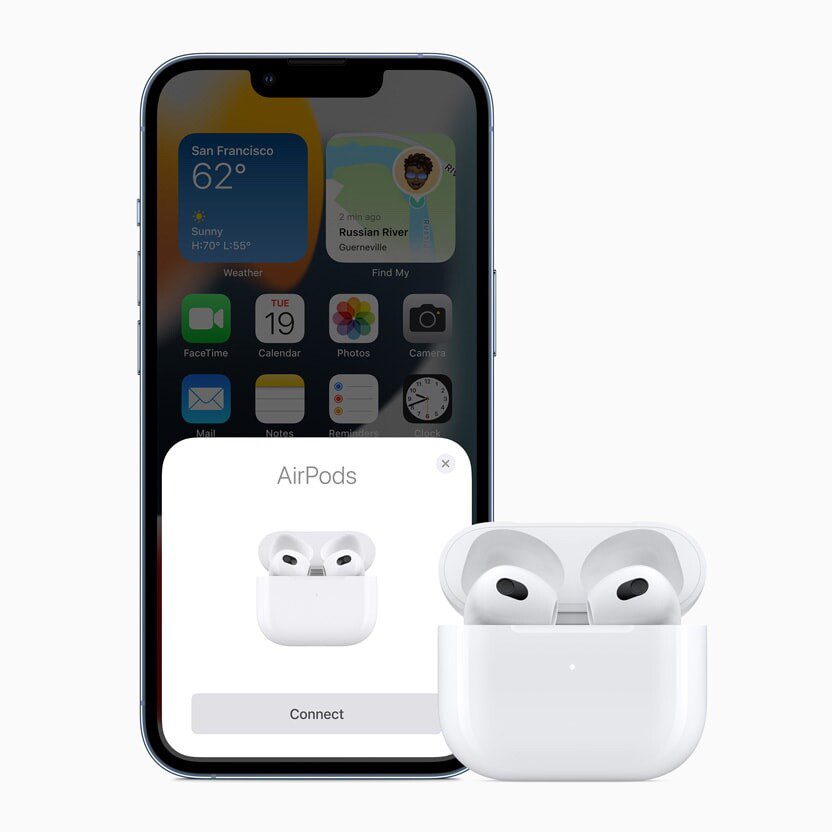
If you have an Apple Watch, you’ll need to open the Apple Watch app on your iPhone to pair it and handle specific watch-related settings. Apple has also made pairing simpler on some of its other products, including AirPods and Beats headphones.
Disconnect and reconnect a Bluetooth accessory
To disconnect a connected Bluetooth accessory from your iPhone, head to Settings ⇒ Bluetooth. Tap the i -in-a-circle to the right of the accessory’s name in the My Devices list in the Bluetooth pane, and then tap Disconnect.
If you don’t see the devices list, make sure Bluetooth is turned on.
To reconnect a paired Bluetooth accessory to your iPhone, make sure that the accessory is powered on, and then tap it in the My Devices list.
Disconnect from all Bluetooth accessories
If you need to quickly disconnect your iPhone from all Bluetooth accessories and devices without turning Bluetooth off, launch the Control Center, then tap the Bluetooth button. Your Bluetooth accessories and devices disconnect from your iPhone until the next day.
Unpair a Bluetooth Accessory
To unpair a Bluetooth accessory on your iPhone, head to Settings ⇒ Bluetooth. Tap the i -in-a-circle to the right of the device’s name in the My Devices list in the Bluetooth pane, and then tap Forget This Device. In the confirmation dialog, tap Forget Device.
Note: If you unpair AirPods, they’re automatically unpaired from other devices where you’re signed in to your Apple Account.