Summary
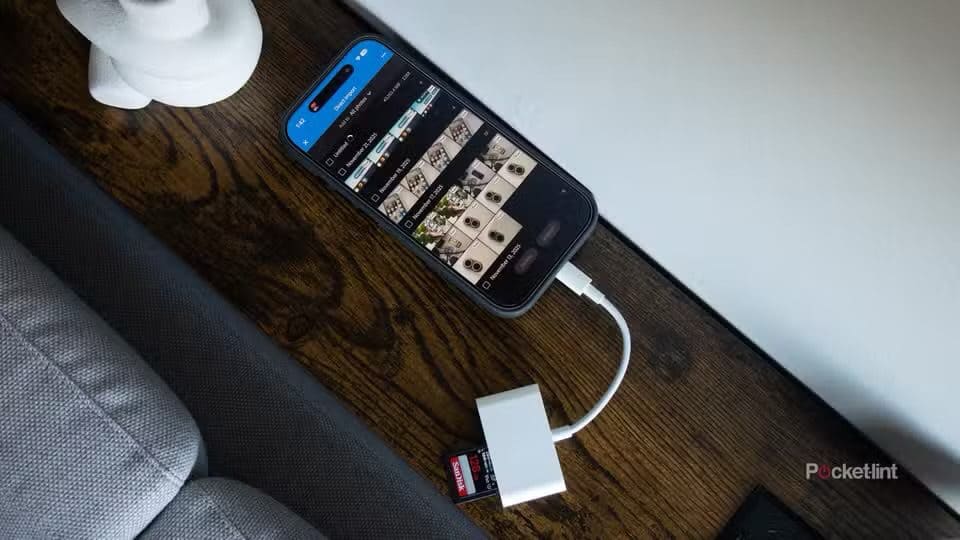
- you can connect an SD card to an iPhone for file transfer or viewing by using a Lightning or USB-C to SD Card Camera Reader.
- To use SD or microSD memory cards with iPhone, insert the memory card into the reader, then attach the reader into the USB-C port on your iPhone.
- To view your SD card, go to the Files app on your iPhone, tap Browse at the bottom of the screen, then tap the name of the SD card.
While your iPhone doesn’t have a built-in microSD card reader, adding a plug-in memory card reader is easy. And it requires no additional software. The same goes for iPads.
Here’s what you need to do.
Removable memory cards are still useful
Even in the days of iCloud and portable SSDs, it can still make sense to give your iPhone the ability to read from and write to SD and microSD cards. They are still in common use. So much so that Apple brought the SD card reader back to the MacBook Pro in 2021.
The cards get used in cameras of many kinds: drone cameras, dash cams… just regular cameras. And many Androids have microSD card slots, making the cards an option for exchanging files between devices.
You might also consider using a backup application like OWC’s Copy That to make a backup of all the images on your iPhone or iPad to an SD card.
Fortunately, adding a reader is easy and relatively cheap.
How to read SD/microSD memory cards with your iPhone
Step 1 involves buying an SD and microSD card reader. Sorry, there’s no avoiding making a purchase — the best software in the world won‘t let an iPhone read a memory card without new hardware.
If you have an iPhone or iPad with a USB-C port, the reader is easy. You might even have one already. If you have a multi-port USB-C hub for your Mac with an SD card reader in it, just plug it into your iPhone or iPad.
If you need a reader, they’re available from reputable companies for under $20. If the reader has a USB-A connector you’ll need an adapter to plug it into your handset or tablet. But you should have that adapter already.
It’s a wee bit more complicated if your iPhone or tablet has a Lightning port, but you just need to know what to buy. A search on Amazon for “lightning SD card reader” turned up many possibilities. There are even cheap options.
And there’s a slightly alternative hardware option for Lightning-equipped devices. The GeeksChalk guide on how to use a flash drive with iPhone or iPad includes a section on using a USB-A adapter from Apple. This same adapter can be used with SD/microSD memory card readers designed to plug into a USB-A port.
Absolutely no additional software is required to use a standard USB card reader. The iOS Files application is all you need.
How to Connect SD and microSD memory cards to iPhone
1. Insert an SD memory card into a card reader.
2. Attach the SD card reader to the charging port on your iPhone.
3. To view the content of your SD card, open the Files app on your iPhone, tap Browse at the bottom of the screen, then tap the name of the SD card below Locations. If you don’t see Locations, tap Browse again at the bottom of the screen.
From there you can access everything stored on the SD card. Or move files around, play videos, whatever you need.
On the other hand, Lightning-enabled SD/microSD card readers are designed to use their own applications, not Files. These have their own file managers.
If you won’t want to put up with these third-party apps, go with a the Lightning to USB-A adapter from Apple I mentioned earlier along with a standard USB card reader.