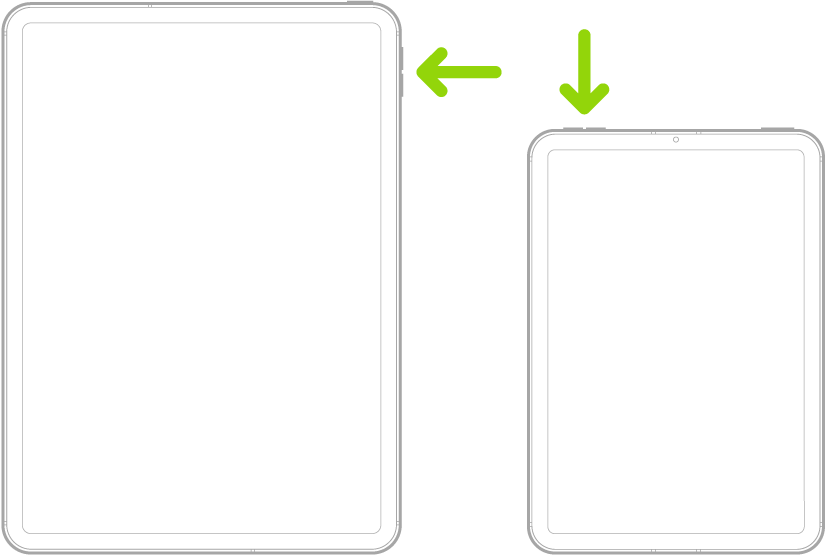
The volume buttons on iPad adjust media volume while audio is playing, and ringer and alert volume at other times. You can also adjust the volume in Control Center or Settings, and silence iPad.
In Settings, you can set separate volumes for alarms and timers, and for alerts and system sounds. See Set separate volumes for alarms and alerts. You can lock the alert volume, too, so the volume buttons only control media playback, and if you’d rather, Siri can turn the volume up or down for you.
WARNING: For important information about avoiding hearing loss, see Important safety information.
Adjust the volume with the volume buttons
Press the volume up or volume down button on the side of iPad. The button you press controls the volume for what’s currently playing—media, ringtones, or alerts.
Note: While audio is playing, the volume buttons control media volume, and when nothing is playing, they control ringer and alert volume.
You can also use Siri to turn the volume up or down.
Siri: Ask Siri something like, “Turn up the volume.” Learn how to use Siri.
Adjust the volume in Control Center
As you use an app, or when iPad is locked, you can adjust the volume from Control Center.
Open Control Center, then drag the volume slider.
Silence iPad
If you’d like to mute iPad quickly, do one of the following:
- Press and hold the Volume Down button.
- Open Control Center, then tap the Silent Mode Off button to turn on Silent mode. Tap it again to turn it off.
Note: Silent mode won’t mute audio from music, podcasts, movies, and TV shows.
A Focus lets you silence specific notifications instead of all sounds. For how to use one, check out our guide, Turn on or schedule a Focus.
Lock the alert volume
You can prevent the volume buttons from changing the volume of alerts and notifications.
- Start the Settings app on your iPad.
- Tap Sounds, then turn off Change with Buttons.
When Change with Buttons setting is off, the volume buttons only control media playback.
Limit speaker and headphone volume
You can limit the maximum volume of sound that plays through headphones or the built-in speaker on your iPad.
- Start the Settings app on your iPad.
- Tap Sounds and then do any of the following:
- Limit speaker volume: Under Built-In Speaker, tap Volume Limit, turn on Limit Maximum Volume and then drag the slider to specify the maximum volume.
- Soften loud sounds from the speaker: Under Built-In Speaker, turn on Reduce Loud Sounds.
- Limit headphone volume: Under Headphones, tap Reduce Loud Audio, turn on Reduce Loud Audio. Drag the slider to set the maximum volume.
For more ways to protect your hearing from loud headphone audio, read our article, Use headphone audio-level features.
Note: Screen Time can keep a family member from changing the Reduce Loud Audio level, as long as you’ve set it up for them. Go to the Settings app on your iPad, tap Screen Time, and tap Content & Privacy Restrictions. Next, turn on Content & Privacy Restrictions, then tap Speaker Volume, Reduce Loud Audio, or Speaker Volume Limit, and select Don’t Allow.
See also