On iPad, to get the most out of Apple News+, follow your favorite publications and browse through current and back issues.
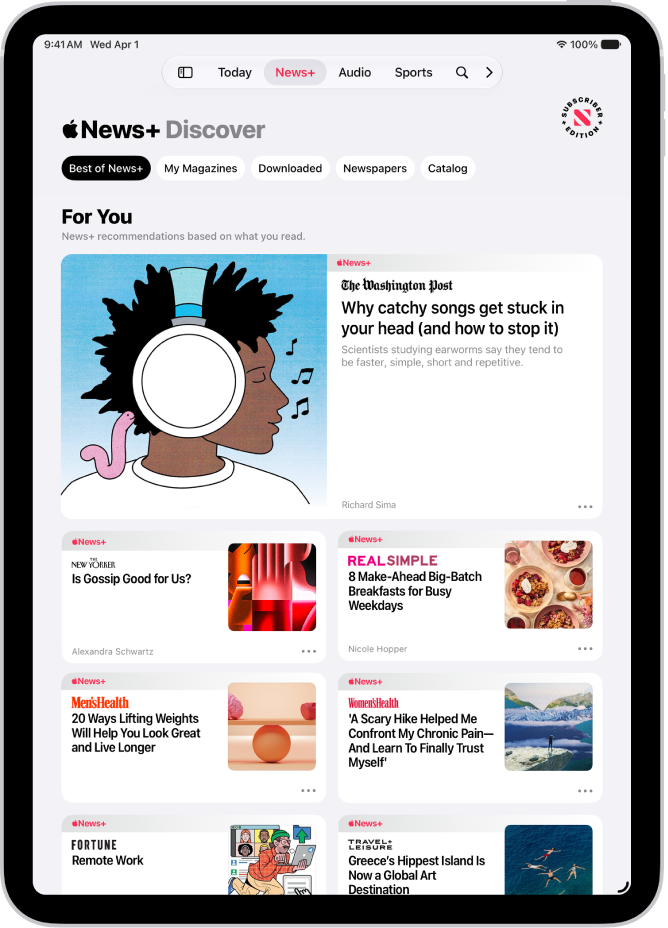
You follow an Apple News+ publication by following its channel, and you can find it from Today, News+, or Search. You can open a story or issue, and access back issues, too. Apple News+ stories and issues appear in your Today feed, the Best of News+ feed, and channel feeds.
Here’s how to browse and read Apple News+ stories and issues on iPad.
Note: Apple News and Apple News+ aren’t available in all countries or regions.
Follow and unfollow publications
You follow an Apple News+ publication by following its channel.
- Open the News app on your iPad.
- Do any of the following:
- Tap Today or News+ in the sidebar or tab bar, tap a story or issue from an Apple News+ publication, tap the publication’s name at the top of the screen, then tap the Follow button.
- Tap the Search button in the sidebar or tab bar, enter the publication’s name in the search field, then tap the Follow button.
- Tap News+ in the sidebar or tab bar, tap Newspapers or Catalog near the top of the screen, then tap Follow below the publication’s cover.
To unfollow a publication, swipe left on the publication in the sidebar, then tap Unfollow.
If you don’t see the sidebar, tap the Sidebar button.
Browse Apple News+ issues and stories
- Open the News app on your iPad.
Stories and issues from Apple News+ appear in the Today feed, Best of News+ feed, and channel feeds. Stories (but not issues) can also be found in topic feeds and search results.
- To access entire issues, tap News+ in the sidebar or tab bar, where you can do any of the following:
- View News+ content chosen just for you: Near the top of the screen, tap Best of News+.
- View all available publications: Tap Catalog near the top of the screen.
- View a specific content category: Tap Catalog and tap Featured. Tap a category such as Money & Business, Entertainment, or Sports.
- View new and recent issues: Tap My Magazines. By default, new issues appear near the top of the screen. The issue you most recently read appears first. If you recently downloaded an issue, it appears next. To choose a different sorting option, tap the More button. Then tap Sort by Name or Sort by Date.
Note: If you block an Apple News+ publication, its issues are removed from My Magazines.
Open a story or issue
- Open the News app on your iPad.
- Do any of the following:
- Tap an issue cover in News+ or the Today feed.
- Tap the Search button in the sidebar or tab bar, enter the name of the Apple News+ channel in the search field, tap the channel, then tap the issue.
- Follow a link to a story or issue that someone shared with you.
Access back issues
- Open the News app on your iPad.
- Do any of the following:
- Tap News+ in the sidebar or tab bar, tap My Magazines, tap the More button below the issue cover (or touch and hold the cover), then tap Browse Back Catalog.
- In the sidebar, tap a channel you follow, or search for a channel, then tap it. Below Recent Issues, swipe to the issue you want to read, then tap to open it. To browse all available issues, tap Sections near the top of the screen, then tap Issues.
If you don’t see the sidebar, tap the Sidebar button.
Read Apple News+ issues
- Open the News app on your iPad.
- Open the issue, where you can do any of the following:
- Page through an issue: Swipe left to go to the next story, or swipe right to go to the previous story.
- View the table of contents: When you’re reading a story, tap the More button. Then tap Go to Issue.
- Change the text size: Tap the Text Size button. Then tap the smaller or larger letter to change the text size in the story and all other stories in the channel. If the issue is a PDF, pinch to zoom.
If you sign out in Settings > [your name] > Media & Purchases, you can only access free stories—you must sign back in to access stories and download issues that require an Apple News+ subscription.
See also