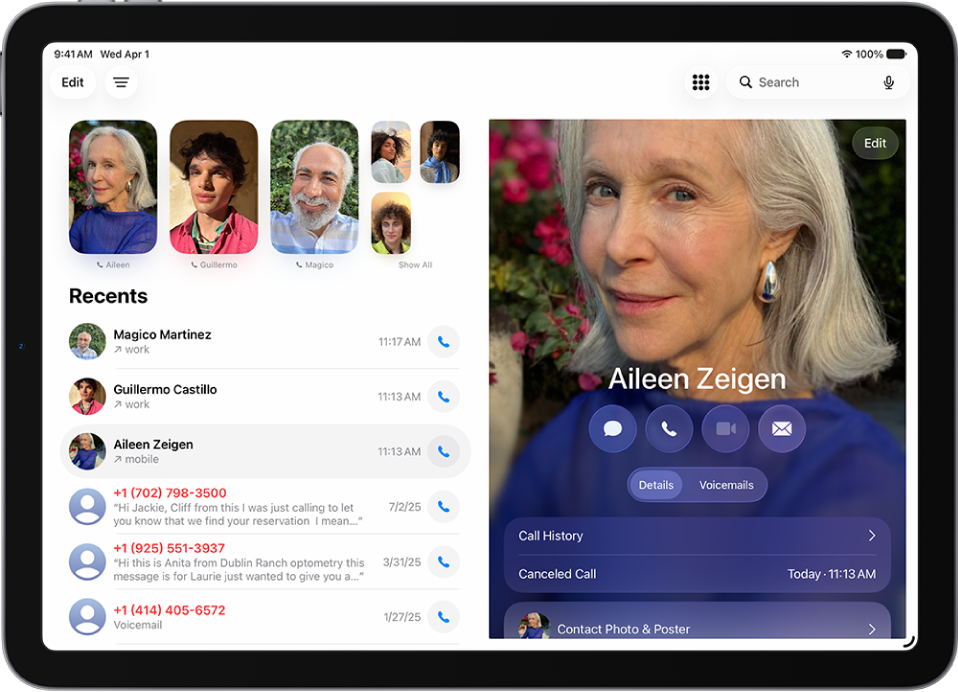
You can set up call forwarding on iPad if you have cellular service through a GSM network, though on a CDMA network, you’ll contact your carrier for information. When call forwarding is on, its icon appears in the status bar, and you need to be in range of the cellular network for calls to be forwarded.
If your carrier supports conditional call forwarding for when the line is busy or not in service, they have the setup information. You can also set up call waiting on iPad.
- Open the Settings app on your iPad.
- Tap Apps, then tap Phone.
- Tap Call Forwarding, then turn on Call Forwarding.
The Call Forwarding icon appears in the status bar when call forwarding is on.
- Tap Forward To, enter the number you want to redirect to, and tap Back.
You need to be in range of the cellular network when setting iPad to forward calls, or calls won’t be forwarded.
If your carrier supports conditional call forwarding, which works when the line is busy or not in service, reach out to them for setup information.
See also