On iPad, you can select alternative, third-party apps—for email, messaging, calling, call filtering, web browsing, passwords, or keyboards—as defaults to launch instead of the built-in Apple apps.
Make sure the app you want to switch to supports this feature, and if you aren’t sure, contact the app developer. You can also change the default app used to translate text, or the app that opens links on the web. Some app categories, like Maps, Camera, and Music, can’t be changed.
Note: Some app categories, like Maps, Camera, and Music, aren’t in Default Apps, so they can’t be set to a different default.
Change your default apps
- Open the Settings app on your iPad.
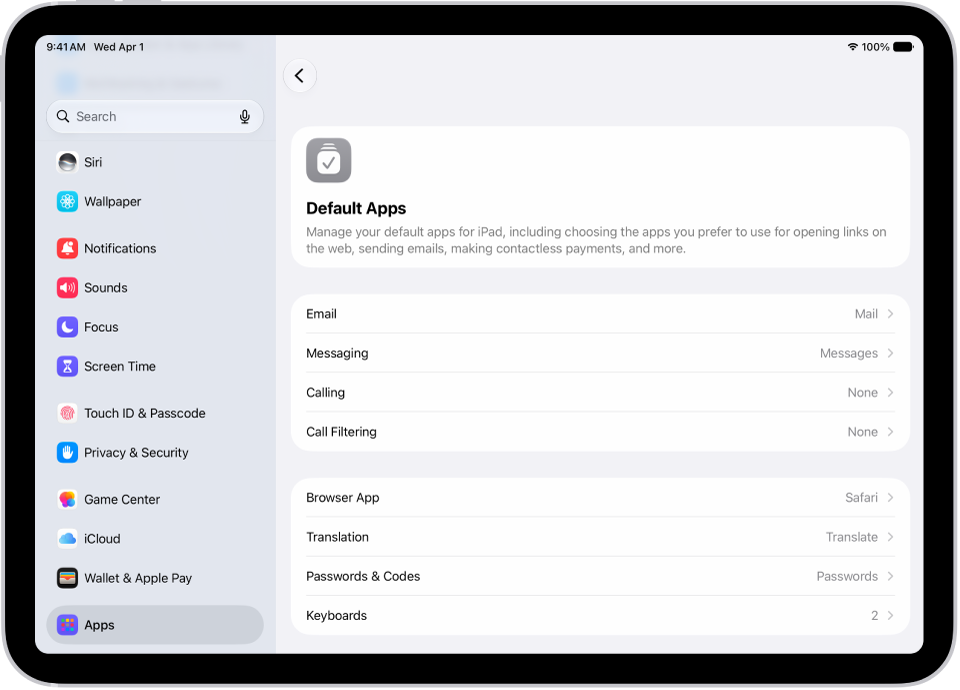
- Tap Apps, tap Default App, and tap any of the following:
- Email: To change the default app for sending and receiving email.
- Messaging: To change the default app for sending and receiving messages.
- Calling: To change the default app for making and receiving calls.
- Call Filtering: To turn on or off call blocking and identification options.
- Browser App: To change the default app to open links on the web.
- Translation: To change the default app used to translate text.
- Passwords & Codes: This section allows you to turn on or off AutoFill Passwords and Passkeys for apps and websites, and password, passkey, and code-generation and verification apps.
- Keyboards: To add or delete keyboards and third-party keyboard apps.
- Media Sharing Extension: To change the default app for sending audio and video to compatible devices.
- Select the app you want to use as the default.
To change the default search engine Safari and Spotlight use, read our guide, Change your default search engine.
See also