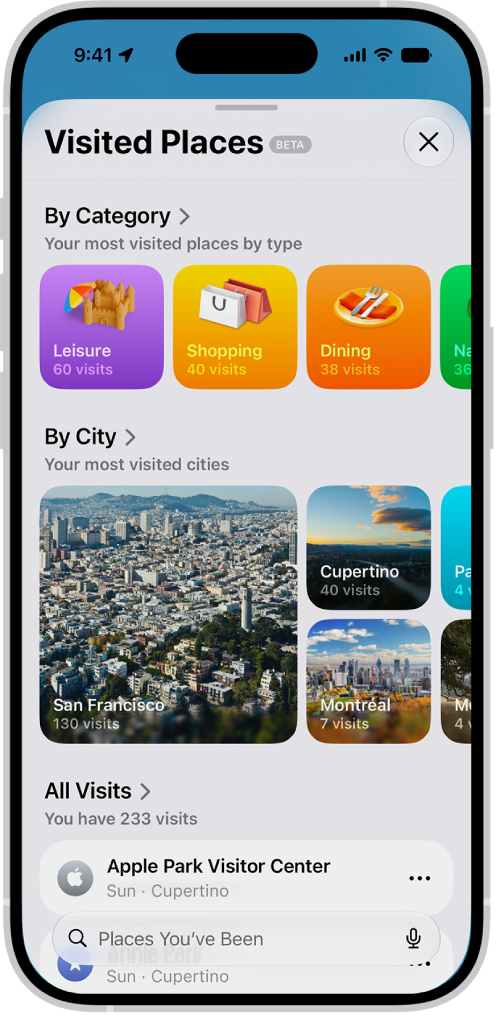
On iPhone, the Maps app uses information about your significant locations from Location Services to provide you with personalized services like predictive traffic routing. Your significant locations are end-to-end encrypted and can’t be read by Apple.
You can delete your significant locations at any time, for example, to reset predictive traffic routing and similar personalized services. It’s a clean sweep: the history is cleared on every device signed in to your Apple Account.
- Start the Settings app on your iPhone.
- Tap Privacy & Security and then tap Location Services.
- Tap System Services and tap Significant Locations & Routes.
- Tap Clear History.
Everywhere you’re signed in to the same Apple Account, this action clears all your significant locations.