How to customize sharing options in an iPad app

You can customize sharing options in an iPad app, show or hide Share options, and reorder your Favorites.

By Chris Smith - Senior Editor
1 Min Read

On iPad, you can choose which options appear in an app’s Share menu, and change the order in which they appear. You can show or hide an option, add an option to Favorites or remove it, and reorder your Favorites. These changes apply only to the app you’re customizing, though.

Note: These changes affect only the app you’re customizing, so to set up the Share menu in each app, repeat the steps there.

  1. Open a document in the app and tap the Share button.
  2. Swipe left over the row of buttons and then tap More.
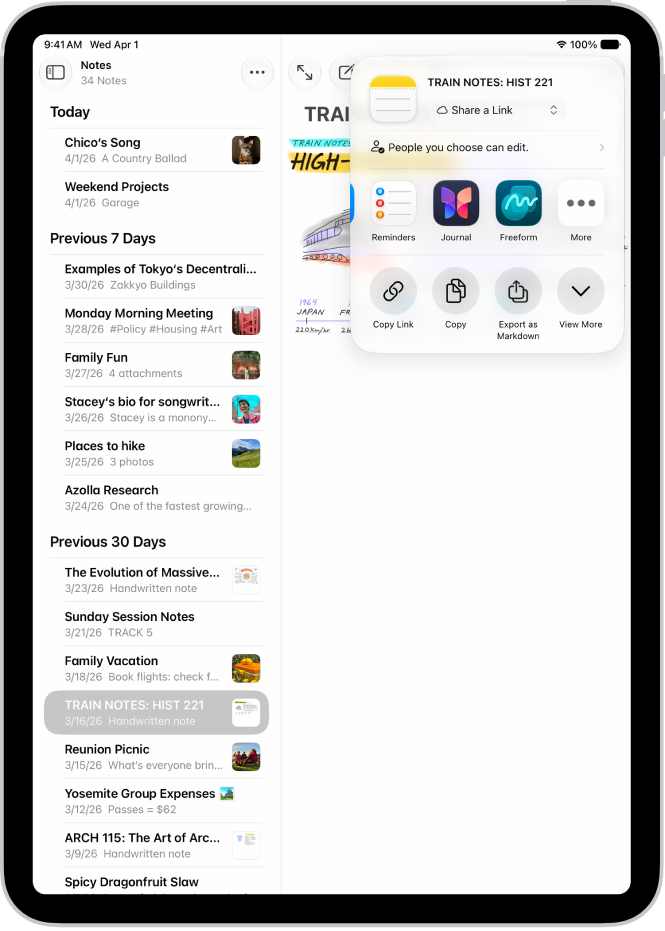
    The screen for sharing a photo, with the sharing options immediately below the open photo, including the More button for editing sharing options.

  3. Tap Edit and then do any of the following:

    • Show or hide an option: Tap the control next to the option to turn it on or off.
    • Add an option to Favorites: Tap the Add button.
    • Remove an option from Favorites: Tap the Remove button.
    • Reorder Favorites: Drag the Reorder button next to any option.
  4. Tap Done.

See also

TAGGED:
Senior Editor
Follow:
Chris Smith is a senior editor at GeeksChalk based in Canada. He likes to think of himself as a jack of all trades (and a master of at least a few), though he mainly focuses on iPhones and Macs. Often covering both at the same time. When not surrounded by various Apple devices while putting them through their paces, Chris can be found streaming the latest movies or series, gaming on his PS5, or getting fresh air on a hike in the beautiful wilderness of British Columbia.
Leave a Comment