On iPhone, you can choose which options appear in an app’s Share menu, and change the order in which they appear. You can show or hide an option, add an option to Favorites or remove it, and reorder your Favorites. These changes apply only to the app you’re customizing, though.
Note: These changes only apply to the app you’re customizing, so repeat the steps in each app whose Share menu you want to set up.
- Open a document in the app and tap the Share button.
- Swipe left over the row of buttons and then tap More.
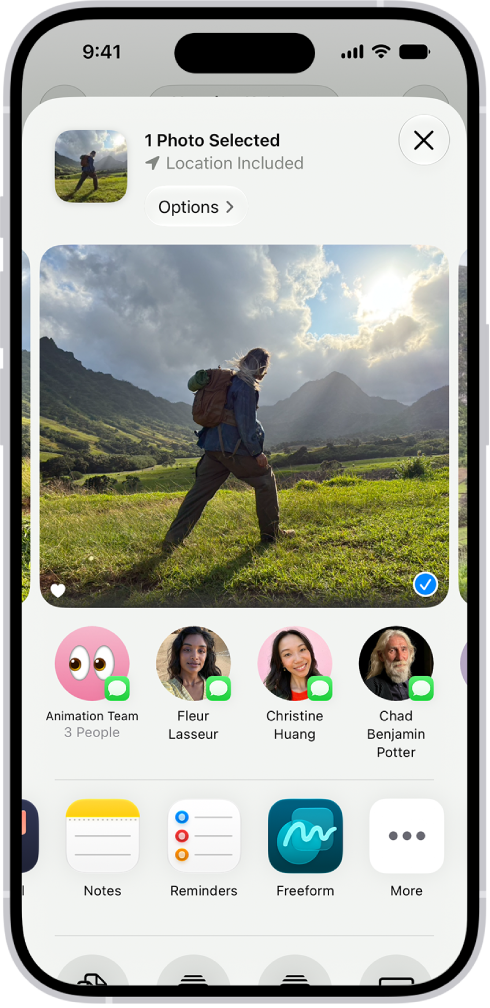
- Tap Edit and then do any of the following:
- Show or hide an option: Tap the control next to the option to turn it on or off.
- Add an option to Favorites: Tap the Add button.
- Remove an option from Favorites: Tap the Remove button.
- Reorder Favorites: Drag the Reorder button next to any option.
- Tap the Done button.