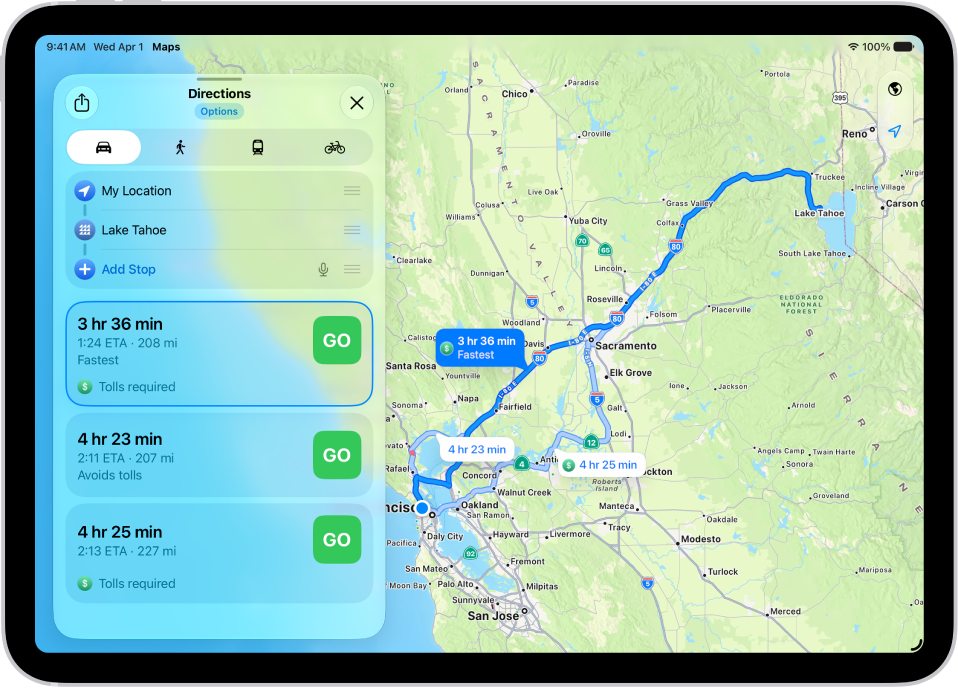
On iPad, you can get detailed driving directions to your destination. When you drive in select cities, you see enhanced details for crosswalks, bike lanes, and buildings, plus a street-level perspective that helps you find the right lane at complex intersections (supported models).
You can also estimate travel time for a future departure or arrival, and avoid tolls. You can get directions from anywhere on the map, or from an address you search for.
Here’s how to get driving directions in Maps on iPad.
Note: Turn-by-turn spoken directions and directions for multiple stops aren’t available in all countries or regions. Features for Wi-Fi + Cellular models require a cellular data plan and Cellular Data turned on in Settings > Apps > Maps. See View or change cellular data settings.
Get driving directions
- Go to the Maps app on your iPad.
- Do either of the following:
- Touch and hold anywhere on the map, then tap Directions.
- Enter an address in the search field, then tap the blue button that displays the Driving icon and the travel time.
- Tap the directions button and then tap Go or Steps for the route you want to take.
If your preferred travel mode is Walking, Transit, or Cycling, tap the directions button, then tap the Driving button.
Siri: Ask Siri something like, “Give me driving directions home.” Learn how to use Siri.
Estimate travel time for a future departure or arrival
- Open the Maps app on your iPad.
- Get driving directions, as above.
- Tap Options (below Directions), tap Leave at or Arrive by, select a time and date, and then tap the Done button.
The estimated travel time may change based on predicted traffic.
Avoid tolls or highways
- Open the Maps app on your iPad.
- Get driving directions, as above.
- Tap Options (below Directions), make your choices (below Avoid) and then tap the Done button.
Show or hide the compass or the speed limit
If you have an iPad with Wi-Fi + Cellular, you can show or hide the compass or speed limit.
- Open the Settings app on your iPad.
- Tap Apps, then tap Maps.
- Below Directions, tap Driving. Turn on or off Compass and Speed Limit.
See also