With Live Captions on iPad, you can get a real-time transcription of spoken audio. Use Live Captions to more easily follow the audio in any app, such as FaceTime or Podcasts, and in live conversations around you.
You can set it up and customize it, and choose whether to save captions from calls for one minute or one hour.
Here’s how to get live captions of spoken audio on iPad.
Note: Live Captions is available on supported models. Live Captions isn’t available in all languages, countries or regions. The accuracy of Live Captions may vary and shouldn’t be relied upon in high-risk or emergency situations.
Set up and customize Live Captions
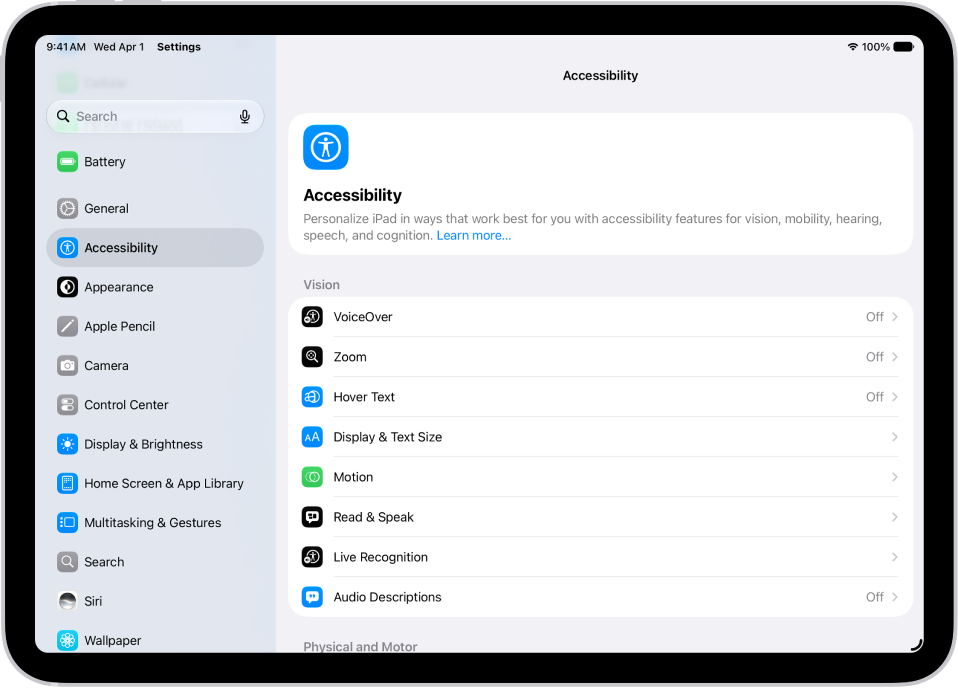
- Open the Settings app on your iPad.
- Tap Accessibility and tap Live Captions. Then turn on Live Captions.
- Tap Appearance to customize the text, size, and color of the captions.
- Tap Keep Call Captions and then choose an option:
- 1 Minute: Select 1 Minute to save captions from calls for up to one minute during a call. All call captions are cleared after the call ends. If you select 1 Minute, you won’t be able to copy, take a screenshot, or take a screen recording of the call transcription.
- 1 Hour: Select 1 Hour to save captions from calls for up to one hour after a call ends. If you select 1 Hour, you’ll be able to copy, take a screenshot, and take a screen recording of the call transcription.
Note: When you choose 1 Hour, all call participants hear a brief audio announcement (“This call is being transcribed”) at the start of the call. If Live Captions is paused or the Keep Call Captions options is changed from 1 Hour to 1 Minute during a call, all participants hear an audio announcement (“This call is no longer being transcribed”).
Use Live Captions
Once you turn on Live Captions, iPad transcribes the spoken audio in apps, or from dialogue around you, automatically, and then you can do any of the following:
- Transcribe an in-person conversation: Tap Live Captions, then tap Microphone.
- Transcribe iPad audio: Tap Live Captions, then tap iPad Audio.
- Pause the transcription: Tap Live Captions, then tap Pause Listening.
- Copy the transcription: Tap the More Options button, then tap Copy Captions. You can paste your transcriptions in another app—like in Notes or Messages.
- Clear the transcription: Tap the More Options button, then tap Clear All.
- Move the Live Captions window: Drag the Live Captions window to reposition it on the screen.
- Make the Live Captions window longer or shorter: Drag the bottom of the Live Captions window up or down.
- Hide the Live Captions window: The Live Captions window is automatically hidden when no audio is detected. If the window is showing, swipe left or right on the window to hide it. To restore the window, tap the Live Captions Collapsed button.
- Make the transcription window full-screen: Tap the Maximize button. To restore the window to the smaller size, tap the Minimize button.
- Take a screenshot or screen recording of the transcription: Position the Live Captions window, then take a screenshot or take a screen recording.
Note: Screenshots, screen recordings, and copying transcriptions work during and after a call only if you selected 1 Hour when you set up Live Captions.
See also