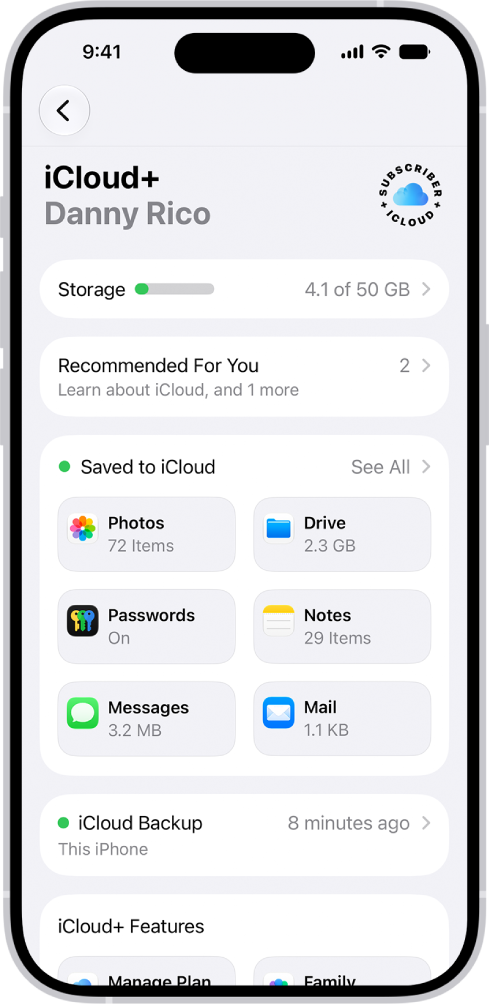
On iPhone, you can check how much storage space is available and increase the available space by removing items you no longer need. Photos and videos, messages, downloaded videos, and apps are common sources of storage use, and iPhone can automatically remove unused apps while keeping your data.
Check storage
- Open the Settings app on your iPhone.
- Tap General and tap iPhone Storage.
At the top of the screen, you’ll see the available storage.
Remove items to increase storage
These items are common sources of storage use, and you can do any of the following to increase available storage:
- Photos and videos: Back up your photos and videos to iCloud, then remove them from your device.
- Messages: Delete conversations and attachments you no longer need.
- Downloaded videos: Review videos you’ve downloaded for offline viewing in the TV app and other streaming apps, and remove ones you’ve already watched.
- Files and documents: Find and delete files you no longer need in the Files app.
- Apps: Delete apps you no longer use.
Offload unused apps automatically
When storage is low, iPhone can automatically remove unused apps while keeping your data. The app icon stays on your Home Screen with a cloud symbol—tap it to reinstall the app.
- Open the Settings app on your iPhone.
- Tap Apps, tap App Store, and then turn on Offload Unused Apps.