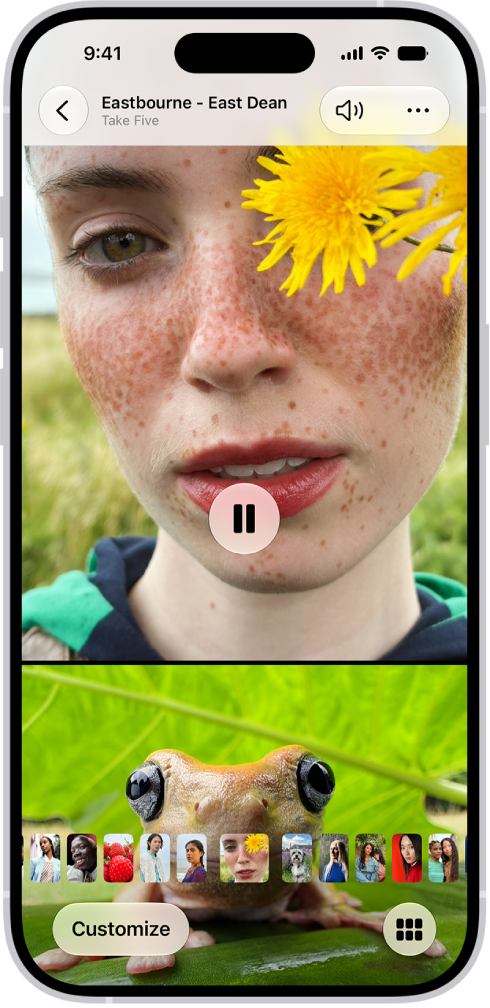
On iPhone, in the Photos app, you can edit your memory movies to make them even more personal. Try Memory Looks, which let you apply different songs paired with a matching photographic style. You can also choose new songs, edit the title, change the length, and add or remove photos.
Apple Music subscribers have even more to choose from, since they can add songs from the millions of songs in the Apple Music catalog. You can also reorder photos and change transitions.
Change the look of a memory movie
Memory Looks change the look and feel of a memory movie with curated combinations of different songs, pacing, and styles.
- Start the Photos app on your iPhone.
- Tap Collections.
- Swipe left under Memories to scroll through a selection of your memories, or tap Memories to view them all.
- Tap the Play button in the bottom-right corner of a memory to play it.
- Tap the screen, then tap Customize.
- Tap Customize Look, then swipe left to view different Memory mixes. You can also do the following:
- Tap the Filters button to view all of the Memory Looks at the same time.
- Tap the Music button to change the song.
- Tap the screen to apply the Memory Look.
Change the music of a memory movie
To change a memory movie’s music, choose from memory soundtracks or suggested songs in Apple Music. If you’re an Apple Music subscriber, you can also access your Apple Music library and view suggested songs based on your musical preferences or the content of the memory.
- Start the Photos app on your iPhone.
- Tap Collections.
- Swipe left under Memories to scroll through a selection of your memories, or tap Memories to view them all.
- Tap the Play button in the bottom-right corner of a memory to play it.
- Tap the screen, then tap Customize.
- Tap Music, then tap Change Song.
Apple Music subscribers can tap Browse to search for songs in the Apple Music library.
Add or remove photos in a memory movie
To choose the photos that appear in a memory movie, choose photos directly from your library, or add or remove suggested photos.
- Start the Photos app on your iPhone.
- Tap Collections.
- Swipe left under Memories to scroll through a selection of your memories, or tap Memories to view them all.
- Tap the Play button in the bottom-right corner of a memory to play it.
- Tap the screen, tap the Browse button, and do any of the following:
- Add a photo: Tap the photos you want to add (tap All to see your entire library),then tap the Done button.
- Remove a photo: Deselect a photo to remove it from the memory. Tap the Done button.
- Search for photos in your library: Tap All and tap the Search button. Then type what you’re looking for. Tap the photos you want to add. Then tap the Done button.
- Tap the Back button to return to the memory movie.
Reorder photos in a memory movie
- Start the Photos app on your iPhone.
- Tap Collections.
- Swipe left under Memories to scroll through a selection of your memories, or tap Memories to view them all.
- Tap the Play button in the bottom-right corner of a memory to play it.
- Tap the screen, then tap the Browse button.
- Touch and hold a photo, then drag it to a new position in the grid.
- Tap the Back button to return to the memory movie.
Change the length and transitions of a memory movie
You can change a memory movie’s length to short, medium, or long, depending on how many photos it has, and your choice automatically adjusts the number of photos included. It’s up to you how the transition between photos appears, too, like crossfade or rotate.
- Start the Photos app on your iPhone.
- Tap Collections.
- Swipe left under Memories to scroll through a selection of your memories, or tap Memories to view them all.
- Tap the Play button in the bottom-right corner of a memory to play it.
- Tap the screen and tap Customize. Tap Transition and Duration.
- Make your selections, then tap the Done button.
Edit the memory title, subtitle, and key photo
Edit a memory’s title or subtitle, and change the key photo that appears with its title.
- Start the Photos app on your iPhone.
- Tap Collections.
- Swipe left under Memories to scroll through a selection of your memories, or tap Memories to view them all.
- Tap a memory to view the collection.
- Tap the More button, tap the current title, and then do any of the following:
- Edit the memory title or subtitle: Enter a new title or subtitle in the text fields.
- Change the key photo: Tap the photo icon in the bottom-right corner of the current key photo. Then select a new photo in the photo grid.
- Tap the Done button.