iOS 26 includes a new "Keep Audio in Headphones" setting that addresses a common frustration for iPhone users juggling multiple audio devices. You can now prevent your iPhone from rerouting audio to a newly connected device when you’re already using headphones or AirPods. In this article, we’ll show you how to prevent your iPhone from automatically switching audio output in iOS 26.
What’s “Keep Audio in Headphones and How does It Work in iOS 26?
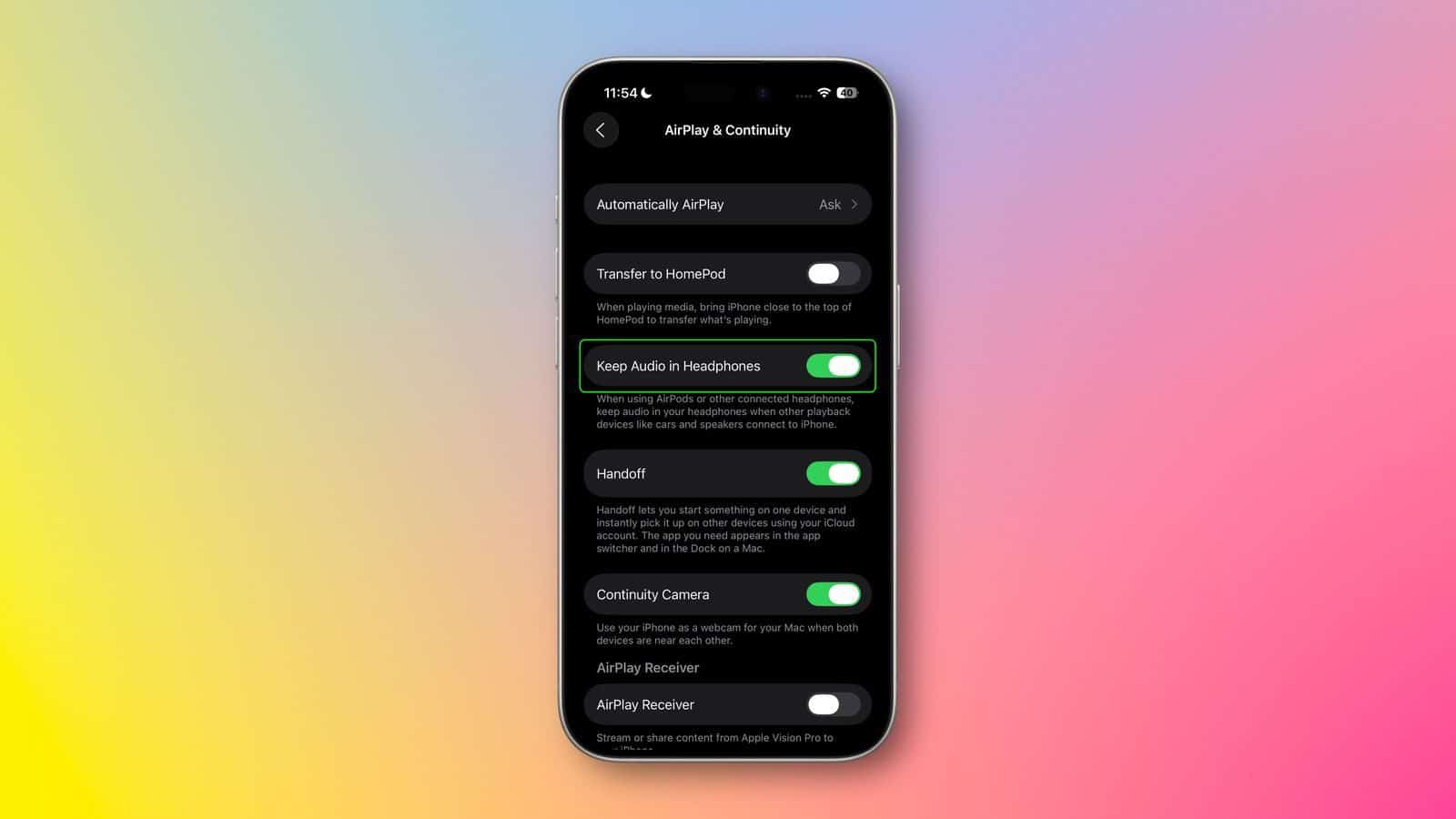
With the release of iOS 26, Apple has added a dedicated toggle called “Keep Audio in Headphones.” This setting is designed to prevent audio from automatically switching to newly connected devices like car speakers or Bluetooth speakers when you’re already listening through headphones or AirPods. Instead of having your music suddenly blast through your car’s sound system, audio continues playing through your original output device.
How to Enable the “Keep Audio in Headphones” Setting
Here’s how you can activate the “Keep Audio in Headphones” feature on your iPhone running iOS 26:
- On your iPhone, open up the Settings app.
- Go to General.
- Select AirPlay & Continuity.
- Turn on Keep Audio in Headphones toggle.
While it may seem like a minor feature, “Keep Audio in Headphones solves an awkward scenario many users will have experienced. Say you’re listening to a podcast through AirPods while walking to your car, only to have it unexpectedly resume through CarPlay when you start the engine. Now you can stop that happening by enabling Keep Audio in Headphones option.
This feature provides welcome relief for anyone tired of their iPhone making assumptions about where they want their audio played. Whether you’re on a walk listening to a podcast, at the gym with your favorite playlist, or on a call through AirPods, iOS 26 will now respect your current listening setup. No more unexpected jumps in audio output the moment you start your car or turn on a Bluetooth speaker nearby.
See also: How to Turn OFF iOS 26 Liquid Glass Design on iPhone & iPad