On iPhone, use AirPrint to print wirelessly to an AirPrint-enabled printer from apps such as Mail, Photos, and Safari. Many apps available on the App Store also support AirPrint. First, though, confirm that your printer supports AirPrint.
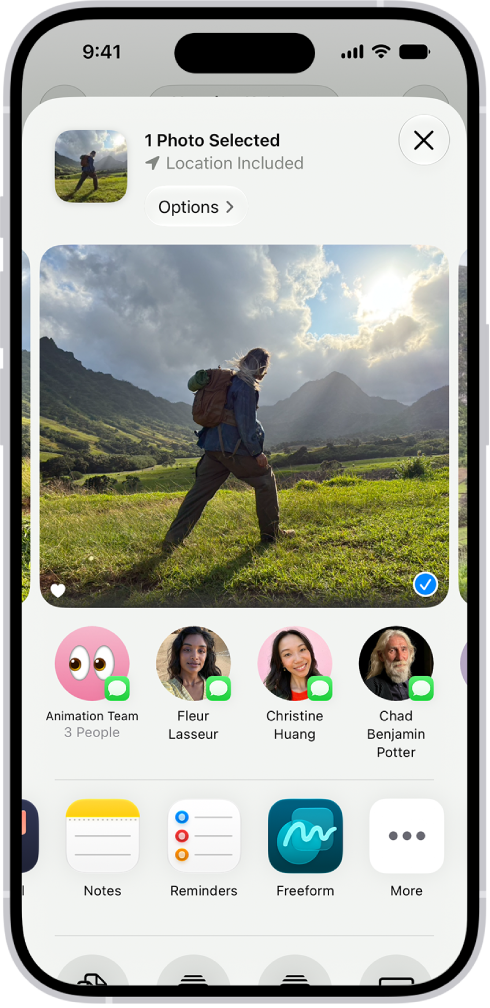
Depending on the app, you’ll find Print with the Share, More, Reply, or Actions Menu buttons. After you print, you can see the status of a print job, too.
Here’s how to print from iPhone.
Note: Make sure your iPhone and the printer are on the same Wi-Fi network.
Choose an AirPrint-enabled printer
After confirming that your printer supports AirPrint and that your iPhone and printer are on the same Wi-Fi network, do the following:
- Open the app you want to print from.
- Tap the Share button, the More button, the Reply button, or the Actions Menu button (depending on the app).
- Tap Print, tap No Printer Selected, and choose an AirPrint-enabled printer.
Print a document
- Open the app you want to print from.
- Tap the Share button, the More button, the Reply button, or the Actions Menu button (depending on the app).
- Tap Print. (If you don’t see Print, swipe up.)
See the status of a print job
Open the App Switcher, then tap Print Center.
The icon’s badge shows how many documents are in the queue.
To cancel a print job, select it in Print Center, then tap Cancel Printing.