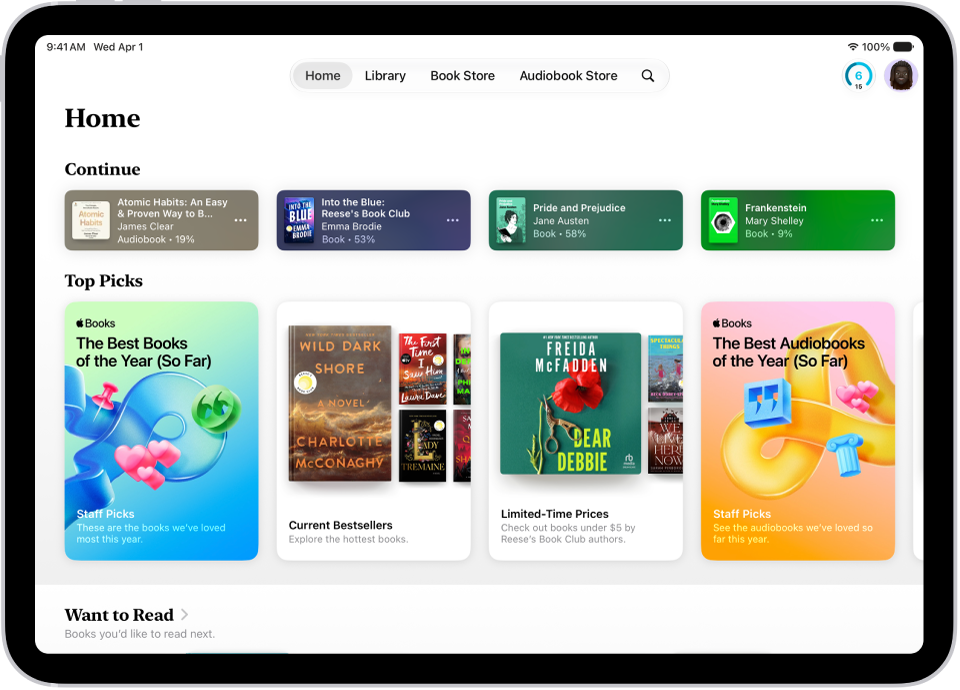
On iPad, in the Books app, you can view the books you’re currently reading, want to read, your book collections, and more, and you can set daily reading goals. Your library holds the books, audiobooks, samples, series, and PDFs you got from the Book Store or added to Books.
As you read, you can turn the page, return to a previous page or reading location, change the text and page appearance, and bookmark a page. Here’s what you’ll find in the Books app:
- Home: Tap to access the books, audiobooks, and PDFs you’re currently reading, get personalized suggestions for your next read, find books you’ve marked as want to read, and more. You can also set daily reading goals and keep track of the books you finish throughout the year.
- Library: Tap to view all of the books, audiobooks, samples, series, and PDFs you either got from the Book Store or manually added to Books. Tap the Collections button to see your library sorted into collections, such as Want to Read, My Samples, Audiobooks, Finished, or custom collections you created (see Create a collection).
Note: Apple Books isn’t available in all countries or regions.
Read a book
- Start the Books app on your iPad.
- Go to a book and tap the cover to open it. Then do any of the following:
- Turn the page: Tap the right margin or swipe right to left.
To allow either the left or right margin to turn the page, go to Settings > Apps > Books, then turn on Both Margins Advance.
- Go back to the previous page: Tap the left margin or swipe left to right.
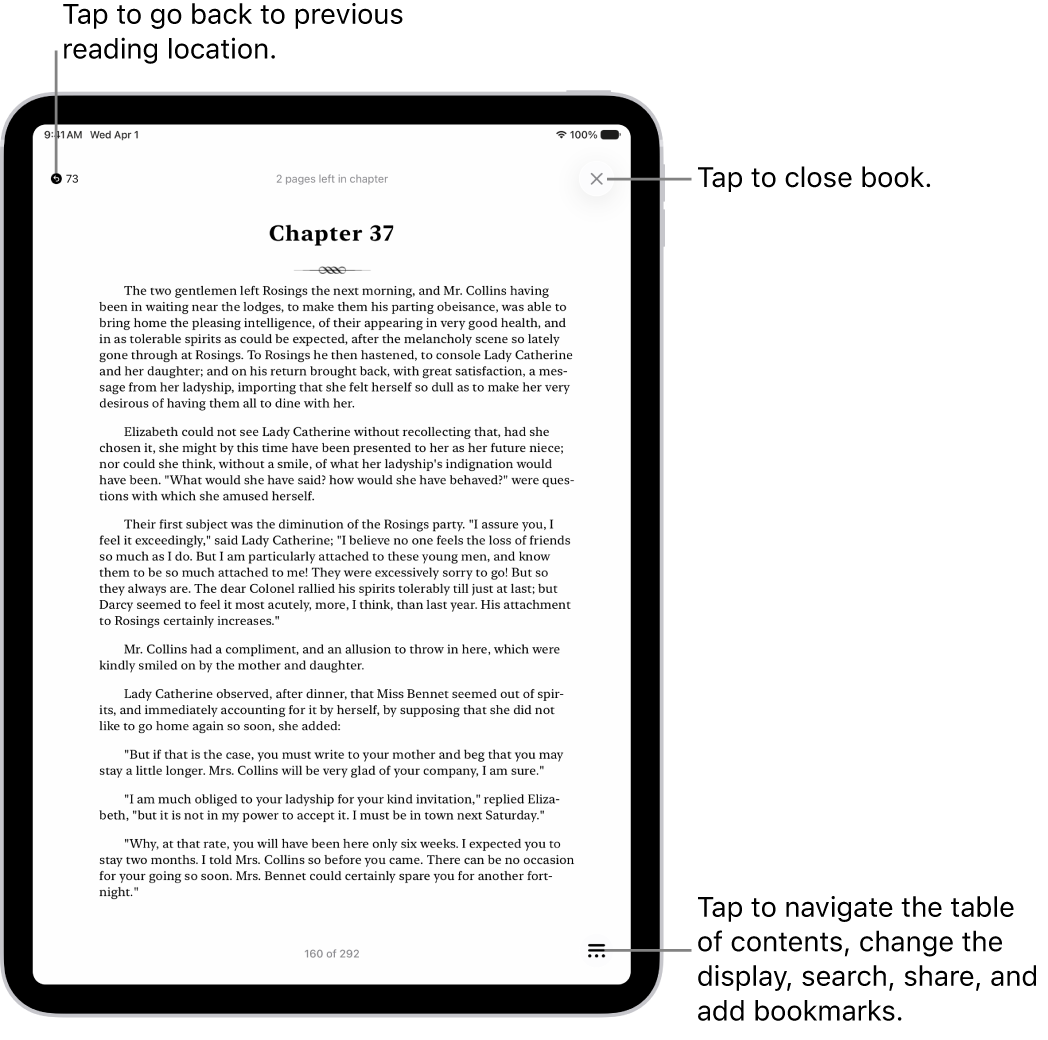
- Go back to previous reading location: Tap the page. Tap the rounded arrow in the top-left corner of the page. Tap the rounded arrow again, but in the top-right corner, to go back to your current location.
- Go to a specific page or location: Tap the page, tap the Menu button, and then tap Search Book. Enter a word, phrase, or page number and then tap a result.
- Use the table of contents: Tap the page, tap the Menu button, and tap Contents.
Tip: To quickly move through a book, touch and hold Contents, then drag your finger left or right; release your finger to go directly to that location in the book.
- Close a book: Tap the page. Then tap the Close button in the top-right corner, or swipe down from the top of the page (not available if vertical scrolling is on).
- Turn the page: Tap the right margin or swipe right to left.
Change text and page appearance
- Start the Books app on your iPad.
- Open a book. Then tap the Menu button at the bottom of the page.
You may need to tap the page for the Menu button to appear.
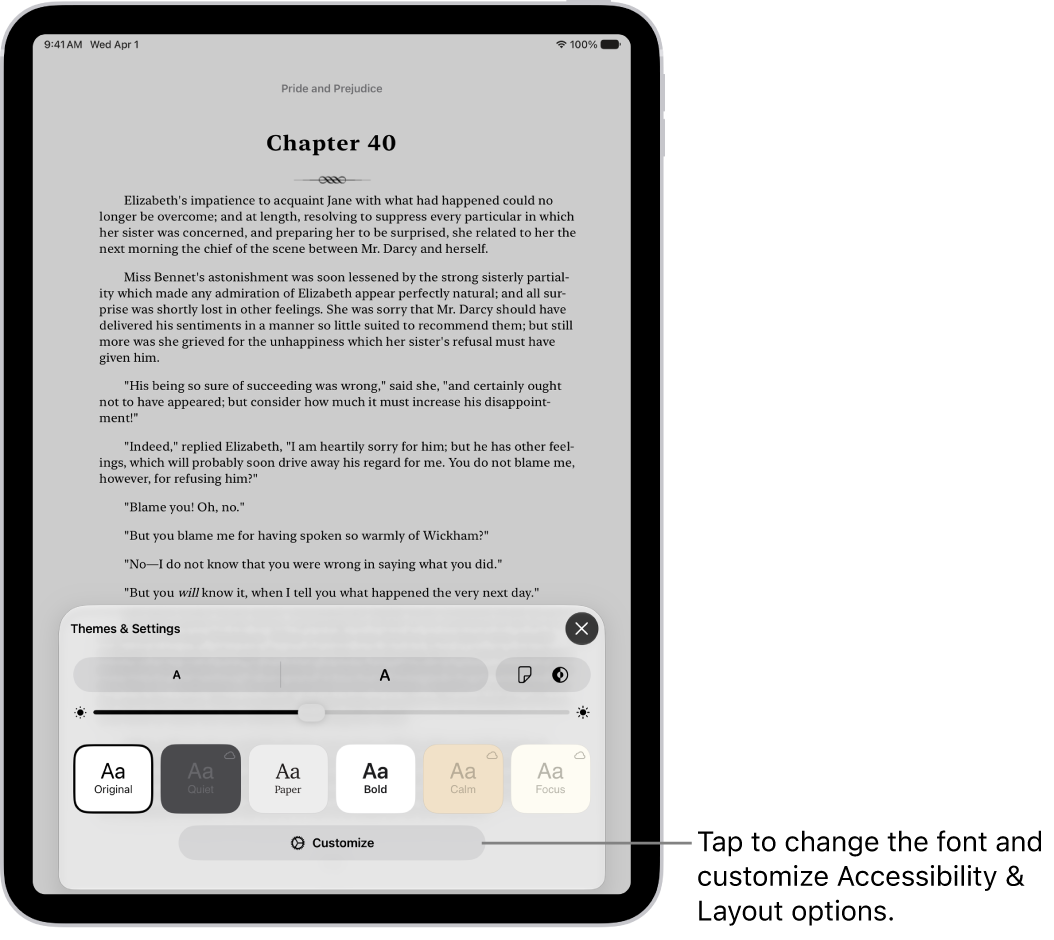
- Tap Themes & Settings and then do any of the following:
- Change the font size: Tap the large A to increase the font size or tap the small A to decrease it.
- Turn on vertical scrolling or change the page turn style: Tap the Page Turn button and tap Curl, Fast Fade, or Scroll.
To turn on vertical scrolling when viewing a PDF, tap the Appearance button at the top of the screen, then turn on Vertical Scrolling.
- Adjust the background mode: Tap the Appearance Options Light button, then tap an option.
- Adjust the display brightness: Touch the brightness bar. Then drag your finger in either direction.
- Change the page theme: Tap a page theme such as Quiet or Bold.
- Change the font: Tap Customize, then tap Font. Tap a font name, such as Original or Palatino. Tap the Done button to apply the font.
- Make the font bold: Tap Customize, turn on Bold Text, and tap the Done button.
- Customize spacing and justification: Tap Customize and then below Accessibility & Layout Options, turn on Customize. Drag the sliders left or right to adjust line spacing, character spacing, word spacing, and margins. You can also change the number of text columns on a page and turn Justify Text on or off. Tap the Done button to apply your changes.
- Tap the Close button to close the Themes & Settings menu.
Note: To change which side of the screen the Menu button appears on, go to Settings > Apps > Books, then choose Left or Right below Reading Menu Position.
To undo text and layout customizations, tap the Menu button, tap Customize, then tap Reset Theme.
Bookmark a page
When you close a book, your place is saved automatically, so there’s no need to add a bookmark, but you’re free to add bookmarks to pages you want to return to.
- Start the Books app on your iPad.
- Tap a book cover to open it. Tap the page you want to bookmark.
- Tap the Menu button at the bottom of the page.
You may need to tap the page for the Menu button to appear.
- Tap the Bookmark Ribbon; tap it again to remove the bookmark.
To access all your bookmarks, tap the Menu button, tap Bookmarks & Highlights, then tap Bookmarks.
Share a text selection or book link
You can send text selections using AirDrop, Mail, or Messages, or you can add the selection to Notes. If the book is from the Book Store, a link to the book is included with the selection. (Sharing may not be available in all countries or regions.)
- Start the Books app on your iPad.
- Tap a book cover to open it.
- Touch and hold a word and then move the grab points to adjust the selection.
- Tap the Forward button, then tap Share.
- Tap Mail, Messages, or another app or service to share the selection.
You can also share a link to view the book in the Book Store. Tap a page, tap the Menu button, tap the Share button, then tap how you want to share the link.
Turn on Line Guide
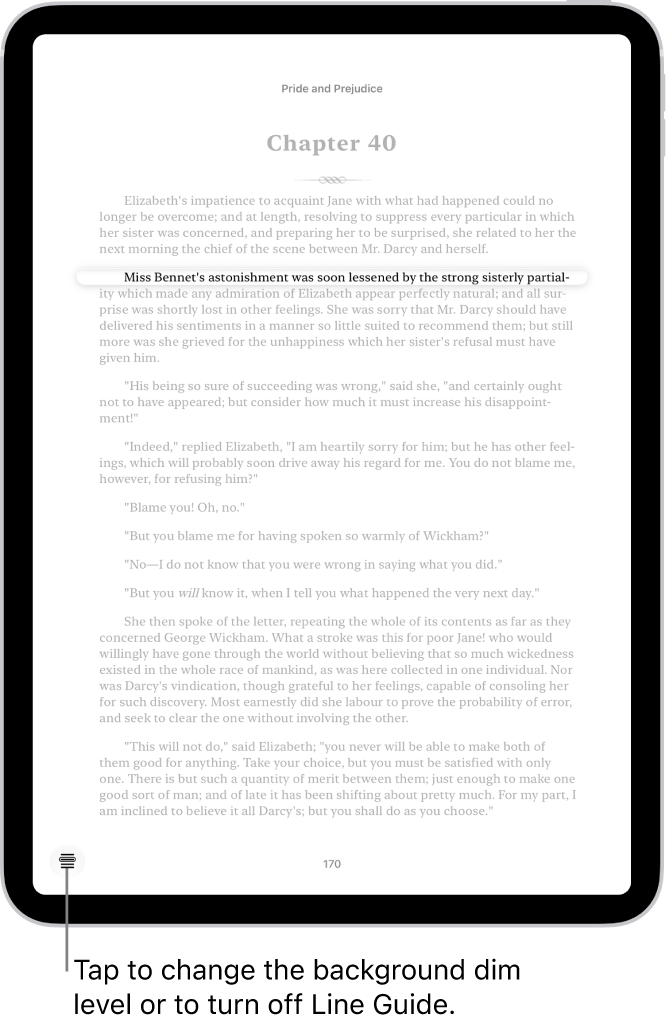
Line Guide helps you focus on individual lines of text as you read. With it on, the rest of the page dims, making the line you’re reading more visible.
- Start the Books app on your iPad.
- Tap a book cover to open it and tap a page.
- Tap the Menu button at the bottom of the page.
- Tap the Line Guide Menu button to turn on Line Guide and then do any of the following:
- Tap the page above or below the line guide to move it up or down.
- Tap the left or right page margin to move the line guide up or down (not available if vertical scrolling is on).
- Touch and hold the line guide, then drag it to a new line on the page.
- Tap the Line Guide Menu button in the bottom-left corner of the page to adjust the background dim level or turn off Line Guide.
See also