When you’re not driving, you can rearrange the icons on CarPlay Home from the Settings app on your iPhone. You can move an icon, remove one, or add an icon back, and your changes appear the next time you connect to CarPlay.
- When you’re not driving, open the Settings app on your iPhone.
- Tap General and then tap CarPlay.
- Select your vehicle, then tap Customize.
- Do one of the following:
- Move an icon: Drag the Reorder button up or down in the list.
- Remove an icon: Tap the Delete button next to the icon and then tap Remove.
Only icons that have the Delete button next to them can be removed.
- Add an icon back to CarPlay: Below More Apps at the bottom of the page, tap the Insert button next to the icon.
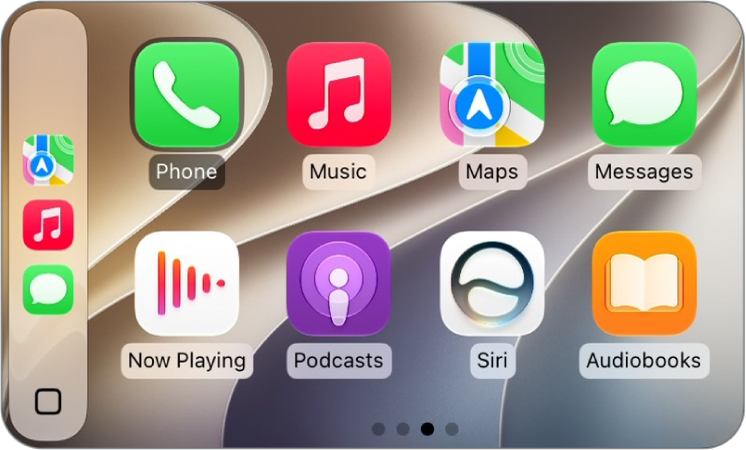
The next time you connect to CarPlay, you’ll see your icon changes on CarPlay Home.