On iPhone, in the Calendar app, reply to meeting and event invitations you’ve received.
You can respond with Accept, Maybe, or Decline. If you add comments to your response, the organizer can see them, but other attendees can’t. You can even suggest a different meeting time.
Reply to an event invitation
- To respond to an event notification, tap it.
Or, in Calendar, tap the Inbox button, then tap an invitation.
- Tap your response—Accept, Maybe, or Decline.
To respond to an invitation you receive by email, tap the underlined text in the email, then tap Show in Calendar.
If you add comments to your response, your comments can be seen by the organizer but not by other attendees (comments may not be available for all calendars). To see events you declined, tap the Calendars button, then turn on Show Declined Events.
Suggest a different meeting time
If you’ve received a meeting invitation, you can suggest a different time for it.
- Start the Calendar app on your iPhone.
- Tap the meeting, then tap Propose New Time.
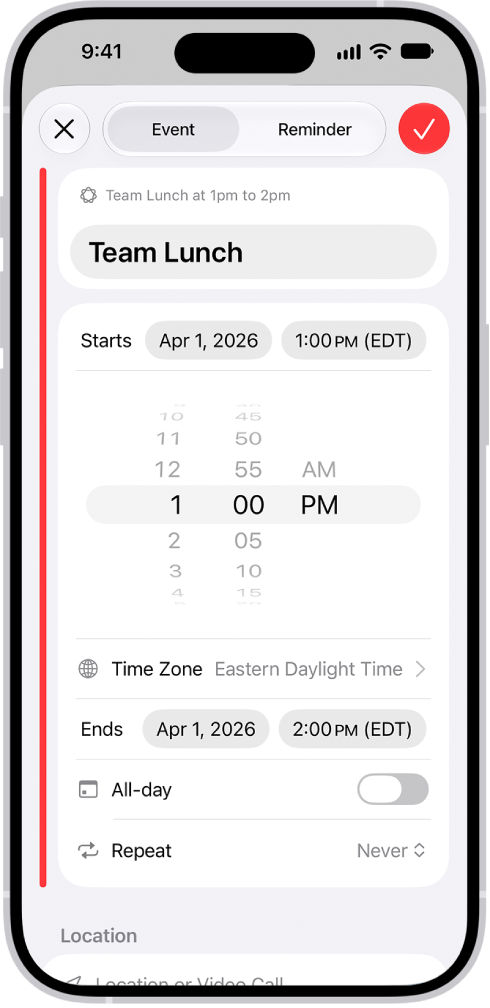
- Tap the time, then enter a new one.
- Tap the Done button, then tap Send.
The organizer gets either a counter-proposal or an email with your suggestion, depending on what your calendar server can do.