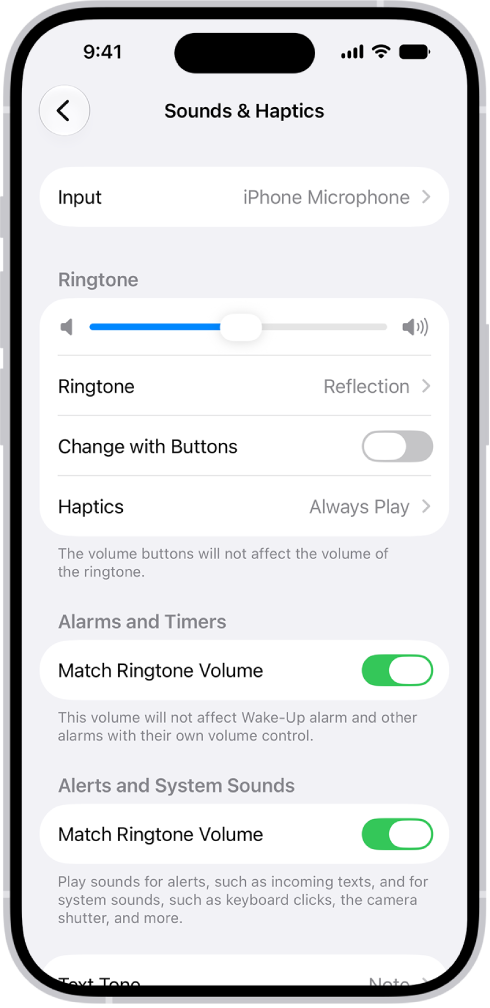
On iPhone, you can assign distinctive ringtones to certain people, and turn the ringer on or off. A contact’s ringtone is set in Contacts, when you edit the contact. And on models with an Action button, you can turn the ringer on or off from Control Center.
Assign a different ringtone to a contact
- Open the Contacts app on your iPhone.
- Select a contact, tap Edit, tap Ringtone, and then choose a ringtone.
Turn the ringer on or off
- On models with an Action Button: Open Control Center, then tap the Mute Switch button. You can also configure the Action Button to turn the ringer on or off.
- On other models: Flip the Ring/Silent switch to turn Silent mode on or off.
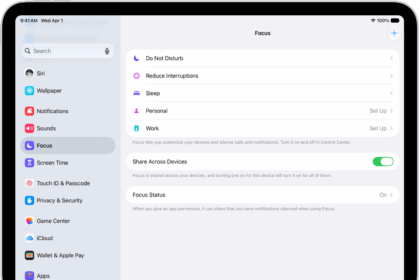
Even with Silent mode turned on, Clock alarms still play. To silence incoming calls temporarily, turn on or schedule a Focus. And you can change the default sound for a call, text, voicemail, email, reminder, or other notification.