On iPad, you can write, send, and schedule email messages from any of your email accounts.
You can change the font style and color of text, use bold or italic, add a bulleted or numbered list, and add a hyperlink. With the onscreen keyboard, you can also switch to the smaller QuickType keyboard. You can edit a link later, too, and as you add recipients, Mail suggests people from your Contacts.
Here’s how to send email in Mail on iPad.
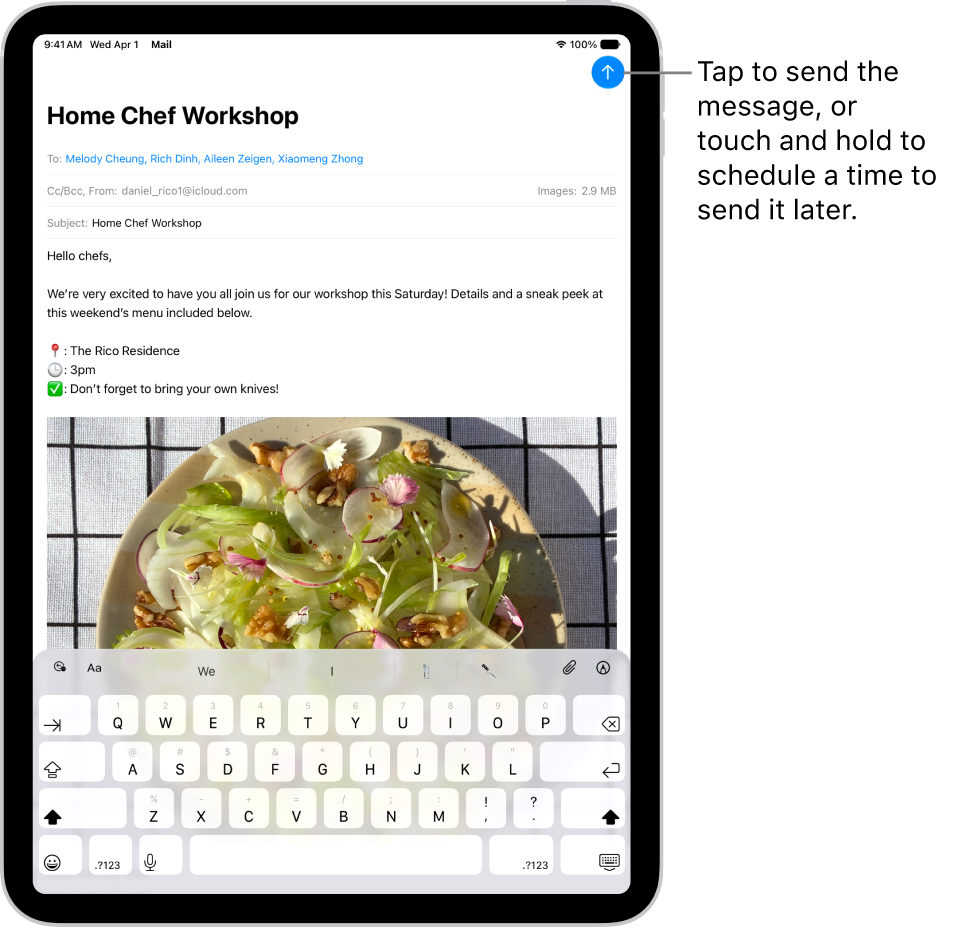
Write and send an email
- Go to the Mail app on your iPad.
- Tap the Compose button.
- Tap in the email and type your message.
With the onscreen keyboard, you can tap individual keys. Or pinch closed with three fingers to use the smaller QuickType keyboard, then slide your finger from one letter to the next, lifting your finger only after each word.
- To change the formatting, tap the Text Format button above the keyboard.
You can change the font style and color of text, use a bold or italic style, add a bulleted or numbered list, and more.
- Tap the Send button to send your message.
Quick tip: As you compose messages, you can create stickers and add them. See our guide, Add emoji, Memoji, and stickers with the iPad keyboard.
Add recipients
- Start the Mail app on your iPad.
- Tap the Compose button and tap the To field. Then type the names of recipients.
As you type, Mail automatically suggests people from your Contacts, along with email addresses for people who have more than one email address.
You can also tap the Add Contact button to open Contacts and add recipients from there.
- If you want to send a copy to other people, tap the Cc/Bcc field. Do any of the following:
- Tap the Cc field, then enter the names of people you’re sending a copy to.
- Tap the Bcc field, then enter the names of people whose names you don’t want other recipients to see.
Add a hyperlink to an email message
- In Safari or another web browser, copy the URL of a webpage.
- As you compose a message in Mail, highlight the text you want to link.
- Tap Paste.
Edit a link in an email draft
- Start the Mail app on your iPad.
- In a message you’re writing, tap a link or linked text and tap the down arrow.
- Do any of the following:
- Show Link Preview: Change the hyperlinked text to a rich embedded website preview image.
- Open Link: Go to that website in a web browser.
- Edit Link: Change the URL of the link.
- Remove Link: Delete the link from your message draft.
- Edit Text Description: Change the text that’s linked.
Capture an email address from a photo
With Live Text in the Photos app on iPad, you can interact with an email address on a business card, poster, and more, so you can quickly begin emails without entering an address manually.
- Start the Photos app on your iPad.
- Open a photo and then tap the email address you want to capture.
- After the yellow frame appears around detected text, tap the Live Text button.
- Tap or use the grab points to select the email address and tap New Mail Message.
Quick tip: The same Live Text feature can capture an email address with the Camera app. Read our article, Use Live Text with your iPad camera.
Schedule an email with Send Later
- Start the Mail app on your iPad.
- In a message you’re writing, touch and hold the Send button. Then choose when you want to send the message.
To see more options, tap Send Later.
Automatically send a copy to yourself
- Start the Settings app on your iPad.
- Tap Apps and then tap Mail.
- Turn on Always Bcc Myself (below Composing).
Send an email from a different account
When you have more than one email account, you can pick the one to send email from.
- Start the Mail app on your iPad.
- In your message draft, tap the Cc/Bcc, From field.
- Tap the From field and then choose an account.
Use Writing Tools to summarize, proofread, and modify your email
With Apple Intelligence, you can use Writing Tools to summarize selected text with a tap, proofread your work, and create different versions of the same text to help you find the right wording and tone. See Use Writing Tools with Apple Intelligence.
Note: Apple Intelligence on iPadOS 27 or later is available on an Apple Intelligence-enabled iPad mini (A17 Pro) and iPad models with M1 or later. Apple Intelligence is not available in all languages or regions. Usage limits may apply.*
*Apple Intelligence is available with Siri and device language set to Chinese (Simplified), Chinese (Traditional), Danish, Dutch, English, French, German, Italian, Japanese, Korean, Norwegian, Portuguese, Spanish, Swedish, Turkish, or Vietnamese. Some features may not be available in all regions or languages. Some devices may not be available in all regions. Siri AI is available in beta in iOS 27, iPadOS 27, macOS 27, watchOS 27, and visionOS 27 and requires an Apple Intelligence–enabled device set to a supported language. Available in English to start. Siri AI will not be initially available in the EU on iOS, iPadOS, and watchOS. Certain Apple Intelligence features that rely on server-side models are subject to daily usage limits, including but not limited to Siri AI, Intelligent Photo Editing Tools, Image Playground, and AFM 3 Cloud models in Shortcuts. Daily limits may vary by feature, request complexity, system demand, system policies, and other factors. Expanded access to such features will be available for a fee in the future. Use of these features is subject to the Apple Intelligence Terms and Conditions.
See also