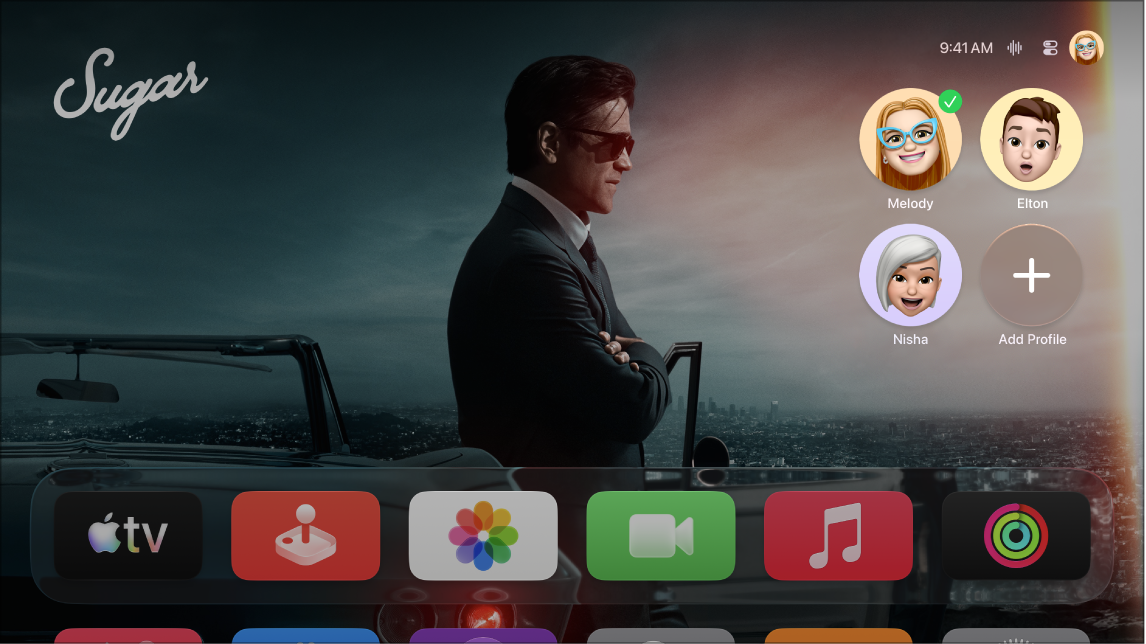
Using the Home app on an iPhone, iPad, or Mac (with macOS Catalina or later), you can add profiles to your Apple TV 4K for family or other household members who have Apple Accounts. The Home app lets you add multiple profiles at the same time and customize each person’s access by device.
For example, you could set up an Apple TV 4K in a bedroom with one account, and another in the living room with multiple accounts. Once an invitee accepts, the family member appears as a profile on those Apple TV 4K devices.
Here’s how to add profiles to your Apple TV 4K from the Home app.
Quick tip: Alternatively, you can set up and manage profiles that don’t require an Apple Account (such as a child’s profile) directly on Apple TV 4K. See Add, remove, or delete profiles on Apple TV 4K.
- Make sure your Apple TV 4K is assigned to a room on the same network controlled by the Home app.
- Open the Home app on your iPhone, iPad, or Mac.
- Tap or click the More button in the upper-right corner, then choose Home Settings.
- Tap or click Invite People and enter the Apple Account email address for the profile you want to add. Tap or click Send Invite.
- Tell the invitee to open the Home app on their iPhone, iPad, or Mac and do the following:
- Tap Accept.
- Tap the More button, select Home Settings, then tap their name.
- Tap Show Me on Apple TV 4K, then turn on one or more Apple TV 4K devices.
From then on, the family member appears as a profile for those Apple TV 4K devices.
Note: When you use Apple TV 4K as a home hub, the Home app updates in iOS 16.2, iPadOS 16.2, and macOS 13.1 give you more reliable and efficient control of connected devices in your home.
Not all features and content are available in all countries or regions or on all Apple TV hardware models.