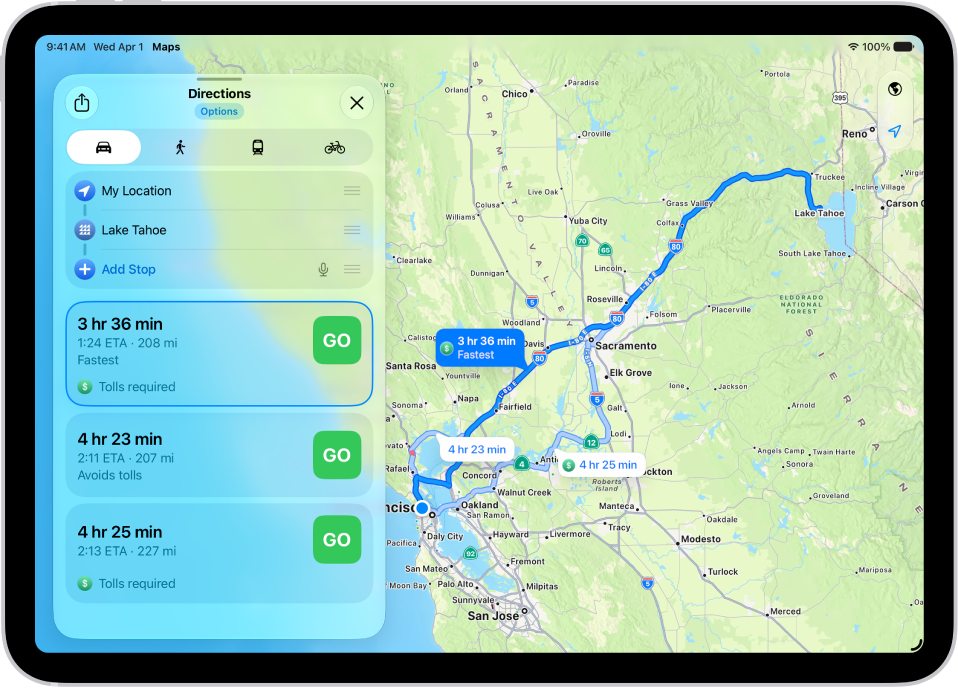
On iPad, while you’re following driving, cycling, or walking directions, you can share your estimated time of arrival (ETA) to let friends and family know when you’re likely to arrive.
Your ETA updates automatically if there are major delays, so you don’t have to send follow-up messages along the way. You can share your ETA with more than one contact, and even ask Siri to share it.
Here’s how to share your estimated time of arrival in Maps on iPad.
Note: Not all features are available in all countries or regions. Some Maps features on iPad models with Wi-Fi + Cellular require a cellular data plan and Cellular Data turned on in Settings > Apps > Maps. Standard carrier data and text rates may apply. See View or change your cellular data.
Share your estimated time of arrival (ETA)
Siri: Ask Siri something like, “Share my ETA.” Learn how to use Siri.
Or without using Siri:
- Go to the Maps app on your iPad.
- Search for the place you want to go and then tap Go.
- Tap the route card at the bottom of the screen. Then tap Share ETA.
If you don’t see Share ETA, make sure you turned it on in Settings > Apps > Maps.
- Choose one or more suggested contacts, or tap Open Contacts to find a contact.
- To share your ETA with more contacts, tap Sharing with at the bottom of the screen. Then tap Open Contacts.
The Messages, Find My, and Contacts apps can share your location with others, too. For the steps, see our article for each app: Share your location in Messages, Share your location in Find My, or Edit contacts.
Stop sharing your ETA
- Start the Maps app on your iPad.
- Open the route card for a trip in progress.
- Tap Sharing with at the bottom of the screen. Then tap Stop Sharing ETA below each contact’s name.
Automatically share your ETA to a pin
A contact you add to a pinned place in your Places automatically gets your ETA when you start turn-by-turn navigation to that location.
- Start the Maps app on your iPad.
- Tap Places, then tap Pinned. See Add a pin to your Places.
- Tap the Information button and tap Add Person.
- Search for a contact, tap to add them and then tap the Done button.
- Tap the pinned location. Then tap Go to start sharing your ETA.
Until you arrive, your location, route, and ETA remain viewable.
Turn off ETA sharing
- Start the Settings app on your iPad.
- Tap Apps, then tap Maps.
- Scroll down, then turn off Share ETA.
With iPadOS 13.1, iOS 13.1, or later, people get a Maps notification with your ETA and can track your progress in Maps. Earlier versions get the notification through iMessage instead, and other mobile devices receive an SMS message.
See also