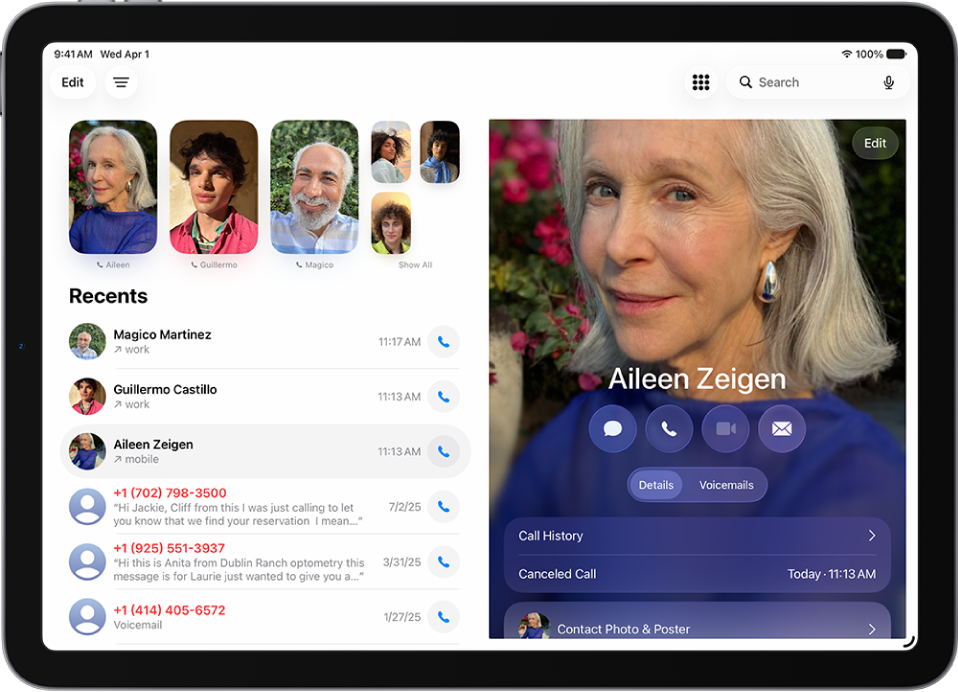
You can view your call history on your iPad and delete all your recent calls or just specific calls. You can also get more details about your call history with a caller, and to recover a deleted call history, you can restore your iPad from a backup you made before.
Delete your call history
- Start the Phone app on your iPad.
- Tap the Filter button and tap Calls, Missed, or Spam.
- Do one of the following:
- Delete calls one at a time: Swipe a call all the way to the left.
- Delete multiple calls: Tap Edit, tap Select, tap the calls you want to delete, and tap Delete.
Recovering a deleted call history means you’ll have to restore your iPad from a backup made before the data was deleted.
Get more details about your call history
- Start the Phone app on your iPad.
- Tap the Filter button, then tap Calls or Missed.
- Tap a name or number in your call history to view information about the caller, and your call history with the caller.
Note: More information about deleted calls or older call histories may be available from your carrier.
See also