Did you know you can watch two YouTube videos simultaneously, side-by-side, on your iPad? There may be various reasons you would want to do this. For example, you may want to play a funny cat video on one screen while you watch a soccer game at the same time—say during commercials, or a lull in the action. In this article, I explain how you can watch two YouTube videos simultaneously using Safari on your iPad with iPadOS 26.
To watch two YouTube videos at once on an iPad, we will use iPadOS multitasking features. More specifically, we will use Split View in Safari to see two YouTube pages at the same time.
Important Note About Audio: While you can display two YouTube videos side-by-side on your iPad, iPadOS 26.2 and newer still only supports audio playback from one video at a time. If you start playing a second video with audio, the first video will automatically pause. To watch both videos simultaneously, you’ll need to mute one of them—both videos will then play, but only the unmuted video will have sound.
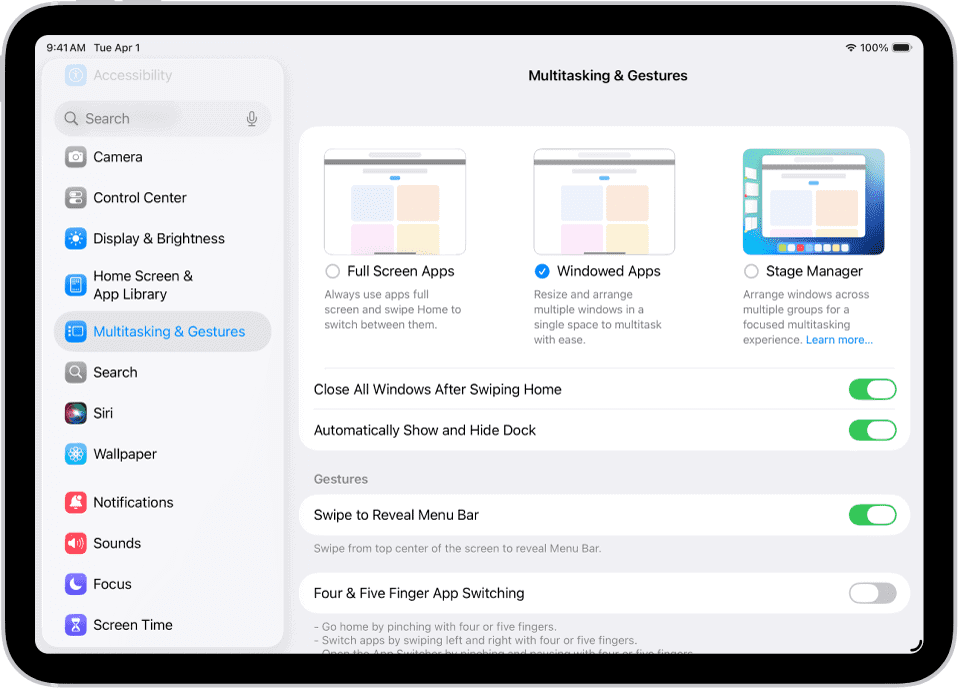
Before You Begin: Enable Windowed Apps on your iPad
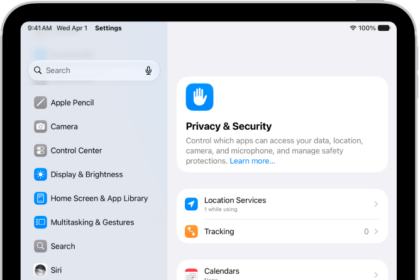
First, make sure Windowed Apps mode is enabled on your iPad:
- Open the Settings app
- Scroll down and tap Multitasking & Gestures
- Select Windowed Apps
This enables the multitasking features needed for Split View. If you prefer to use only one app at a time, you can select Full Screen Apps instead, though this will disable Split View functionality.
Open Two YouTube Videos Side by Side on iPad
Method 1: Drag Safari from the Dock (Easiest)
This is the quickest and most intuitive way to open two Safari windows side by side:
- Open Safari on your iPad and navigate to your first YouTube video
- Open the Dock by swiping up from the bottom of the screen
- Locate the Safari icon in the Dock
- Press and hold the Safari icon, then drag it to the left or right edge of your screen
- As you drag, you’ll see an arrow indicating that Split View is activating
- Release the Safari icon, and a second Safari window will open side by side with the first
- Navigate to your second YouTube video in the newly opened Safari window
- If you want to adjust the window sizes, drag the divider bar between the two windows left or right
Method 2: Drag from Spotlight
- Open Safari and navigate to your first YouTube video
- Open Spotlight search by swiping down from the middle of the Home Screen (or top of the screen depending on your settings)
- Type "Safari" to find the Safari app
- Press and hold Safari in the search results
- Drag the Safari icon to the left or right edge of your screen until the Split View indicator arrow appears
- Release to open the second Safari window in Split View
- Navigate to your second YouTube video
Method 3: Using the Traffic Light Buttons (Alternative Method)
If drag and drop doesn’t work for you, you can still use the traffic light buttons:
- Open Safari and navigate to your first YouTube video
- Look at the top-left corner of the Safari window for the traffic light buttons (red, yellow, and green dots)
- Press and hold the green button
- From the menu, select the split-view arrangement option (such as left-and-right)
- Safari will move to one side of the screen
- Open Safari again from the Dock or Home Screen—it will automatically appear on the other side
- Navigate to your second YouTube video in the second Safari window
Method 4: Using the Menu Bar
- Open Safari and navigate to your first YouTube video
- Swipe down from the top edge of the screen to reveal the menu bar
- Tap Window in the menu bar
- Under the Move & Resize section, select a split-view arrangement
- Open a second Safari window from the Dock or Home Screen
- Navigate to your second YouTube video
Playing The Two YouTube Videos on iPad
Now you have two Safari windows side by side—one for your cat video, and the other for your soccer game. Important: Because iPadOS 26.2 only allows one audio source at a time, you’ll need to mute one of the videos. To do this:
- Start playing both YouTube videos
- Tap the volume icon on one of the video players to mute it
- Both videos will now play simultaneously, but only the unmuted video will have sound
If you prefer, you can mute one video and listen to the audio from the other, or mute both and enjoy watching them silently.
You can resize the Safari windows by dragging the divider bar between them left or right. This lets you make one video larger than the other, depending on your preference.
Close Split View
When you want to return to viewing just one Safari window, here are several ways to do this:
Method 1: Drag the Divider
- In between the two windows, there is a divider bar
- Touch the divider and drag it all the way to the right or left over the window you want to close
- The window will close when the divider reaches the edge
Method 2: Using the Traffic Light Buttons
- Tap the traffic light buttons (colored dots) at the top-left of the Safari window you want to close
- Tap the red button to close that specific window
Method 3: Make a Window Full Screen
- Tap the traffic light buttons on the window you want to keep
- Tap the green button to make that window full screen. The other window will close
Method 4: Merge All Windows
- Touch and hold the windows button (tabs icon) in the Safari toolbar
- Tap Merge All Windows
- All Safari windows will combine into tabs in a single window
In Conclusion
In this article, I showed you how you can use Safari’s Split View feature on iPadOS to watch two YouTube videos at the same time. The easiest method is to simply drag the Safari icon from the Dock to the edge of your screen—a feature that was restored in iPadOS 26.2 after being temporarily removed. While you can display both videos side-by-side, remember that only one video can play audio at a time—you’ll need to mute one video for both to play simultaneously. I also showed how you can close your windows when you are done using drag and drop, the traffic light buttons, and other window management tools. iPadOS 26 offers many multitasking features which you can use to maximize the quality of your iPad experience.