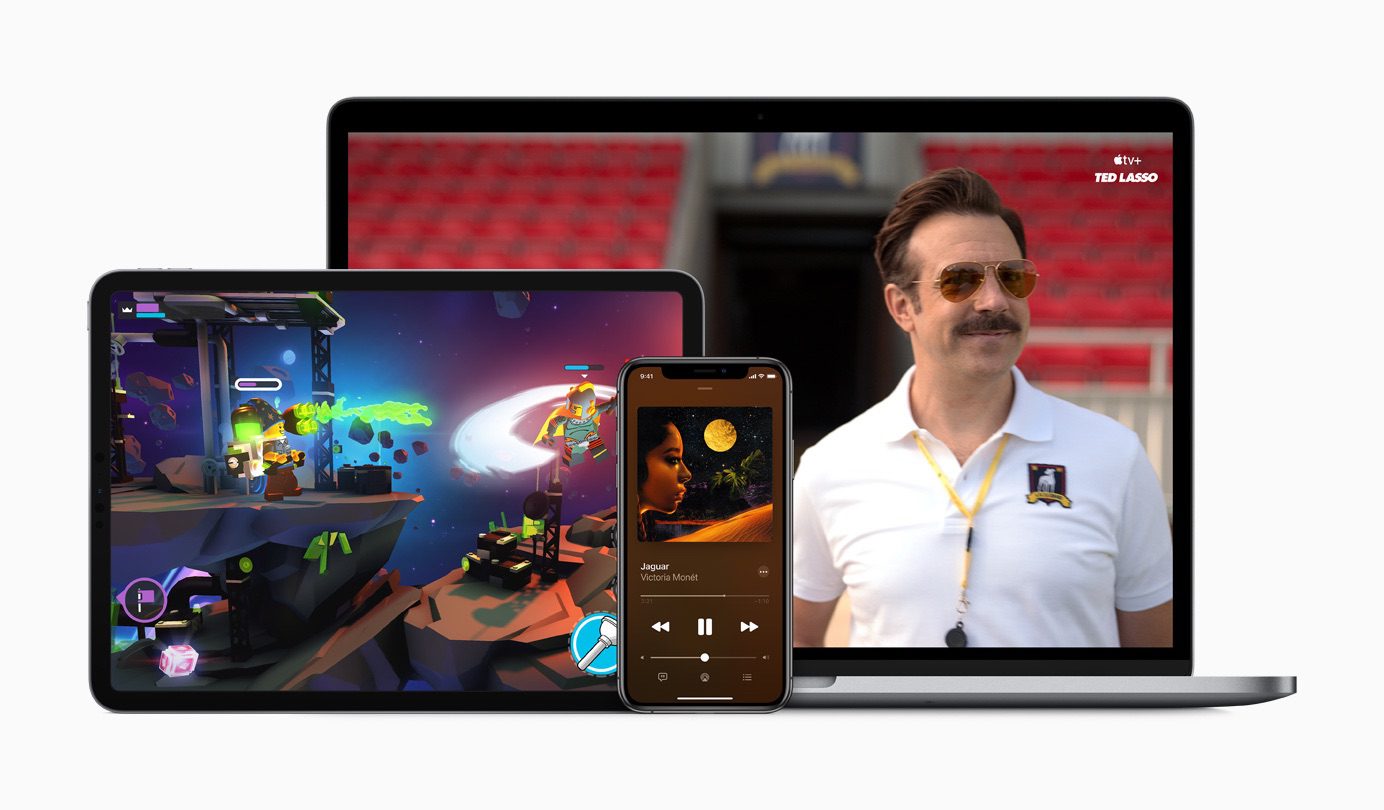
You can change the name of your Apple devices, whether you have an iPhone, iPad, Apple Watch, Mac, AirPods or Apple TV. By default, it’s just "[your name]’s iPhone." But you can give your iPhone its own unique name, like Kit-Kat or Magic Rectangle.
Also by default, when you set up a new iPhone, the name is transferred. This can get confusing if you keep old phones around because you’ll see "Dave’s iPhone," "Dave’s iPhone (2)," maybe even "Dave’s iPhone (3)" and more. The same is true for Apple Watch, Mac, iPad and AirPods.
The name of your device shows up among a bunch of Apple features like AirDrop, Find My, Personal Hotspot, AirPlay and more. If you use these features often, giving it a unique name will make it easier to identify.
Here’s how to fix this mess on all your Apple devices.
How to change the name of your Apple devices
Change iPhone or iPad name
To change the name of your iPhone or iPad, go to Settings > General > About > Name. Type in a different name and tap Done.
If you use your iPhone as a Personal Hotspot, the name of your phone will be set as the name of the Wi-Fi network others connect to.
Change Apple Watch name
To change the name of an Apple Watch, go to the Watch app on your iPhone and tap General > About > Name. Type in a different name and tap Done.
If you ever need to find a missing Apple Watch, the name you give it will be the name that appears in your list of devices in Find My.
Change Mac name
On a Mac running macOS 13 Ventura or later, launch System Settings. In the sidebar, click General > About. The Name field is editable — click on the name and type in the name you want.
The name you give your Mac is the name that appears in AirDrop — the fastest way to transfer files from iPhone-to-Mac, Mac-to-Mac or iPad-to-Mac.
On a Mac running macOS 12 Monterey or earlier, open System Preferences and click Sharing. You can change name in the Computer Name text box on the top of the panel.
Change AirPods name
First, you need to connect your AirPods to your iPhone. Launch the Settings app on your iPhone and you should see your AirPods right on top. Tap on them, then tap Name. Enter in a more descriptive name if you want.
If you need to differentiate your AirPods with someone else’s, a good way to know they’re yours is with a case or with stickers. I would give the AirPods a matching name — Purple AirPods, Black AirPods, Hello Kitty AirPods, etc.
Change Apple TV name
To change the name of an Apple TV, venture into Settings > General > About > Name. You can hold down the Siri button to speak into the remote or pick up your iPhone to type in a name using its keyboard.
The name of your Apple TV comes up if you’re trying to AirPlay content to a bigger screen. If you have multiple Apple TVs in the house, it’s easier to differentiate "Living Room" and "Bedroom" than "Apple TV" and "Apple TV (2)."