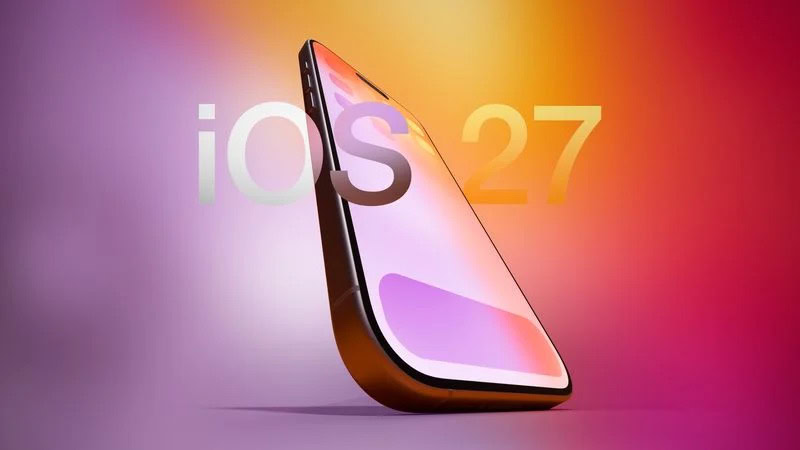
Following the WWDC 2026 keynote event, Apple has seeded the first beta of iOS 27 to developers for testing purposes.
f 5d631a2d7714517b0b0137e38aadf744d175cb3e
Registered developers can opt in to iOS 27 beta and download the software through the Settings app on their iPhones.
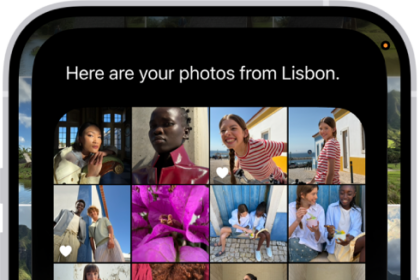
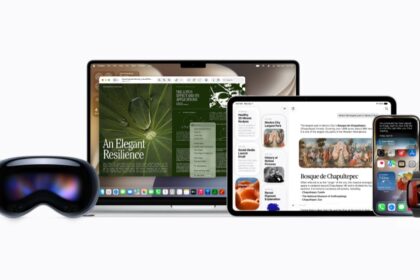
iOS 27 beta highlights include an updated version of Siri with a Siri app and new AI features for apps like Photos, Camera, and Wallet.
There are dozens of new features to go through, including hundreds of smaller tweaks and changes that we’ll be writing about over the next several weeks. Make sure to stay tuned to GeeksChalk for hands-on coverage, guides, how-tos, and an in-depth look at everything you’ll want to know about iOS 27.
iOS 27 beta is limited to developers who will incorporate the new features into their apps. Apple will release a public beta so anyone can test out iOS 27 in July. iOS 27 will launch to the public in the fall.
It’s pretty simple to download and install iOS 27 beta on your iPhone. All you need to do is sign up on Apple’s Beta Software Program website and you’ll be on your way to becoming a beta tester from the comfort of your couch. Here’s everything you need to know about downloading the iOS 27 beta on your iPhone.
How to install iOS 27 beta on your iPhone
Step 1: Check compatibility
To download iOS 27 on your iPhone, you’ll need an iPhone 11 or newer.
The full list of iOS 27-compatible iPhones is as follows:
- iPhone 17e
- iPhone Air
- iPhone 17
- iPhone 17 Pro
- iPhone 17 Pro Max
- iPhone 16e
- iPhone 16
- iPhone 16 Plus
- iPhone 16 Pro
- iPhone 16 Pro Max
- iPhone 15
- iPhone 15 Plus
- iPhone 15 Pro
- iPhone 15 Pro Max
- iPhone 14
- iPhone 14 Plus
- iPhone 14 Pro
- iPhone 14 Pro Max
- iPhone 13
- iPhone 13 mini
- iPhone 13 Pro
- iPhone 13 Pro Max
- iPhone 12
- iPhone 12 mini
- iPhone 12 Pro
- iPhone 12 Pro Max
- iPhone 11
- iPhone 11 Pro
- iPhone 11 Pro Max
- iPhone SE (2nd generation or later)
To identify your iPhone model, go to Settings > General > About.
Step 2: Back up your iPhone
Apple recommends that you back up your iPhone before installing the iOS 27 beta software. For this, you can’t just do a regular backup. You’ll need to archive a backup on your computer, which is a backup that can’t automatically be replaced or deleted. On your Mac, connect your iPhone, open a Finder window, select your iPhone, click Back Up Now, go to Manage Backups, right-click the backup you just created and then click Archive. The process is similar on Windows, but you’ll use the iTunes app instead.
Step 3: Sign in to Apple Developer Program
Once you’ve backed up your iPhone to your computer, the next’s step is to enrolled your device to Apple Developer Program. This will help you get the latest iOS 27 betas from Software Update. You don’t need to join Apple’s Developer Program, no payment is required, just sign in. Here’s how:
- Go to the Apple Developer Center (developer.apple.com/account) and sign in with your Apple account information.
- Check the box for the terms and conditions and tap the Submit button.
Step 4: Enable iOS 27 Beta Updates
After logging into the Apple Developer Center, you need to enable the “Beta Updates” option in the Settings app to receive the latest iOS 27 beta updates on your iPhone. Here’s how:
- Go to Settings > General > Software Update and tap Beta Updates.
- Choose iOS 27 Developer beta.
Note: Your iPhone must be signed in with the Apple Account you use to sign into to the Apple Developer website in order to access the beta software
Step 5: Download iOS 27 beta
- Go to Settings > General > Software Update and wait for iOS 27 Beta to appear.
- Tap Update Now.
If you don’t see the iOS 27 Beta appear, try swiping down on the Software Update page a few times to refresh it.
Enter your passcode, agree to the terms and conditions and then just wait for the update to install on your iPhone.
Once your phone reboots, you should be running the iOS 27 developer beta.
You can always switch to the “Off” option in the Beta Updates to stop receiving future iOS 27 Beta updates.
Step 6: Provide Feedback
Once the iOS 27 beta is installed, it will come with a built-in Feedback Assistant app, which can be launched from the second page of your Home screen. When you come across an issue that needs addressing, send your feedback to Apple with Feedback Assistant.
Should I download the iOS 27 beta?
In general, we don’t recommend download the iOS 27 beta on your main iPhone. While they don’t typically contain any major issues, the beta versions can contain bugs and issues, like battery drain.
If you have an older iPhone from the list above, then it’s probably worth downloading the iOS 27 beta on that. But if your need to test-drive the latest iOS features outweighs your concerns about minor bugs, then follow the steps above – at your own risk.