





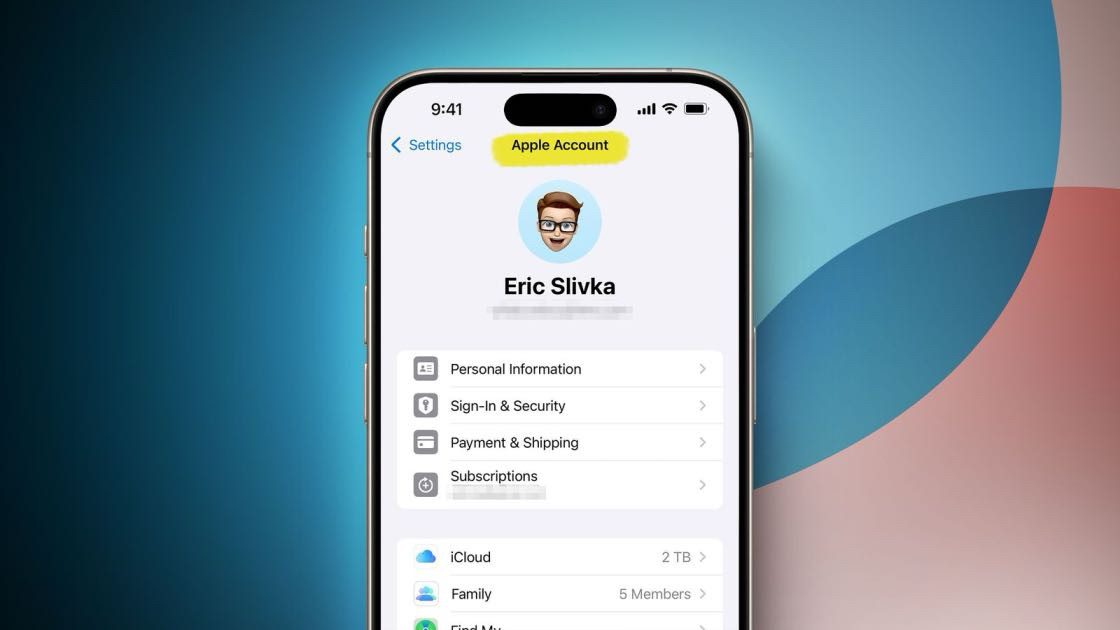
All your app or media purchases, subscriptions, iCloud, and more are associated with your Apple Account (previously called Apple ID). If you’re a new iPhone, iPad, or Mac user, you may wonder how to find your Apple Account. In this guide, we’ll explain what an Apple ID (now called an Apple Account) is and how to find yours on your iPhone, iPad, and Mac. We’ll also show you how to tell whether your email is already registered as an Apple Account.
What is an Apple Account (formerly Apple ID)?
An Apple Account is one of the essential things you must have to use an iPhone, iPad, or Mac properly. Sure, you can insert your SIM into a new phone and make calls. But you must have an Apple Account to download even a single app, back up your contacts to iCloud, sync your calendar, and access other Apple services, such as Apple Music.
You can link all your Apple devices to a single Apple Account, and everything will play nicely. Apple Account and iCloud ensure all your data is automatically updated and available everywhere.
If you’re wondering how to get an Apple Account, the good news is that it’s free to create one. You can create an Apple Account when you set up your first Apple product. Or, you may do that by visiting account.apple.com (formerly appleid.apple.com). All you need is an email address and phone number. Entering a credit card or other payment details to create or use an Apple Account is not mandatory. You can also create an Apple Account for your child and manage it from your Family setup.
See also: How to Change Apple Account Phone Number
Fun Facts:
- Your Apple Account is usually the email you enter while creating it. However, even your phone number can be your Apple Account in some countries like India and mainland China!
- In some cases, you can create an Apple Account even from an Android device, smart TV, or streaming device. This is no surprise, as services like Apple Music and Apple TV are also available on non-Apple platforms.
Why you need to know your Apple Account
We have already covered what an Apple Account is and why it’s necessary. But you may think you already have one and everything is working great, so why do you need to know it exactly? Well, there can be many use cases, such as:
- If you ever lose your device, you must have your Apple Account so that you can use a friend’s iPhone to find your missing device.
- You want to use iCloud Notes on a Windows PC browser, download iCloud Contacts, and check your Apple Reminders on the web.
- When you set up a new Apple device or want to use services like Apple Music on Android or the web, you can sign in with your existing Apple Account and enjoy everything.
Are Apple Account and iCloud accounts the same?
Your Apple Account and iCloud account are the same. In other words, iCloud is a service that you can use with your Apple Account. This is similar to the Google ecosystem. For instance, your Google account and your Google Drive, Gmail, YouTube, and Google Docs accounts are all the same.
Now that you have a good understanding of what an Apple Account is, check out the various methods to find yours.
How to find your Apple ID on iPhone and iPad
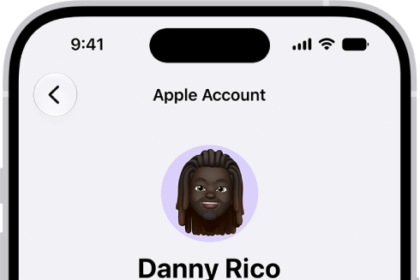
- Open the Settings app and tap your name at the top.
- Just below your name and profile picture, you’ll see an email address. This is your Apple Account (Apple ID).
How to find your Apple ID on Mac
- Click the Apple menu in the top-left corner and choose System Settings.
- Click your name at the top of the sidebar.
- You’ll see an email address below your name and profile picture. This is your Apple Account.
Tip: Open Safari on your Mac, iPhone, or iPad and visit iCloud.com. It will show an option to sign in using your device password, Touch ID, or Face ID. You’ll see your Apple Account here.
How to know if you already have an Apple Account
Maybe you bought an Apple device way back, created an Apple ID, then switched to Android and forgot about it. Or, perhaps you made an Apple Account just for fun and then never cared about it. You can quickly check whether you already have an account with Apple by following these steps:
- Go to iforgot.apple.com and click Reset Password.
- Enter your email address, type the character code shown on screen, and click Continue.
- If the entered email address is not an Apple Account, you’ll see "ⓘ This Apple ID is not valid or not supported." If the email address is an Apple Account, you’ll move to the next step to help reset your password.
In case you don’t have an Apple Account, you can create one for yourself or even your child!



 is and how to find yours on your iPhone, iPad, and Mac.)