Having trouble getting StandBy feature to work on your iPhone after iOS 27 update? Incorrect settings, improper placement, or bugs could be the reason, but we’re here to help.
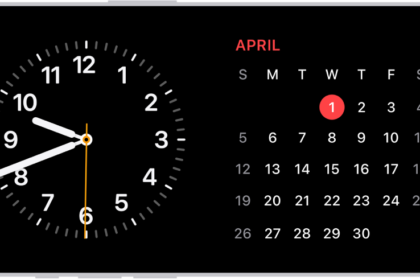
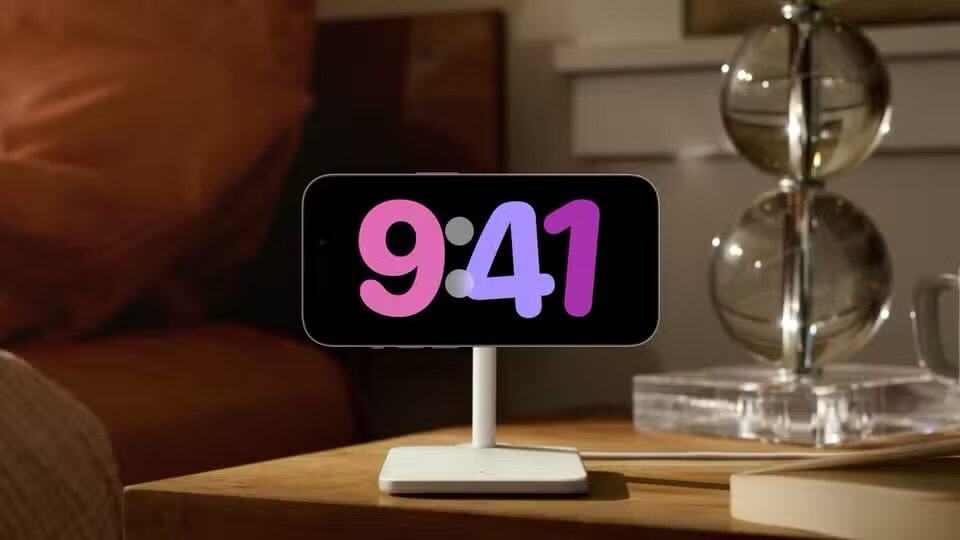
You can use StandBy to turn your iPhone into a bedside clock, a photo frame, a display for viewing widgets or Live Activities in full screen, and more.
However, many iPhone users are having difficulty getting the StandBy feature to work properly after updating to iOS 27. If you’re experiencing a similar problem, you’ve come to the right place, as we’ll discuss a few troubleshooting steps you can follow if StandBy isn’t working on iOS 27.
1. Check if StandBy Is Enabled
Before we get into advanced troubleshooting methods, let’s start with a basic solution: making sure StandBy is enabled. If you haven’t enabled StandBy in your iPhone settings or accidentally turned it off, it won’t work.
Go to Settings > StandBy and make sure StandBy is turned on. If it’s already turned on, try turning it off and back on. Now, try using StandBy again. If it’s still not working, move on to the next solution.
2. Make Sure You’re Using StandBy Correctly
If StandBy is still not working on your iPhone, it could be because you’re not using it properly. To activate StandBy Mode on iOS 27, connect your iPhone to a charger and set it down on its side, keeping it stationary. Press the side button. You can now swipe left or right to switch between widgets, photos, and clocks. Swipe up or down to scroll between options for each of these views.
3. Use an MFi-Certified Charging Accessory
Check whether the USB-C cable or MagSafe charger you’re using to charge your iPhone is MFi-certified if you’re still unable to activate StandBy on iOS 27. That’s because if it’s not MFi-certified, you might occasionally get the This accessory may not be supported pop-up.
Although Apple doesn’t require you to use an MFi-certified charger, we highly recommend it, especially when StandBy fails to activate on your iPhone.
4. Restart Your iPhone
If StandBy is still not working on your iPhone, your last option is to restart your phone. Simply turning your iPhone off and turning it back on is one of the easiest ways to fix any software issue you could be facing with your device. Therefore, a simple restart is also a potential fix when StandBy isn’t working.
However, if you’re still out of luck after a reboot, you should contact Apple Support or make an Apple Store appointment at a Genius Bar for in-person assistance.
Enjoy StandBy on iOS 27 in All Its Glory
We hope one of these troubleshooting steps helped you finally get StandBy to work on your iPhone as intended. Take advantage of StandBy when your iPhone is simply lying on your desk.
Even when you’re not actively using your iPhone, iOS 27’s StandBy feature lets you quickly check any information that might be important or glance at the time without having to press any button or raise your iPhone. But that’s not to say the feature doesn’t have its fair share of annoying quirks.