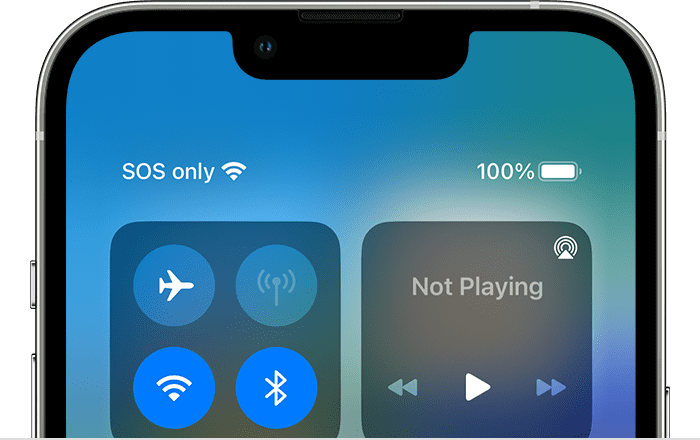
If the top of your iPhone shows “SOS Only” where it normally shows your cell service reception, there are a few issues that could be going on. For one, you might not have coverage at your current location. Either your carrier doesn’t offer cell service at your coordinates, or you’re blocked by a structure that the signal can’t penetrate.
If neither of those is the culprit, there are several troubleshooting steps you can try to fix “SOS Only” on iOS 27. So, let’s take a look.
1. Turn Cellular Data Off and On
Your iPhone’s cellular data may not be working properly. If that’s the case, sometimes the best fix is the easiest fix: turning it off and on again.
Go to Settings ⇒ Cellular. It should be already on, so turn the Cellular Data switch off. Wait about 15 seconds, then turn Cellular Data back on. It may have just needed a quick reset, but if there is still no luck, move on to our next solution.
2. Enable Data Roaming
You may need to turn Data Roaming on, especially if you’re traveling internationally. This allows your iPhone to connect to another network in a different country without having to sign up for a new service. Beware that turning this on can come with additional fees on your phone bill.
To enable Data Roaming on your iPhone, go to Settings ⇒ Cellular ⇒ Cellular Data Options. Then, toggle on the Data Roaming switch.
3. Switch to LTE
Your iPhone may have trouble picking up a specific type of cellular data, especially 5G. While 5G coverage has rapidly expanded over the past several years, LTE still blankets a larger portion of the United States. If your iPhone is set to receive 5G in a location where it’s unavailable, you may need to disable 5G on your device and fall back on another option.
Go to Settings ⇒ Cellular ⇒ Cellular Data Options like before, but this time tap Voice & Data. If 5G On or 5G Auto is selected, choose LTE and see if that gets rid of the SOS Only error.
4. Restart Your iPhone
Of course, we have to mention the good old reboot technique. If you haven’t yet tried turning your iPhone off and on again, let’s go ahead and test it out. You’d be surprised how many little annoyances a quick restart can resolve.
5. Check for Carrier Settings Update
Sometimes, carriers roll out over-the-air updates that can solve problems with connectivity. If you can connect to Wi-Fi, you can check if carrier settings update for your iPhone is available by going to Settings ⇒ General ⇒ About.
If your device needs a carrier settings update, you’ll get a pop-up on this screen. If you don’t see one, you’re up-to-date already.
6. Reset Network Settings
Resetting your iPhone network settings to factory defaults can fix all sorts of Wi-Fi and cellular-related problems on your iPhone. This “forgets” all your Wi-Fi networks, so you’ll have to reconnect to them and re-enter your Wi-Fi passwords. The SOS Only notification may disappear after your iPhone reboots.
To Reset Network Settings, open Settings ⇒ General ⇒ Transfer or Reset iPhone ⇒ Reset ⇒ Reset Network Settings. Enter your iPhone passcode, then tap on Reset Network Settings when the confirmation pop-up appears near the bottom of your iPhone’s display.
7. Contact Your Carrier
When all else fails, you should contact your carrier to see what’s going on. Since having SOS Only status on your iPhone greatly limits the features you can use, you wouldn’t want to have it for long.
There may be an issue with your cell service that’s worth getting to the bottom of. So, visit your carrier’s website and search for a contact or support page to get a customer support phone number.
Getting to the Bottom of “SOS Only” on iOS 27
It’s frustrating when you don’t have cell service on your iPhone. So, we hope one of these solutions aids in getting your service up and running again.
If “SOS Only” is appearing on your iPhone frequently, and you know lack of coverage isn’t the problem, you may want to contact your carrier anyway, even if you managed to fix the issue temporarily.