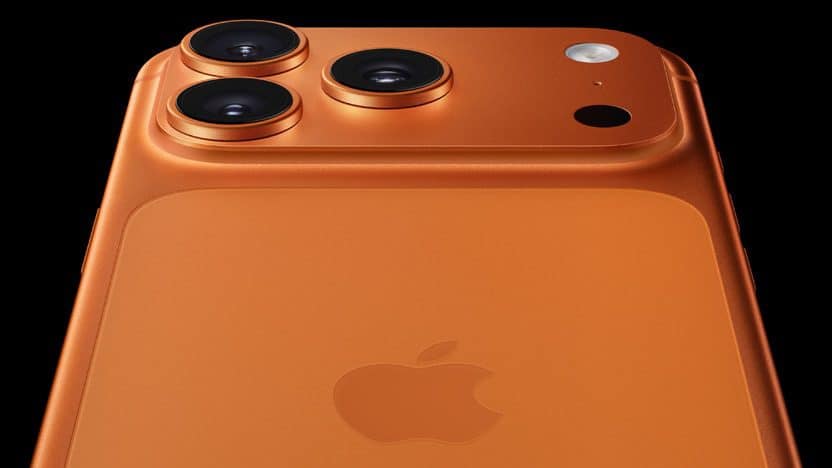
Ever since iPhone 17 Pros got the Dual Camera option in the Camera app, I’ve wondered when it would become available on FaceTime, and it finally is! As long as you and your contact have compatible devices and software, one of you can share both the front and back camera views simultaneously during a video call!
Why You’ll Love This Tip
- Experience a more immersive FaceTime call that shows your face and point of view simultaneously.
- Never miss another special moment, like seeing a loved one opening your gift while seeing their face light up.
How to use iPhone Dual Camera in FaceTime
System Requirements
_This tip was performed on an iPhone 17 Pro running iOS 27. Both parties need to have an iPhone 17 Pro or newer running iOS 27 for the steps to work.
There are third-party apps that have made it possible to show both the front “selfie” camera and the back cameras simultaneously, but the feature is new to iPhones. Keep in mind that only one person can share both cameras at once. Here’s how to have a double camera iPhone video call:
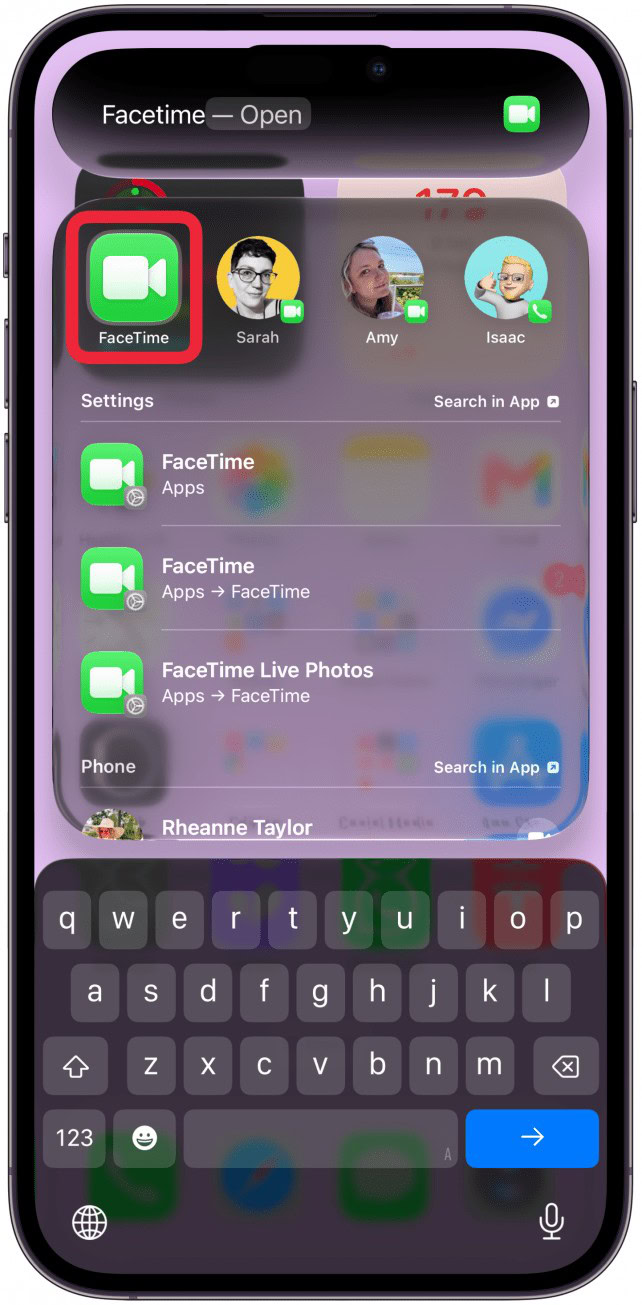
- Open FaceTime.
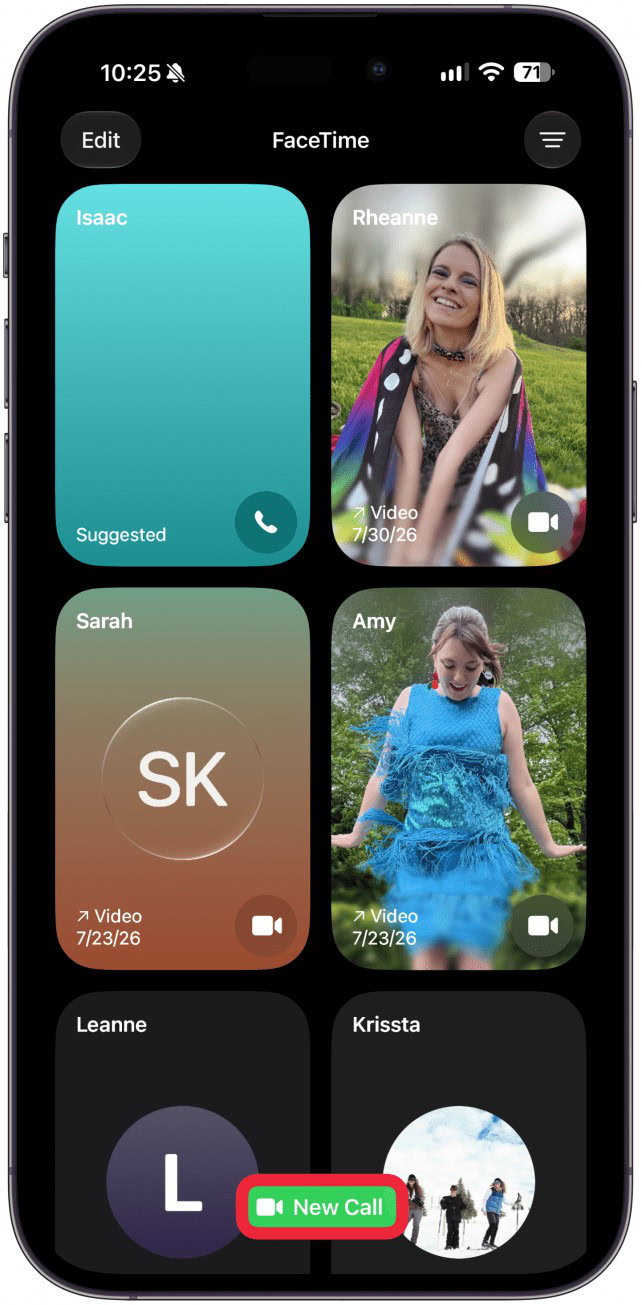
- Tap New Call at the bottom of the screen.
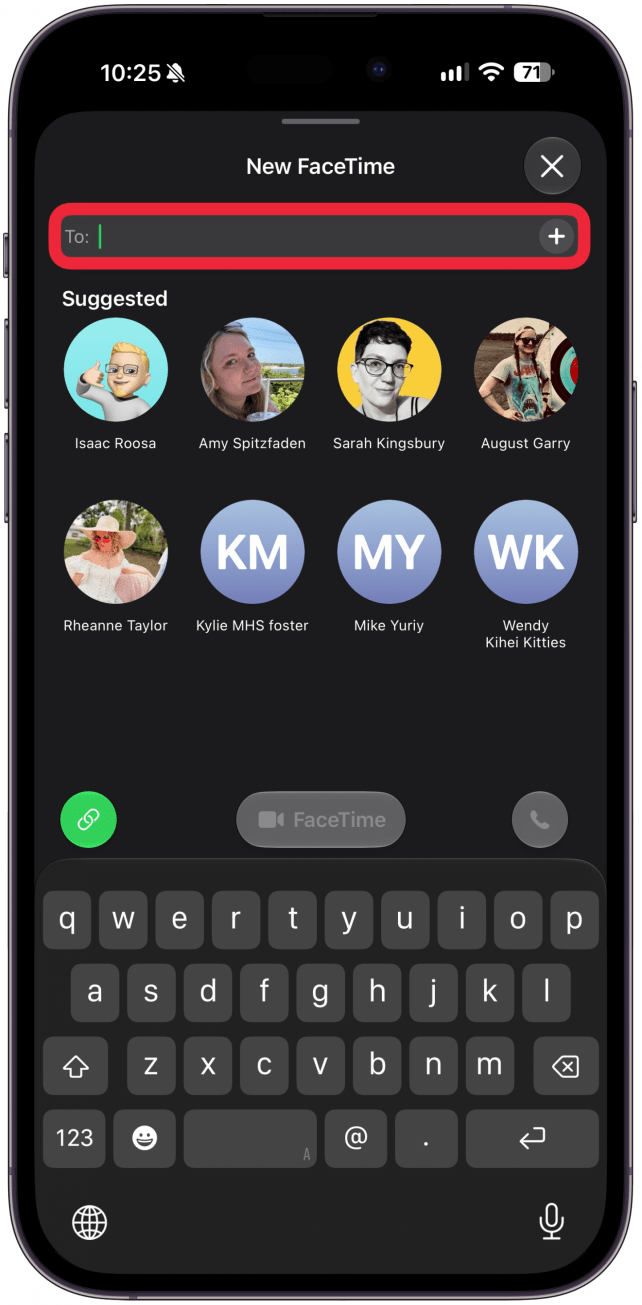
- Type your contacts name in the “To:” field.
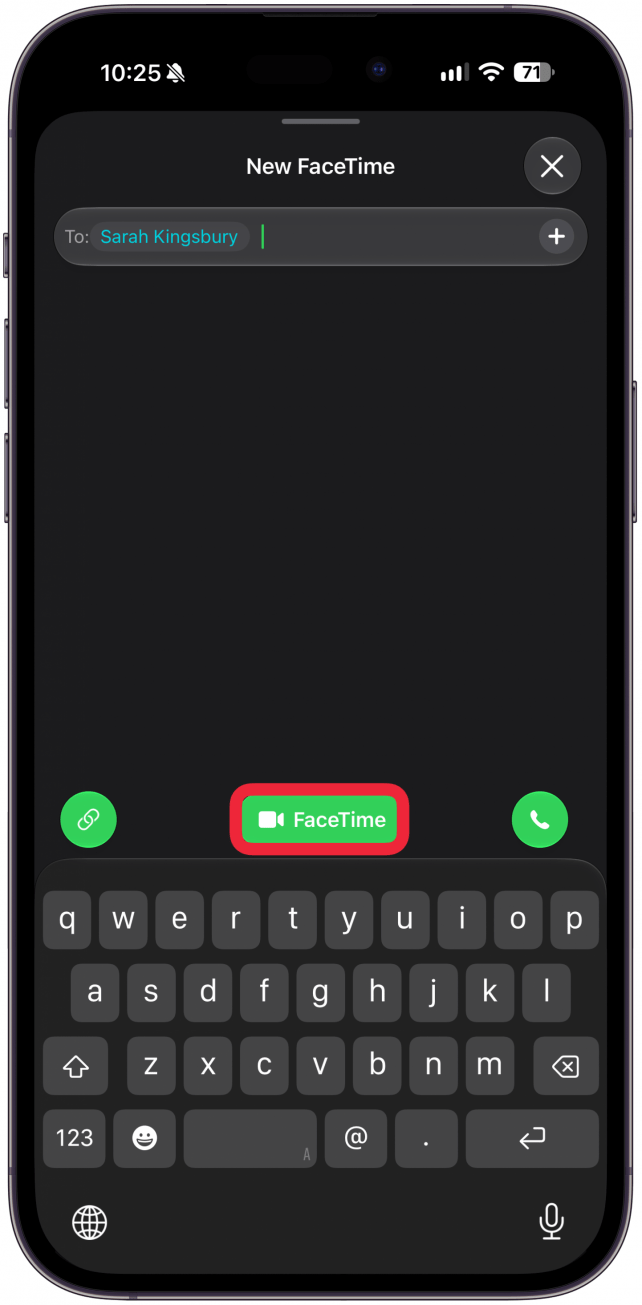
- Once you’ve selected a contact, tap FaceTime.
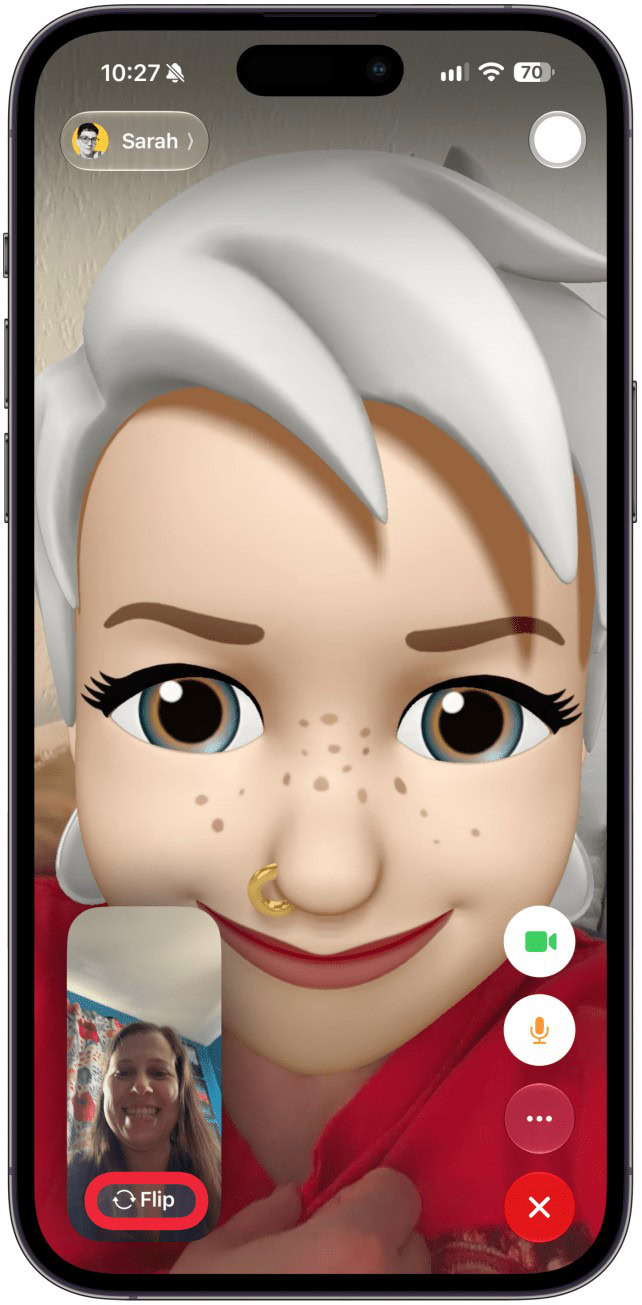
- Tap the Flip icon at the bottom of the window showing your front camera.
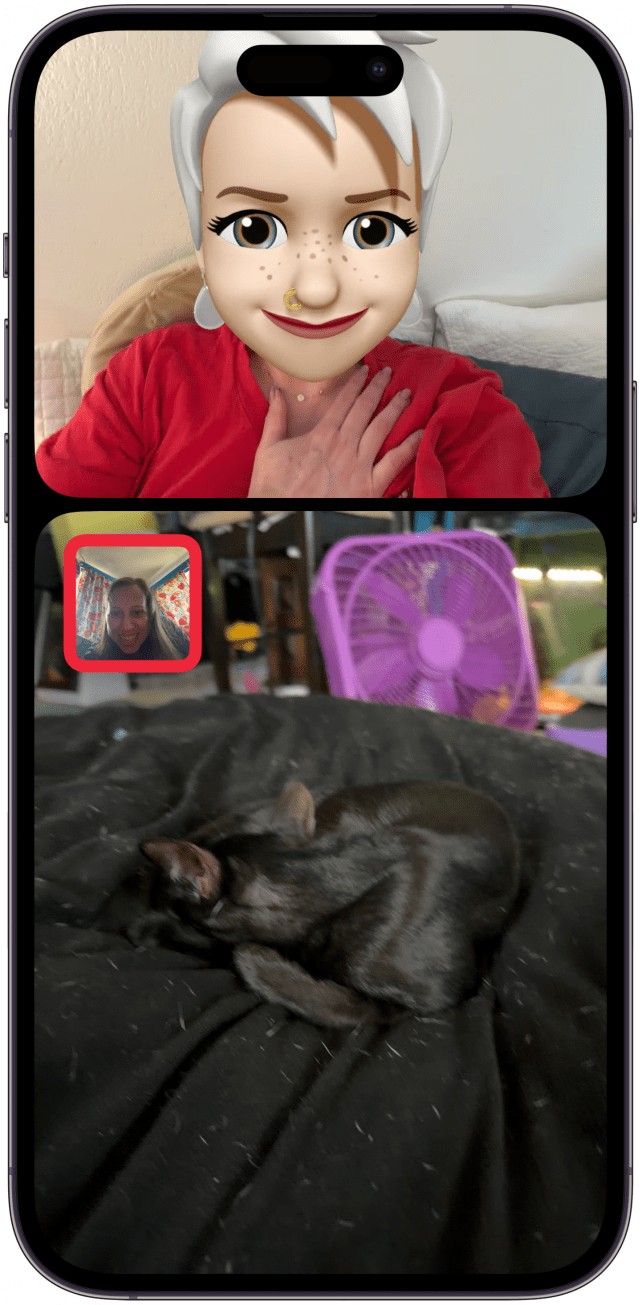
- Your back camera will now be visible in addition to your front one. If you want to turn off your front camera, you’ll have to tap on your front camera window.
- Tap the crossed out profile icon in the top left of your front camera view window.
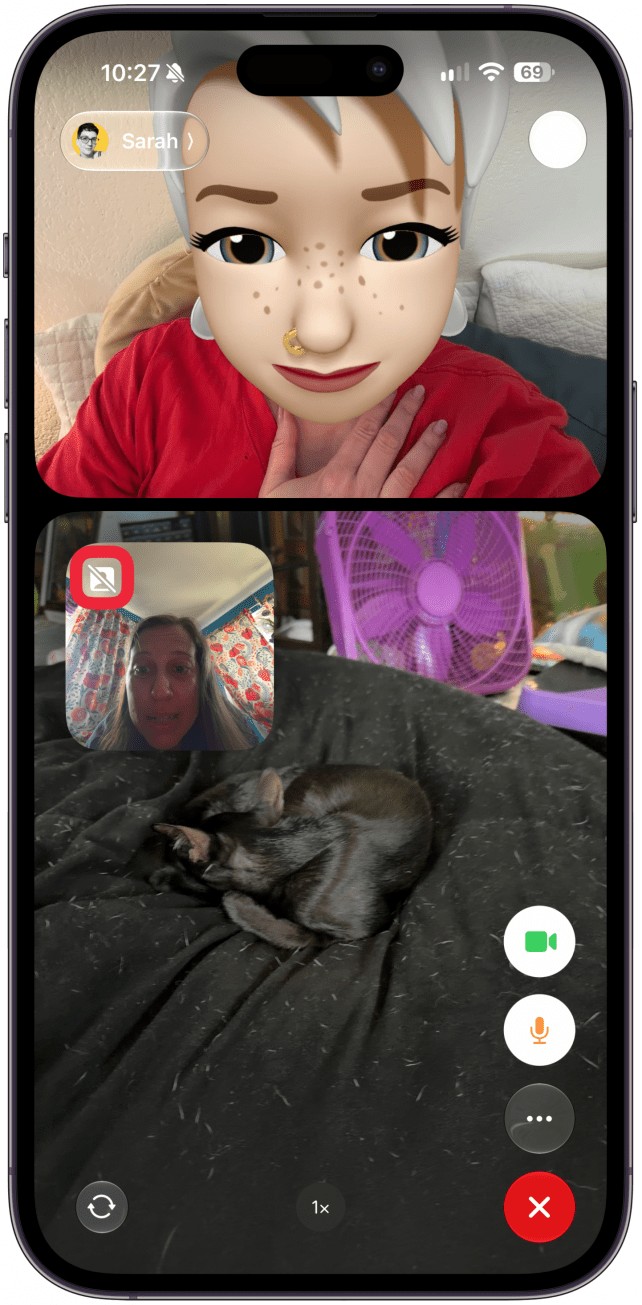
- You can then tap the profile icon in the top left of your window again to show both cameras again. Or tap the flip icon at the bottom left of your screen to only show your front camera.
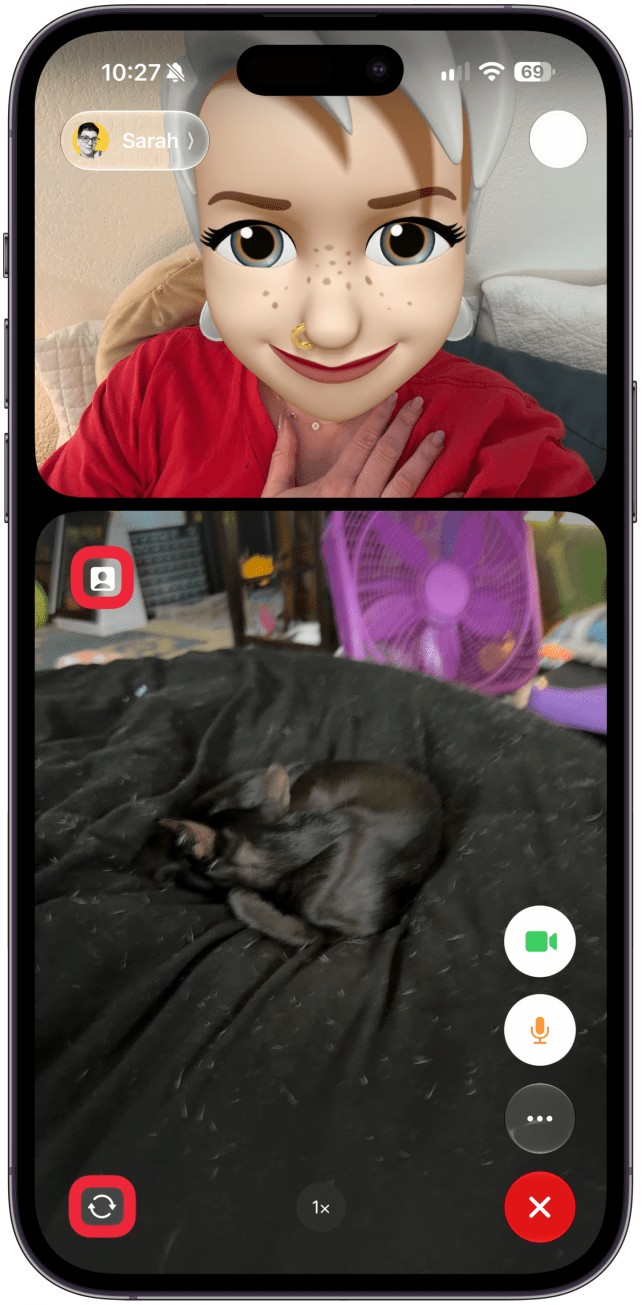
Since only one person can share both camera views at the same time, if you are sharing both cameras and the other person taps the flip icon on their phone, they will start sharing both cameras while yours will return to only one camera view. There is no confirmation to switch from one person sharing both cameras to the other. Hopefully one day, it will be possible for both people to share both cameras simultaneously!
Now you know how to have a FaceTime call using the front and back cameras at the same time. This is one of the collect new FaceTime features Apple has released in a while!