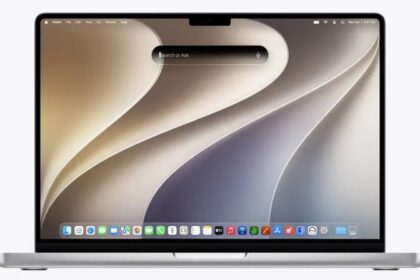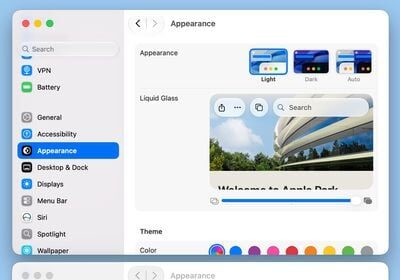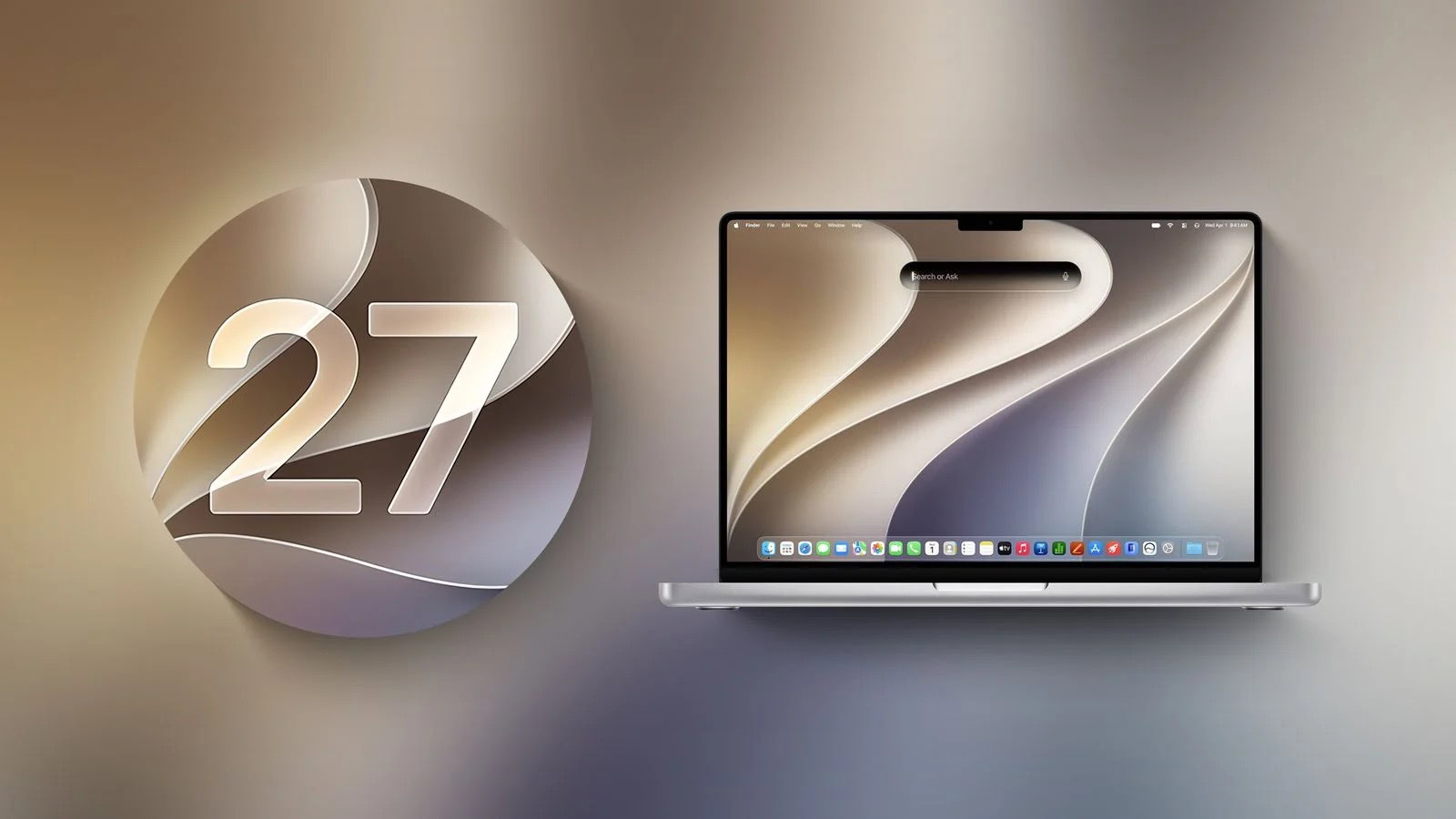
If everything has gone as expected, your Mac is now successfully running macOS 27 Golden Gate. (If things haven’t gone as expected, see what to do when the upgrade goes wrong.) But there are still a few tasks left to do before you get to work—or play—with your new operating system. Here I cover some important initial setup and configuration activities you should get out of the way right now.
Respond to immediate questions
Depending on your starting point, configuration, and upgrade path, you may see a normal desktop and nothing more after installing. In other situations—especially when you have a lot of third-party software—you may be immediately confronted with a large stack of overlapping dialogs and notifications.
Among the most common questions are requests for your user account password or Apple Account password. For example, certain apps may once again need an administrator’s authorization to make changes to your data, and apps that use your Apple Account may need you to sign in again. You’ll also see requests to enable notifications; permit apps to have access to your contacts, calendars, bookmarks, and various resources in System Settings > Privacy & Security—among other alerts.
For example, you may see one or more notifications requesting for permission for apps to access other devices on your local network. This is not suspicious behavior, and it’s fine to allow it.
Work your way through any such dialogs you see, even if they seem redundant or if they ask for permissions you’d previously granted. After that one-time process, most of them will not reappear.
Handle software updates
The next thing you should do is to update macOS itself (and any other crucial Apple software) to the latest version. Sometimes Apple releases bug fixes and security updates almost immediately after a major upgrade, and if any such urgent updates are available, it’s in your best interest to install them right away. (This can be true even if you immediately purchase a newly introduced Mac later this year that can only run macOS 27 and later. Those Macs were “imaged” with the version of macOS 27.0 weeks before they shipped.)
Software Update and the App Store should automatically notify you when updates are available, but I recommend looking at the Software Update pane manually after your Mac starts up under macOS 27 for the first time. Start with System Settings > General > Software Update for updates to macOS 27 itself.
In addition to installing any updates, decide how you want Software Update to handle future updates. Your Mac automatically checks for and can optionally download and even install updates in the background.
- Go to System Settings > General > Software Update. macOS checks for updates, and any available updates appear. To apply them, click Update Now.
- Click the Info button next to Automatic Updates. A dialog appears.
- macOS always checks for updates automatically. Whether it actually does anything when an update is available depends on your other choices here:
- Download new updates when available, which not only notifies you of updates but also downloads them for you so you can install them as soon as you’re ready. In the notification, click Install to install immediately; click Later and choose Try in an Hour, Try Tonight, or Remind Me Tomorrow to snooze the reminder; or click the notification itself to open the App Store.
- Install macOS updates, which downloads and installs updates to macOS itself and asks you to restart your Mac. You may be prompted for your password if you change this.
- Install system data files and security updates, which installs these essential updates without prompting you and without requiring a restart.
For updates to other Apple software and third-party apps you’ve purchased from the App Store, choose Apple menu > App Store. Then click Updates in the sidebar. To update a single app or group of apps, click the Update button next to it. Or, to update all the listed apps at once, click Update All. The App Store downloads and installs the updates automatically. While you’re at it, make sure App Store is set up for automatic updates. In Sequoia and earlier, the Software Update pane of System Settings included an “Install application updates from the App Store” switch. That’s no longer there in macOS 27; instead, it’s right here: go to App Store > Settings and select Automatic Updates.
Deal with other surprises
You may encounter a couple of other peculiarities when first using macOS 27 that cause some initial surprise.
Apple Mail
The first time you launch Mail under macOS 27, a window may inform you that it’s “optimizing” your Mail database. This step should take no more than a few minutes, and is necessary because the macOS 27 version of Mail has updated the database format it uses to store information about your messages.
System Settings
As a reminder for those upgrading from macOS 12 Monterey or earlier, the app formerly known as System Preferences is gone, replaced with a new one called System Settings, which looks quite a bit different. See what changed in System Settings.
Siri and search optimization
The massive overhaul in Siri technology also comes with a complete redo of Spotlight searching in macOS. The new indexing process can apparently take longer—potentially far longer than the previous Spotlight indexing. You might see a note that Siri and Search are optimizing in Settings > Siri or Settings > Spotlight until this is complete.
However, Apple said it would release the indexing update to macOS 26 Tahoe, so that the task would slowly happen over the summer. Then, when you upgrade to macOS 27, the index can be used immediately. I’m not sure how this will play out in practice.