The marquee feature of macOS 27 Golden Gate is the long-promised and long-delayed Siri, now called Siri AI.
Unlike the original Siri, the new version—first promised for macOS 15 Sequoia in 2024—has conversational capabilities similar to other modern digital assistants like Alexa and Google Assistant, plus hooks into many parts of macOS and individual apps. It can function as a chatbot in the same vein as ChatGPT or Claude, and can incorporate information from the public web into its responses.
In short, Siri AI is now (close to) what it should have been many years ago, and reasonably on par with its competitors. It’s far more useful, and easier to work with, than any previous version of Siri. Unlike existing chatbots, Siri AI can access your private data—like email, photos, local files, and calendar events—to provide background information for answering questions. Even better, it doesn’t upload your data—Apple says private data doesn’t leave your device—or use it to teach their AI models.
Meanwhile, Apple Intelligence, a collection of features across Apple devices that incorporate Apple’s take on artificial intelligence, has expanded, and the lines between what’s now considered part of Siri and what’s considered part of Apple Intelligence have blurred. Apple appears to be leaning more heavily on the Siri branding for certain features that were previously called Apple Intelligence. In any case, it’s all of a piece now: enabling or disabling Siri (in System Settings > Siri) also enables or disables most of the other Apple Intelligence features.
Siri AI initially operates only in English, and a few features require an M3 or later Mac with at least 12 GB of RAM.
What follows is what is new with Siri AI and Apple Intelligence for macOS 27 users.
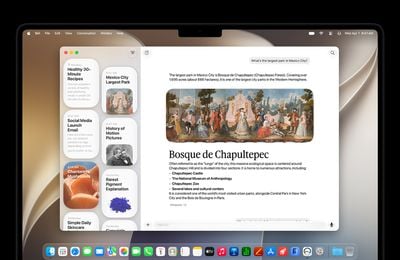
- Siri works more like a chatbot now: Activities that previously required an AI chatbot like ChatGPT or Claude, or a smart speaker-based system like Alexa or Google Assistant, can now be handled directly by Siri. You can have more natural and extensive back-and-forth conversations, with Siri being more aware of the context of what you’re asking than it did previously. You can drill down on responses or ask it to refine its results.
- Siri can access the web: As you may have inferred from that example, Siri was using information that wasn’t on my Mac or on Apple’s servers, but rather, “out there” on the web. So, you can ask about nearly any topic, and instead of merely being shown a list of potentially helpful webpages as in the past, now you get the information directly.
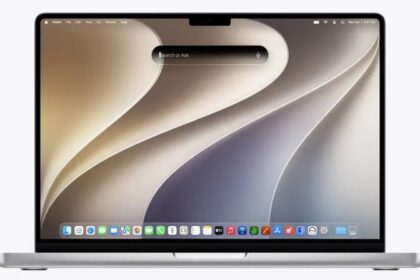
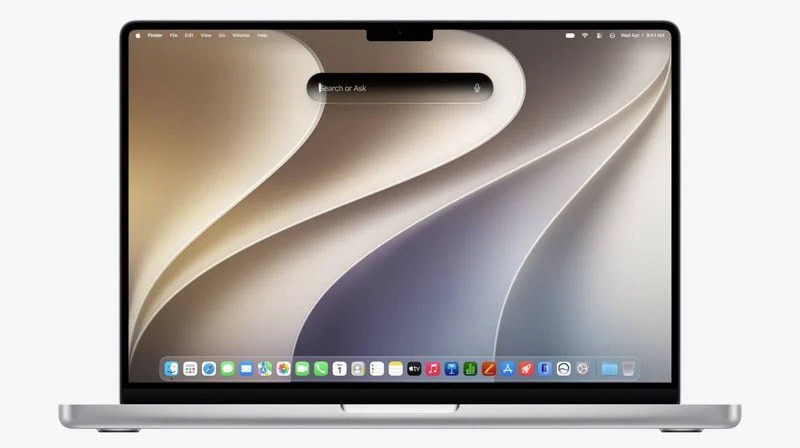
- Spotlight and Siri share an interface: In macOS 27, when you press the Spotlight shortcut (⌘-Space by default), you get a text field that serves both purposes (see Spotlight); the gray text in the field even reads Search or Ask. You can type the name of an app or file, and it will give you the same results as Spotlight always has. But you can also ask questions that Siri will answer from its nearly unlimited storehouse of information. Or you can use a plain-language description of what you’re looking for on your Mac and Siri will find it.
- Siri knows more about you: Siri can now understand what Apple calls “personal context,” which is to say, information that can be pulled from the various apps on your Mac—Calendar, Contacts, Mail, Messages, Notes, Photos, Reminders, and so on. That means Siri can incorporate information found in any of those apps into its responses and actions.
- Visual Intelligence comes to macOS: Visual Intelligence was first introduced in iOS and iPadOS, letting your device describe what it saw in a screenshot or the Camera app—or act on it, like extracting information from a poster or a bill. Now your Mac has it, too. This means you can ask Siri about anything on your screen, or have it do something with information on screen. To use this feature, you can simply invoke Siri (for example, by pressing ⌘-Space) and ask a question about something you see on your screen. Or, you can use a new screenshot mode that doesn’t automatically save screenshots. Press ⌘-Shift-6 and highlight a portion of your screen to ask Siri about something in that specific area, or press ⌘-Shift-Space to ask Siri about the frontmost window. Even if you don’t ask Siri anything, it may automatically identify plants, animals, and other elements found in screenshots. (macOS doesn’t yet apply Visual Intelligence to the FaceTime camera or Continuity camera.)
A new switch in System Settings > Siri, Automatic Visual Look Up, is labeled “Identify objects and places that appear in screenshots.” However, I’m unsure what effect this is intended to have, as I am seeing Visual Intelligence hints in screenshots whether or not this switch is turned on.
- The Siri app is new: There has always been an app on your Mac called Siri, but opening it did nothing more than display the Siri field for you to enter a request. Now, however, the Siri app shows you your previous conversations, and even lets you continue them. Siri conversations sync across your devices using iCloud.
- More actions are available: Siri could already take certain actions, such as changing your Mac’s volume or turning VoiceOver on or off. In macOS 27, thanks to an underlying framework called App Intents, Siri can take a much wider set of actions in a larger number of apps. For example, you could ask Siri to send a message in Messages containing the title of the song now playing in Music. Most of Apple’s apps already support actions like these, and third-party apps are getting there.
- You can customize Siri’s voice even more: In System Settings > Siri, click Voice, and you can select a base voice and then drag the Pace and Expressivity sliders as sample responses are played to dial in exactly the tone you prefer.
This feature requires an M3 or later processor and at least 12 GB of RAM.
- Writing Tools look different: If you select text you want to adjust using Apple Intelligence, you no longer see a Writing Tools submenu on the Edit menu or a Writing Tools badge, but rather a Siri badge in most apps, which you can click to reveal the existing tools arranged differently and without the “Writing Tools” label. Some apps give you access to the same tools via a Siri toolbar button.
Apple Intelligence features are currently available in Chinese (Simplified), Chinese (Traditional), Danish, Dutch, English, French, German, Italian, Japanese, Korean, Norwegian, Portuguese, Spanish, Swedish, Turkish, and Vietnamese.