Voicemails may not always work properly. Several iPhone 18 Pro and iPhone 18 Pro Max users have said that their voicemails are delayed, meaning they have been getting voicemails hours or days after they were first left for them. Visual Voicemail notifications are also delayed.
This is an important problem. You should receive your voicemails as soon as a caller leaves them so that you can retrieve your voicemail messages in a timely manner. If not, it can be a very frustrating experience to have this problem. This article explains what you can do when your voicemail notifications are delayed on your iPhone 18 Pro or iPhone 18 Pro Max.
Try these first
- Make sure that Cellular Data is turned on (Settings > Cellular).
- Restart your iPhone.
- Press and hold either volume button and the side button until the power-off slider appears.
- Drag the slider, then wait 30 seconds for your device to turn off.
- To turn your device back on, press and hold the side button (on the right side of your iPhone) until you see the Apple logo.
- Please ensure that you’re in an area with cellular network coverage.
- If there is a delay with your visual voicemails, check your available storage and free up space on your device if needed. Go to Settings > General > iPhone Storage; the available storage is shown at the top of the screen.
- Ensure that voicemail is not full.
- If your problem is that you do not get voicemail notifications, ensure that notifications are turned on for the Phone app. On your iPhone, tap Settings > Notifications > Phone and turn on Allow Notifications.
Check for iOS Updates
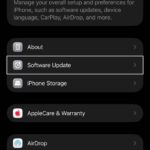
Ensure that your iPhone 18 Pro has the latest version of iOS. If you are not running the latest iOS version, simply update your device. This is a very easy process. When you update to the latest version of iOS, your data and settings remain unchanged. You can check for updates by going to Settings > General > Software Update. And if there are updates available, tap the Download and Install button and then follow the onscreen instructions to update your iPhone.
You can also turn on Automatic Updates. Doing so will allow your iPhone to update itself automatically. You can turn this feature on by going to Settings > General > Software Update > Automatic Updates and turning on Automatically Install. When an update is available, iPhone downloads and installs it overnight while charging and connected to Wi-Fi.
Check for Carrier settings update
If updating your phone does not fix your delayed voicemail issue, now check to see if there is a carrier settings update. Carrier settings updates improve cellular network connectivity and performance. Here is how you can update your carrier settings:
- Ensure that your iPhone is connected to a Wi-Fi or cellular network.
- On your iPhone, go to Settings > General > About. If an update is available, you’ll see an option to update your carrier settings. Follow the onscreen instructions to install your carrier update.
Reset network settings
Please note that doing so will erase all of your network settings including your Wi-Fi passwords etc. You may want to contact your carrier (the next step) before this step if you prefer. On your iPhone, tap Settings > General > Transfer or Reset iPhone > Reset > Reset Network Settings and then follow the onscreen instructions.
Contact your carrier
Voicemail, Visual Voicemail, and Live Voicemail are available from select carriers in select countries or regions, so contacting your carrier may be a good idea.