This article explains what to do when your iPhone 18 Pro screen stops responding to your touch. The problem you are having could be:
- The touchscreen of your iPhone 18 Pro stopped working and nothing happens when you tap or press any buttons.
- The touchscreen is not working how you would expect (e.g., touchscreen lags etc).
- The touchscreen responds inaccurately.
- The touchscreen freezes.
If your touchscreen isn’t responsive or not working as expected, here is what you can do:
After you try each step below, please check to see if your problem is fixed.
1. Charge your iPhone 18 Pro. Simply connect your iPhone to a wall charger and let it charge for a while. It is possible that your device battery is critically low.
2. Clean your screen. Some dirt covering the display may cause touchscreen problems. Use a soft, lint-free cloth to clean the screen.
3. Download and install the latest iOS software version on your iPhone. Here is how:
- Tap Settings
- Tap General
- Tap Software Update
- Tap Update Now
- And follow onscreen instructions
4. Force restart your iPhone 18 Pro. This is also called hard reset. But do not worry, this won’t erase the content on your device. Here is how:
- Press and quickly release the volume up button. Press and quickly release the volume down button. Press and hold the side button. When the Apple logo appears, release the side button.

5. Several users have said that turning on the “Touch Accommodations” helped them with the touchscreen problems. You can also try this. Here is how:
- Tap the Settings app
- Tap Accessibility, tap Touch, then tap Touch Accommodations. Tap Set Up Touch Accommodations, then follow the onscreen instructions.
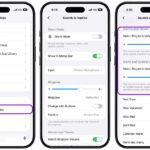
6. On your device, go to Settings > Privacy & Security > Analytics & Improvements and then disable “Share iPhone Analytics”.
7. This tip may sound bizarre but it seems to be working. Several users suggested that touchscreen performance and reliability improves when iPhone casing is touched with hands.
8. Delete, update problematic apps, if your screen becomes unresponsive in certain apps. If this is the case, the problem is the app, not the screen. First, open the App Store app on your device to check to see if any updates are available for the problematic apps. Try to update them. If updating does not solve your problem, you may want to delete them. Touch and hold the app on the Home Screen or in App Library. Tap Remove App, then tap Delete App. Tap Delete to confirm.
9. Free up space. iOS requires enough space to function properly. On your iPhone go to Settings > General > iPhone Storage. You may want to delete apps you do not use or need. You may also want to remove media files, such as photos or movies.
If your touchscreen still doesn’t work, you may want to contact Apple and provide feedback to Apple.