






Some users have been experiencing an issue where they are not able to view videos on iPhone 18 Pro or iPhone 18 Pro Max. Instead of the video, they see a blank screen with an error message saying, “Unable to Load Video – An error occurred while loading a higher-quality version of this video.”
All or some of the videos may exhibit this behavior. There can be several causes for this issue, such as iCloud or storage. If you are experiencing this issue, please try these tips in this order until your problem is fixed.
Fix Unable to Load Video Error
1. Restart: Most users have said that after restarting their devices, this problem went away. Before doing anything else or changing settings, do this. This is easy and harmless. Restart your iPhone 18 Pro and then see if your videos will load.
2. Update: Ensure that your iPhone has the latest version of iOS. Go to Settings > General > Software Update to check for updates. If there is an update, update your iPhone 18 Pro.
3. Check Apple System Status: Your video may not download from the iCloud servers because iCloud may be experiencing outages or be down. Go to the Apple System Status page and check the Photos service. Does it show it is experiencing issues? If so, just wait until the issue is fixed by Apple.
4. Check your iPhone storage: Your video may not load due to lack of storage on your device. Go to Settings > General > iPhone Storage. How much free storage do you have? If you do not have sufficient free storage, you can follow the recommendations listed there to free up some space.
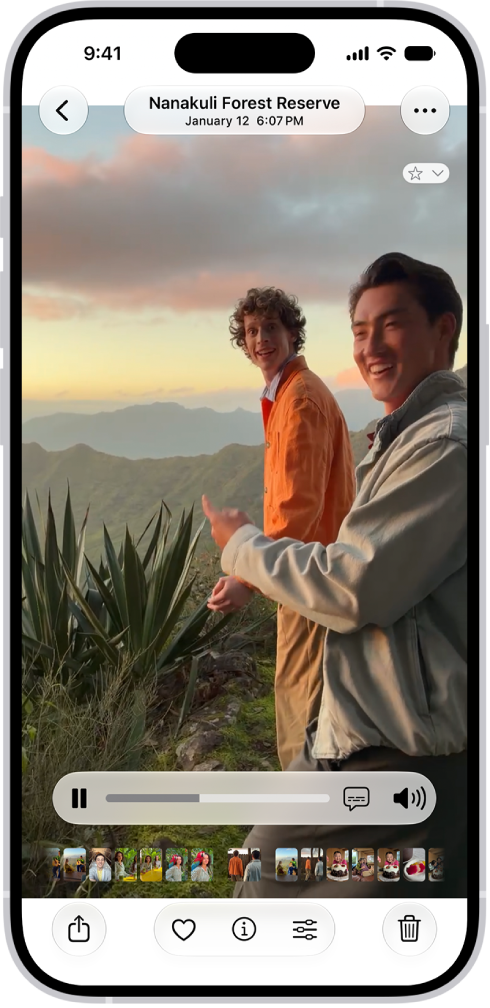
5. Favorite the video on and off again: Some said doing this fixed their problem. Simply open the video and tap the Favorite button (it is the heart icon) in the photos toolbar. Wait a few seconds and tap the Favorite button again to remove the video from Favorites. Then, try to load the video again.
6. Turn off Low Power Mode: In Low Power Mode, some of the background activities are restricted to save battery life. Ensure that your iPhone 18 Pro is charged, and then turn off Low Power Mode by going to Settings > Battery > Power Mode > Low Power Mode.
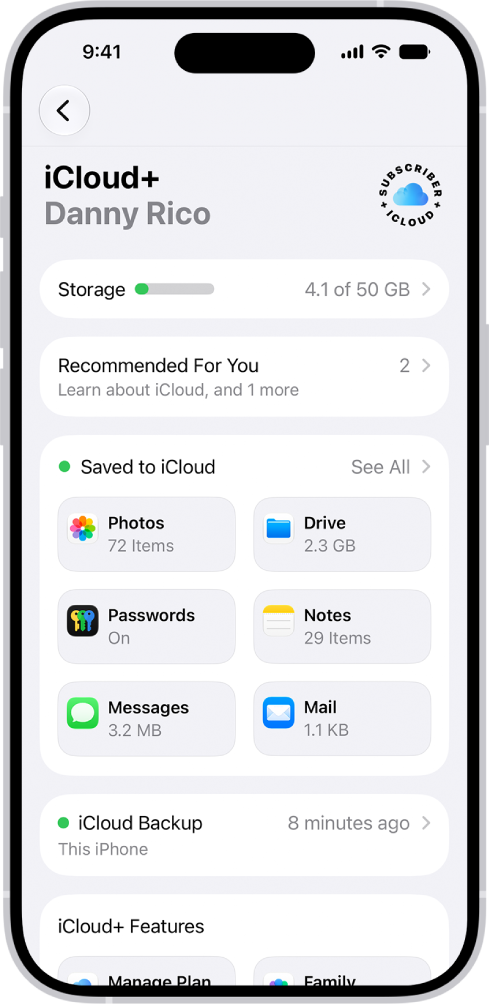
7. Check your iCloud storage: On your iPhone 18 Pro, go to Settings > [your name] > iCloud and check if you have at least 1 GB of available storage in iCloud.
8. Check your Internet connection: Ensure that you have a reliable Internet connection. If your Internet connection is poor, you can try restarting your modem and turning on and off Airplane Mode. If you are connected to the Internet over cellular, switch to Wi-Fi if there is Wi-Fi available. Lastly, ensure that Photos is allowed to Use Cellular Data. Go to Settings and tap Cellular or Mobile Data, then turn on Photos if it is off.
9. VPN?: Are you using a VPN? If so, VPNs may cause this issue. Disable the VPN and then try to download the video again.
10. Initiate a backup: Simply initiate an iCloud backup. Some of your videos may be corrupt in iCloud, and we can force your device to start a backup. Go to Settings > [Your Name] > iCloud > iCloud Backup > Back Up Now.
11. Download all of the videos and photos on your device: You may need a lot of storage for this if you have a lot of photos and videos. Go to Settings > [your name] > iCloud > Photos > iPhone Storage and then select Download and Keep Originals instead of the Optimize iPhone Storage option. Your iPhone will start downloading the videos and photos.
12. Turn off Sync this iPhone and then turn it on again: There may be something wrong with the iCloud photos. You can turn it off and on again to force re-syncing. It is important to download all of your original photos and videos on your device. Go to Settings > [your name] > iCloud > Photos > iPhone Storage and select Download and Keep Originals. Wait for the download to complete. Then go to Settings > [your name] > iCloud > Photos and turn off Sync this iPhone. Then turn it on.
So, you have tried all of the tips above, and you are still unable to load the videos? You can try to view the video from iCloud.com. Alternatively, you can try to share the video with yourself. For example, you can send the video to yourself using the Messages app or something similar, like WhatsApp, as WhatsApp allows you to message yourself.









