This article explains what you can do when your iPhone 18 Pro screen does not rotate. Your iPhone’s screen has two screen orientations:
- Landscape mode
- Portrait mode
When you tilt your device on its side, the screen is supposed to follow and rotate to landscape mode. Your screen is supposed to rotate based on how you are holding the device, meaning when you move your device between portrait and landscape, the screen will reorient. Your iPhone uses an internal accelerometer to identify the angle at which it is being held by sensing movement and gravity.
There are, however, some exceptions:
- Some apps or screens only support landscape or portrait mode, for example:
- Your Home Screen can only be viewed in portrait mode.
- Settings app only supports portrait mode.
- App Store only supports portrait mode.
- Some apps will have different layouts for different screen orientation.
- Make sure that you have screen rotation enabled. If you turn on Portrait Orientation Lock, this will lock the screen rotation and your screen will not rotate. The screen will stay in portrait mode, always, until you disable this. You can change this by opening Control Center (find the circle arrow with a padlock icon). When you lock the screen orientation, the lock icon will appear in the status bar.
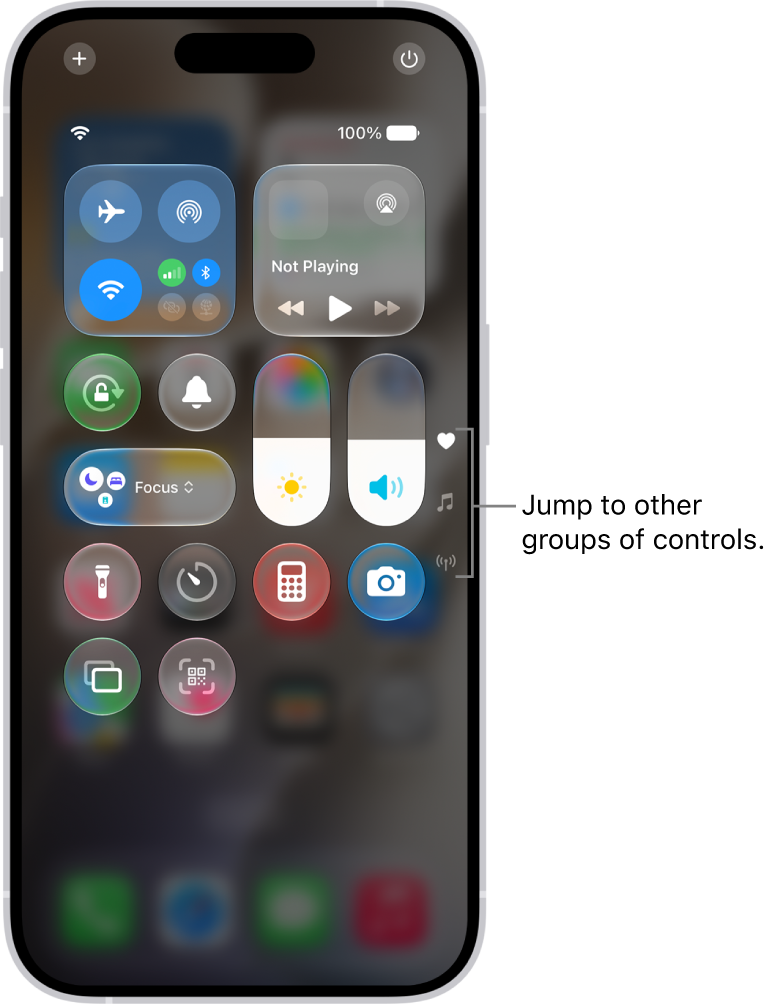
If your screen is still not rotating, please try the following tips:
1-Restart your iPhone 18 Pro. You can power off your device by going to Settings > General > Shut Down. And then turn it on. It is highly likely that after restarting, rotation will start working again.
2-Check for iOS software updates and update your iPhone, if there is an update.
3-Try another app to see if screen rotation works. You may try Safari, Calculator, Mail, Calendar, etc. Is your screen rotating properly? If it is, that means that your iPhone’s screen rotation is working. This means that the app you were using supports only one orientation, the landscape mode or the portrait mode, and does not support rotation. Or it may also mean that the app you were having orientation problem with is having a temporary issue. Try force closing the app and then reopen it. This will probably resolve the problem. Here is how you can do that:
- Go to Home Screen and swipe up and this will reveal the recently used app. Simply swipe up on the app’s icon. And reopen the app.

4-Force restart your iPhone 18 Pro. This is also called hard reset. But do not worry, your content or settings will not be deleted. Here is how:
- Press and quickly release the volume up button. Press and quickly release the volume down button. Press and hold the side button. When the Apple logo appears, release the side button.

If you are still having this issue, it is possible that you are having a hardware failure. You may want to contact Apple support.